Travel connectivity guide
Vivo X100 Pro 12GB RAM eSIM Compatibility
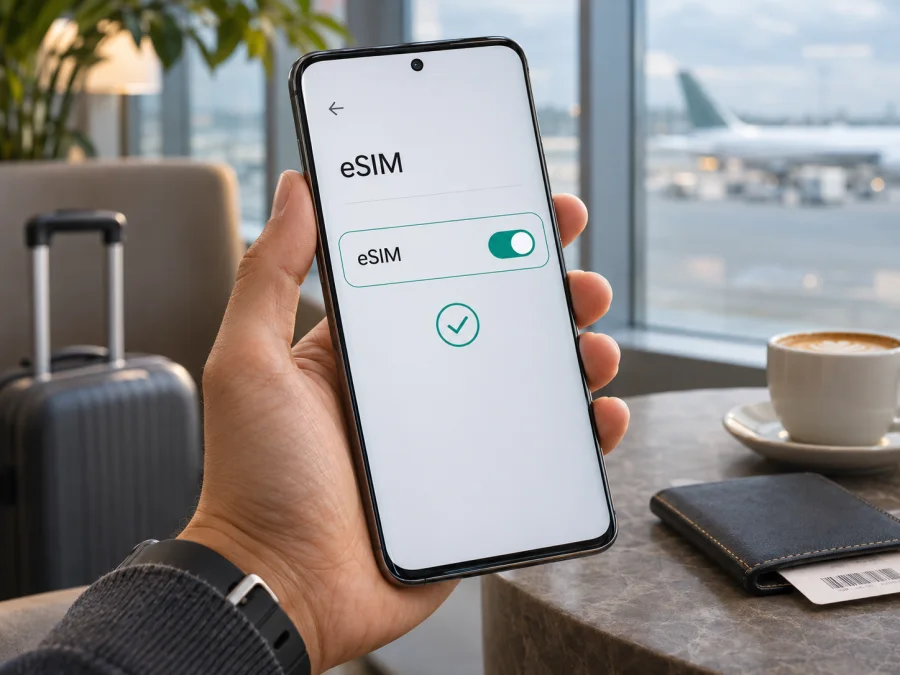
Vivo X100 Pro 12GB RAM eSIM: compatibility and setup guide
The Vivo X100 Pro 12GB RAM can use eSIM only if the exact regional version of the phone includes eSIM hardware and software. The RAM label alone does not settle compatibility. Vivo’s global X100 Pro specifications list a SIM configuration of two nano-SIMs or one nano-SIM plus eSIM. Vivo’s China-market specification, which lists a 12GB+256GB configuration, specifies dual nano-SIM instead. That means a China-market 12GB unit should not be assumed to support native eSIM, while some versions sold for other markets do.
Before choosing a travel data plan, identify the phone’s model code and sales region, then confirm that its settings show an eSIM option or EID. If you cannot verify both the regional configuration and the on-device option, treat compatibility as unconfirmed and ask the seller or vivo support using the model code. A device’s 5G capability, large memory, or dual-SIM label does not prove that it has eSIM.
Does the Vivo X100 Pro 12GB RAM support eSIM?
The accurate answer is conditional: some Vivo X100 Pro regional versions support eSIM; the China-market version does not list native eSIM. The official global product specification describes the X100 Pro as supporting either two physical nano-SIMs or one nano-SIM and one eSIM. The official China product page identifies the V2324A model and includes a 12GB+256GB configuration, but lists the SIM type as dual nano-SIM. These are different market specifications for a device with the same family name.
The words “12GB RAM” describe memory capacity, not the communications hardware or firmware. They are not a complete model number. A retailer may also use RAM as a headline and omit the storage size, model code, or region. Do not decide from a product title, a marketplace compatibility list, a box photo, or another owner’s report. Verify the handset in front of you.
| Item | What can be confirmed | What it means for eSIM |
|---|---|---|
| Device name in this guide | Vivo X100 Pro 12GB RAM | Keep this exact variant in mind when checking; do not infer from another X100 model. |
| Memory configuration | Vivo’s China specification lists 12GB+256GB among the X100 Pro options | The RAM amount can help identify the listing, but it does not establish eSIM support by itself. |
| Global SIM configuration | Vivo’s global X100 Pro specification lists 2 nano-SIMs or 1 nano-SIM + eSIM | A genuine eSIM-capable market version can accept a compatible data profile. |
| China-market SIM configuration | Vivo’s China page lists dual nano-SIM for model V2324A | This configuration should be treated as not supporting native eSIM. |
| Local operator access | Depends on the device variant, software and operator | A compatible eSIM profile must still be accepted by the phone and supported in the destination. |
| Calls and texts on a travel data plan | Depends on the plan; travel data plans are commonly data-only | Check the selected plan’s terms. A data-only eSIM does not add a regular phone number. |
Why the market version matters
Manufacturers can release devices with the same commercial name but different SIM trays, radios, certification, firmware, or enabled features in different markets. Vivo’s own published specifications demonstrate a relevant difference for X100 Pro: its global specification lists eSIM as one possible SIM arrangement, while the China-market V2324A page lists two nano-SIM cards. That is a concrete regional distinction, not a general rule that every global phone will work with every operator.
The exact model code is more useful than the RAM label. Check Settings → About phone for the model number, then compare it with the region and configuration printed on the original packaging or purchase record. Some devices imported from another market may run a different software build or have an altered seller description. A firmware update may change menus or network behavior, but it cannot be assumed to add an eSIM component that is not present in the handset.
Also distinguish the phone’s own eSIM capability from operator support. A phone may be capable of storing an eSIM but not accept a particular provider’s profile, or the provider may not support that specific model or software version. Carrier locking can also prevent activation of a profile from another provider. Confirm all three points: the handset has native eSIM, the phone is not restricted to another operator, and the plan can be used in your destination.
How to check your exact phone before buying
Use the checks below on the handset itself. Menu names can differ between Funtouch OS and OriginOS versions, and language or software updates can change the wording. Search Settings for “eSIM,” “EID,” “SIM,” or “mobile network” if a suggested path does not match your screen.
Compatibility checklist
- Find the model code. Open Settings → About phone and write down the full model number. Do not rely on “X100 Pro” alone.
- Confirm the market version. Compare the model code and full configuration with the seller’s documentation and the official vivo specification for that sales region. Ask the seller to confirm native eSIM support for this exact code in writing if unclear.
- Look for an EID. In About phone, status information, or SIM status, search for an EID (Embedded Identity Document). An EID is a strong indication that an eSIM component is present. A blank result or no EID is not enough by itself if the software hides the field, so continue with the settings check.
- Look for a real add-eSIM control. In Settings, open the mobile network or SIM management screen and look for “Add eSIM,” “Download a SIM,” or equivalent. A visible eSIM setup path is a practical confirmation; do not mistake “Add SIM” for eSIM if it only describes inserting a physical SIM.
- Check the SIM manager. A compatible version should expose an eSIM profile or the option to download one. Do not scan a purchase QR code just to test the menu: activation codes may be single-use or tied to a specific device.
- Check the lock status. Contact the original carrier or seller if the phone was sold on contract, imported, or refurbished. Ask whether it is carrier-unlocked and can use a travel eSIM profile.
- Check software. Install available stable system updates, restart, and recheck. An update can correct a missing menu or activation issue, but it does not prove a China-market dual-nano device has eSIM hardware.
For a quick next step, check your device before purchasing a travel plan. If the exact version remains uncertain, postpone purchase and ask vivo support or the seller to verify the model code. A compatible-looking menu on a different phone or a generic device list is not confirmation for your unit.
How to find EID and the eSIM menu
Connect to Wi-Fi, open Settings, and search for EID. Depending on the software build, it may appear under About phone, Status, or SIM status. An EID is a device identifier, not an activation code; keep it private. Then search Settings for eSIM or open Mobile network/SIM management and look for an explicit “Add eSIM” or “Download a SIM” action.
Menu names differ between OriginOS and Funtouch OS, and an absent EID field alone is not conclusive if the interface hides it. Check both the model code and the on-device menu. If neither an EID nor an eSIM setup option can be found, ask vivo or the seller to verify the exact model and software version. Do not use dialer codes or unofficial firmware to force support: software cannot be assumed to add hardware absent from the device.
Install and activate a travel eSIM
Continue only after confirming the phone has native eSIM support and is unlocked. Keep Wi-Fi available for the profile download and follow the selected plan’s activation rules. The exact menu wording can vary by software version.
Android setup steps
- Prepare the phone. Connect to reliable Wi-Fi and keep the QR code available on another screen, or use the provider’s supported direct installation flow.
- Open SIM settings. In Settings, open Mobile network, SIM cards, or SIM management. Choose the option that explicitly adds or downloads an eSIM.
- Install the profile. Scan the QR code or follow the on-screen flow. Enter manual details only if the provider supplied them. Avoid repeated scans if the code may be single-use.
- Label and confirm. Give the profile a clear name such as “Travel data.” Do not delete it casually; some profiles cannot be reinstalled with the same code.
- Choose when to use it. Check when validity begins. If needed, leave the profile off until the plan’s stated activation time or until you arrive.
- Set mobile data. When ready, enable the travel eSIM and select it as the mobile data line. Keep your usual number enabled only if you need it and understand your home carrier’s roaming terms.
- Check roaming and APN. Some plans require data roaming on the travel eSIM. Follow the provider’s instructions and use only the APN details it supplies.
- Wait for registration. Allow a few minutes to connect. If there is no service, verify the destination, plan status, network selection, and APN before contacting support.
Kaspersky eSIM Store’s Android installation guide shows the general QR and data-line flow. It is written for Samsung, so Vivo menu names may differ. The iOS guide is for iPhone and is not the procedure for this Android phone.
Install before travel or after arrival?
Installing before departure can be convenient if the plan allows it and you know when validity starts. Some plans begin at installation or activation; others start on first connection in the destination. Check the specific terms rather than assuming. If you install after arrival, arrange Wi-Fi or another internet connection for downloading the profile. A QR code displayed on the same phone generally needs another screen to scan.
Kaspersky eSIM Store is an app and website where you can select, arrange, and activate an eSIM with a data plan for an international trip. After compatibility is confirmed, you can browse current destination plans and compare the destination, allowance, validity, and activation terms shown. The network used depends on the plan and local availability.
Using eSIM for mobile data while travelling
After arrival, select the travel eSIM as the mobile data line and make sure mobile data is enabled for it. If the plan requires roaming, enable roaming on that eSIM only. Turn off automatic data switching if available and you want to avoid the phone falling back to your home SIM. Check calls, texts, and data line settings separately; your home carrier may charge for roaming calls or messages even when travel data is selected.
A data eSIM can support maps, bookings, messaging apps, email, browsing, and other online tasks. Many travel plans do not include a regular phone number, standard voice calls, or SMS unless the terms say otherwise. Internet calls and messages can work through apps already set up on your phone.
For a short city trip, estimate how often you will use maps, messaging, and bookings, then choose a data amount and duration that fit. For work, account for video calls, file transfers, or hotspot use; tethering limits depend on the plan and device. On a multi-country route, verify that every destination is included. A regional name does not guarantee that each border crossing is covered.
When you return, switch mobile data to your preferred home SIM. Check the plan’s remaining data and expiry in the relevant account or app. Keep or remove the travel profile according to its terms; transfer and reuse rules vary.
Common problems and practical checks
No “Add eSIM” option or EID
Start with the model code and region. Vivo’s China-market specification for V2324A lists dual nano-SIM, so do not expect a settings change to add native eSIM to that configuration. If you bought a global version, confirm the region and software with vivo or the seller, restart after any stable update, and search Settings again. If support is still unclear, do not buy a plan yet.
The QR code will not scan or download
Check that the phone is online and the QR code is clear and shown on another screen. Confirm that the code has not already been used or that the profile is not already installed. Enter manual details only when supplied by the provider. Contact plan support rather than repeatedly trying a potentially single-use code.
The profile is installed but there is no service
Make sure the profile is enabled and selected for mobile data. Check that the plan is active in the country you are visiting and has not expired. Try automatic network selection, briefly toggle airplane mode, and allow time to register. If the plan requires roaming, enable it on the travel eSIM. Use only the APN provided with the plan.
Data is slow or appears not to work
Turn Wi-Fi off for a basic test, then confirm the right SIM is selected, mobile data is on, and the plan has remaining allowance. Check APN instructions and any plan limits. Coverage and speed depend on the local network and plan; a phone’s 5G capability does not guarantee 5G availability at every destination.
The phone says “unsupported” or “locked”
Ask the original carrier or seller to confirm that the handset is unlocked and supports the profile. An EID alone does not guarantee that every provider’s eSIM will install. Do not reset settings or delete the profile until the provider advises you, since it may be difficult to reinstall.
Frequently asked questions
Does every Vivo X100 Pro 12GB RAM have eSIM?
No. RAM does not identify regional hardware. Vivo’s global specification lists an eSIM arrangement; the China-market specification for the 12GB+256GB V2324A lists dual nano-SIM. Verify the model code and eSIM menu on your unit.
Is the China-market X100 Pro 12GB+256GB eSIM-compatible?
Vivo’s China-market specification lists two nano-SIMs and does not list native eSIM for V2324A. Treat it as not eSIM-compatible unless vivo confirms otherwise for your particular unit.
Can an update add eSIM to a dual-nano-SIM phone?
Do not assume so. An update can fix software issues, but the China-market specification lists dual nano-SIM. Confirm hardware with vivo before trying unofficial firmware or buying a plan.
Can I use an eSIM and physical SIM together?
Vivo’s global X100 Pro specification lists either two nano-SIMs or one nano-SIM plus eSIM, with dual-SIM dual-standby. Available combinations depend on region and software. Check your SIM manager; do not assume three lines can be active together.
Does a travel eSIM replace my regular phone number?
Usually not. Data-only plans provide mobile data without a standard number, calls, or SMS unless the plan says otherwise. You can keep your usual SIM for your number and choose the eSIM for data, while checking home-carrier roaming charges.
Can I install it before flying?
Often, if the plan allows advance installation and the phone is compatible. Read when validity starts; installation and first use may be treated differently.
Does 5G support guarantee 5G with the plan?
No. Access depends on the regional phone variant, local network, plan, and availability. A 5G-capable device may connect using another available technology.
Final check before your trip
For the Vivo X100 Pro 12GB RAM, the decisive question is which regional version you own. The China-market 12GB+256GB V2324A specification lists dual nano-SIM, while Vivo’s global X100 Pro specification includes an eSIM configuration. Confirm the model code, find the EID or an explicit add-eSIM option on your phone, and make sure the device is unlocked before choosing a plan.
Then check that the destination and dates match the selected eSIM plan, understand when its validity begins, and decide which SIM should handle mobile data. Kaspersky eSIM Store’s app and website can help you select, arrange, and activate an eSIM data plan for an international trip after you have confirmed device compatibility. If the settings and regional documentation do not agree, ask vivo or the seller to verify the exact handset before purchase. A short check now can prevent an incompatible plan from becoming a problem after you arrive.


