Travel connectivity guide
Vivo X300 Pro 128GB eSIM: Compatibility & Setup
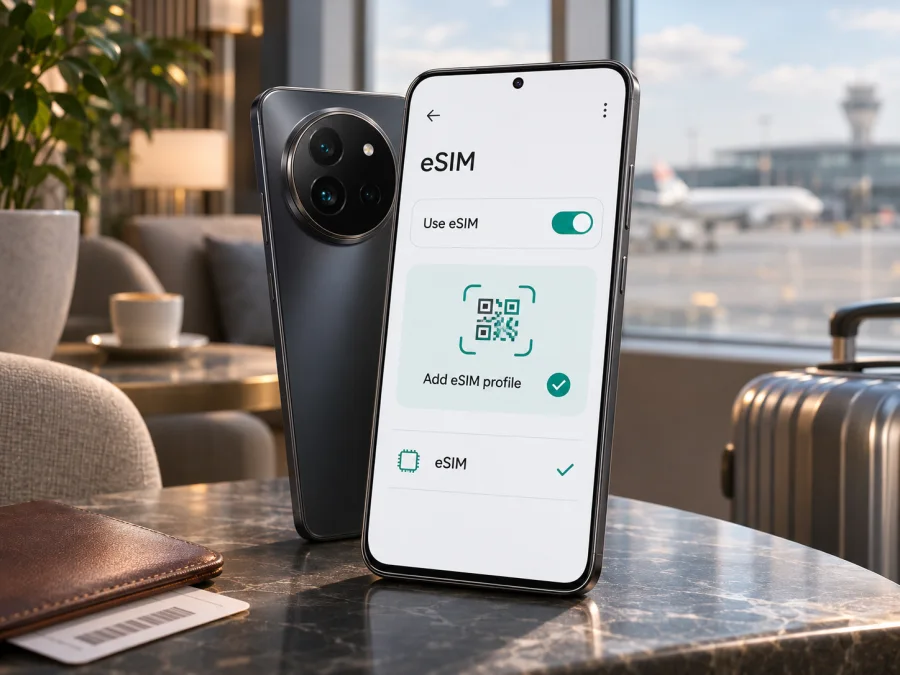
Vivo X300 Pro 128GB eSIM: compatibility and setup guide
Short answer: vivo lists eSIM support for some regional X300 Pro versions, but the exact Vivo X300 Pro 128GB variant in this request cannot be confirmed from the official regional specifications reviewed. Storage capacity alone does not identify the phone’s regional hardware or software. Treat compatibility as unconfirmed until the handset itself shows an EID or an eSIM setup option and the seller or vivo confirms the exact model code and sales market.
This distinction matters if you want a travel eSIM. An X300 Pro sold in one market may offer a different SIM configuration from a similarly named phone sold elsewhere. The model name on a shop listing, a 5G symbol, or the fact that another X300 Pro accepts eSIM is not enough to establish that this exact 128GB handset can install one.
Does Vivo X300 Pro 128GB support eSIM?
There is no reliable yes-or-no answer for the exact 128GB listing without its regional model details. vivo’s official X300 Pro specifications for Singapore and Spain include nano-SIM plus eSIM combinations, and Spain explicitly marks eSIM as supported. Vivo India, by contrast, lists two nano-SIM cards and no eSIM. These are real market differences; they should not be blended into one universal specification.
The storage variant is also unresolved: the official regional product pages checked do not identify a Vivo X300 Pro 128GB configuration. A retailer listing may be inaccurate or use a market-specific designation. Check the product code on the phone and box before applying family-level specifications to it.
| Item | What can be said about this listing |
|---|---|
| Name supplied | Vivo X300 Pro 128GB; kept exactly as supplied |
| Device category | Android smartphone, if the listing identifies the handset correctly |
| Storage variant | 128GB is not confirmed by the official X300 Pro regional pages checked |
| eSIM support | Possible on some X300 Pro regional versions; not confirmed for this exact 128GB device |
| Regional variation | Confirmed: some official regional specs include eSIM; the India spec lists dual nano-SIM only |
| Safe purchase decision | Verify EID/eSIM settings on the actual phone and confirm its region and model code with the seller |
For an eSIM-capable regional X300 Pro, vivo’s published SIM options may include combinations such as physical SIM plus eSIM. Do not assume that every eSIM-capable phone can use all physical and embedded SIM profiles at once. The available combinations, number of enabled lines, roaming functions, and carrier support can depend on the exact variant and software. Check the manual or local vivo support details for the phone in your hand.
A carrier can impose separate requirements. The phone may need to be unlocked, and the plan must support the destination and device profile. eSIM hardware alone does not guarantee that a plan will activate or connect there.
How to verify the exact handset before buying a plan
Use the phone itself as the primary check. Search settings because menu names and locations can vary by region, Android build, and translation. On many Android phones the relevant controls are under Settings → Mobile network, SIM management, or a similarly named section. Look for options such as Add eSIM, Add mobile plan, or Download a SIM. If the phone only shows physical SIM slots and no eSIM controls, ask vivo support or the seller to check the model code before proceeding.
You can also check for an EID (Embedded Identity Document number), an identifier associated with eSIM hardware. Depending on software, it may appear under Settings → About phone → Status, in SIM/network settings, or in Settings search. A missing EID is a reason to verify; a visible EID is a strong sign of eSIM hardware, but does not guarantee the phone is unlocked or accepted by a provider.
Before paying, check all of the following:
- [ ] The phone’s About screen and box show the expected X300 Pro model code and a credible regional sales variant.
- [ ] Settings contains an eSIM add/download control, or the phone displays an EID.
- [ ] vivo or the retailer confirms eSIM support for that exact model code and country of sale.
- [ ] The handset is not locked to a carrier that prevents adding a travel profile.
- [ ] The eSIM provider accepts the device and the selected destination plan.
- [ ] You have Wi-Fi or another internet connection available during installation.
- [ ] Your primary SIM remains available for calls or SMS if you need it, and you know which line will use mobile data.
If the exact 128GB designation still cannot be reconciled with the model code, do not use another X300 Pro’s result as a substitute: request written confirmation from the seller or vivo support, including whether eSIM is enabled for that market and firmware.
What regional and operator versions can change
A product family name does not guarantee identical SIM hardware worldwide. Vivo’s X300 Pro data illustrates this: Singapore and Spain specifications include eSIM combinations, while India lists two nano-SIM slots. Regional firmware, local certification, carrier arrangements, and software updates may also affect which settings appear.
The operator relationship is separate from the hardware. An eSIM-capable phone can still be carrier-locked; an unlocked phone without an EID or add-eSIM option cannot gain eSIM support by buying a plan. Ask the seller about the lock status and regional code, and the plan provider about eligibility for the exact model.
If you own the phone, verify its settings and EID rather than relying on a listing. If you are shopping, ask the seller to show the About screen and eSIM menu on the actual unit. A written answer tied to the model code is more useful than a general claim that “X300 Pro supports eSIM.”
Once you have the regional code and on-device result, check your device compatibility before choosing a travel plan. If either check is inconclusive, wait for confirmation from vivo or the seller.
Installing an eSIM on a confirmed compatible phone
Before installing, confirm compatibility, unlocked status, and the plan’s destination and validity conditions. Use stable Wi-Fi. Read the provider’s instructions before scanning: a code may be single-use, and deleting a profile may not make it reusable.
1. Prepare the phone and plan
Connect to Wi-Fi and locate the installation method in your purchase confirmation or account. The provider may offer a QR code, in-app flow, or manual details. Display the QR code on another screen or print it so the Vivo camera can scan it.
2. Open SIM settings
Open Settings and search for eSIM, SIM, or mobile network. Choose the option to add or download a mobile plan. On Vivo software, wording and menu placement may differ across countries and versions, so use the on-screen path shown on your device. If no add-eSIM option appears, stop and check compatibility rather than repeatedly attempting the QR code.
3. Add the eSIM profile
Choose the QR-code option and scan the code supplied for your plan. If the provider supplied manual activation details or an in-app installation button, use those instructions instead. Review the plan name and any confirmation screen, then allow the phone to download the profile. Keep the phone online and do not close the setup screen while it is processing.
4. Label and configure the line
After installation, assign a clear label such as Travel data so you can distinguish it from your home SIM. Select which line should handle mobile data. If you want to keep your usual number available, leave that SIM configured for calls or messages as needed, while choosing the travel eSIM for data. Dual-SIM behavior depends on the phone version, so check which lines are enabled before travel.
5. Activate at the right time
An installed profile and an active plan are not always the same thing. Follow the provider’s stated activation instructions and validity rules. Some plans begin when installed; others begin when they first connect in the destination or when you activate them manually. If you want to delay use until arrival, do not turn on data roaming or select the eSIM for mobile data until the appropriate time, unless the plan instructions say otherwise.
6. Test the connection
When the plan should be active, enable the eSIM and select it for mobile data. Some travel plans require Data roaming for that profile. Check the plan’s APN instructions, allow a few minutes for registration, then test a webpage. If it fails, troubleshoot before deleting the profile.
For general steps, see the Android eSIM installation guide and iPhone eSIM installation guide. The iPhone instructions are included as a separate reference for people helping family members with different phones; they are not steps for the Vivo. Android labels vary by manufacturer and software version, so prioritize the controls visible on your own device and the plan’s instructions.
Using the eSIM for mobile data while travelling
Before departure, confirm that the plan covers every country on your itinerary, including any stopovers where you expect to use data. Compare the plan’s allowance and validity period with your travel dates and likely usage. Consider navigation, messaging, email, ride bookings, video calls, and photo uploads. If you plan to use a hotspot, check whether tethering is permitted under the plan terms. Do not assume that one country plan covers a neighboring destination or a transit airport.
A practical setup is to keep the home SIM available for calls and account verification while using the travel eSIM for data. If your home carrier charges roaming fees, review its rules and disable data roaming on that line when appropriate. Enable roaming on the travel eSIM only if its instructions require it; settings for the two lines are separate.
Install before departure over Wi-Fi if the provider permits it and you have checked when validity begins. If installing after landing, save the QR code and account instructions offline; downloading still requires internet. Do not delete a profile unless the provider confirms it can be reinstalled.
Kaspersky eSIM Store is an app and website where you can choose, arrange, and activate an eSIM with a suitable mobile-data plan for an international trip. The plan’s coverage, speed, activation method, validity, and included services depend on its terms and the local network. These travel plans are intended for mobile data; a regular phone number, standard voice calls, and SMS are not included unless the specific plan says otherwise. You can use internet-based messaging and calling apps over the data connection.
After checking the phone and the plan terms, browse current eSIM options for your trip. This is the Kaspersky eSIM Store home page, where you can choose a destination and review current plans; it is not a country-specific tariff page. Confirm the destination, data amount, validity period, activation trigger, and any hotspot or roaming conditions before you complete an order.
Before you leave
- Install the profile while you have reliable internet, if the provider’s activation rules allow it.
- Save the provider’s setup information and support details somewhere you can reach without mobile data.
- Set a recognizable name for the travel eSIM.
- Choose the correct mobile-data line and check roaming settings for each SIM separately.
- Keep the home SIM’s data setting under control if your carrier charges for roaming.
- Leave the travel line off until the intended activation time if the plan’s rules allow delayed use.
- Do not remove the profile unless the provider confirms that it can be restored.
Troubleshooting: eSIM does not install or connect
The add-eSIM option is missing. Search Settings for “eSIM” and check About phone for an EID. Restart the device and review the exact model code and country of sale. If there is still no option or EID, ask vivo or the seller to confirm whether that particular handset includes eSIM hardware. Do not assume a firmware update can add hardware that is absent.
The QR code will not scan. Increase brightness on the screen displaying it, clean the camera lens, and check that the code is not cropped or blurred. If the QR code is on the Vivo itself, use the provider’s in-app or manual method if available. Do not reuse a code marked single-use.
The profile download fails. Confirm Wi-Fi works and check for a profile limit. Retry only if permitted. A carrier lock, unsupported regional model, expired code, or temporary service issue may also prevent installation. Keep the error message for support.
The eSIM is installed but shows no service. Check that the eSIM line is enabled and selected for mobile data. Turn airplane mode on briefly and then off, or restart the phone. Verify the plan’s activation time, destination, supported network selection, data roaming requirement, and APN instructions. Coverage depends on the local network and the plan; moving to an area with a usable signal may be necessary.
The phone connects but apps have no internet. Confirm mobile data is assigned to the travel eSIM. Check the allowance and validity, and enter the provider’s APN exactly if required. Check whether a data restriction on the phone is blocking access.
The home SIM is using data unexpectedly. Recheck the default data line and disable automatic data switching if the phone offers that control. Check roaming settings for the home SIM separately. A label such as “Primary” does not necessarily mean that a line is selected for data, so verify the actual mobile-data setting.
The eSIM worked at home but not at the destination. Check that the plan covers the country and is valid. Review network instructions and allow automatic selection to register. If manual selection is needed, follow provider guidance. Contact support with the model code, country, and error message; do not share your EID publicly.
FAQ
Can every Vivo X300 Pro 128GB use eSIM?
That is not confirmed. Vivo documents eSIM on some X300 Pro regional versions, but the exact 128GB configuration is not established by the official regional pages checked. Verify the model code, EID, and add-eSIM setting on the actual phone.
If another X300 Pro supports eSIM, does mine?
Not necessarily. Vivo India’s specifications show two nano-SIM slots, while some other regional X300 Pro specifications include eSIM. Market and software differences matter, and the exact 128GB listing needs its own confirmation.
Does an EID guarantee that a travel eSIM will work?
No. An EID indicates eSIM capability, but carrier locking, regional restrictions, plan eligibility, activation rules, and network availability can still prevent use. Check the device and the plan before purchase.
Can I keep my regular SIM active?
Often you can use a physical SIM and eSIM in a dual-SIM configuration, but available combinations depend on the exact X300 Pro variant. Choose the mobile-data line deliberately and check your home carrier’s roaming charges.
Does a travel eSIM include calls and text messages?
Usually travel data plans are for mobile internet. A standard phone number, voice calls, and SMS are not included unless the selected plan explicitly lists them. Messaging and voice apps can use the data connection.
Should I install the eSIM before the trip?
You can install it beforehand if the provider allows it and you understand when validity starts. Keep Wi-Fi available during setup, and delay activation or data use if the plan’s instructions say to do so.
Can I delete the eSIM if it does not connect?
Do not delete it as a first troubleshooting step. Some activation codes cannot be reused, and a removed profile may need provider assistance to restore. Check settings and plan conditions, then contact support before removing it.
Check the phone, then choose a plan for your trip
For Vivo X300 Pro 128GB, the useful answer is conditional: eSIM appears in official specifications for some X300 Pro markets, while other regional specifications list dual nano-SIM only, and the exact 128GB variant remains unverified. Confirm EID or an eSIM setup option on the actual handset, match its model code to its sales region, and ask about carrier lock status before purchasing a plan.
Once compatibility is established, choose an eSIM plan that covers your destination and fits your travel dates and data needs. Review how activation begins, whether data roaming or APN settings are required, and what the plan includes. Kaspersky eSIM Store helps you choose, arrange, and activate an eSIM with a suitable mobile-data plan for an international trip. Check the phone first, then compare the current options for your route with confidence.


