Travel connectivity guide
Vivo X80 Pro eSIM: Compatibility and Setup
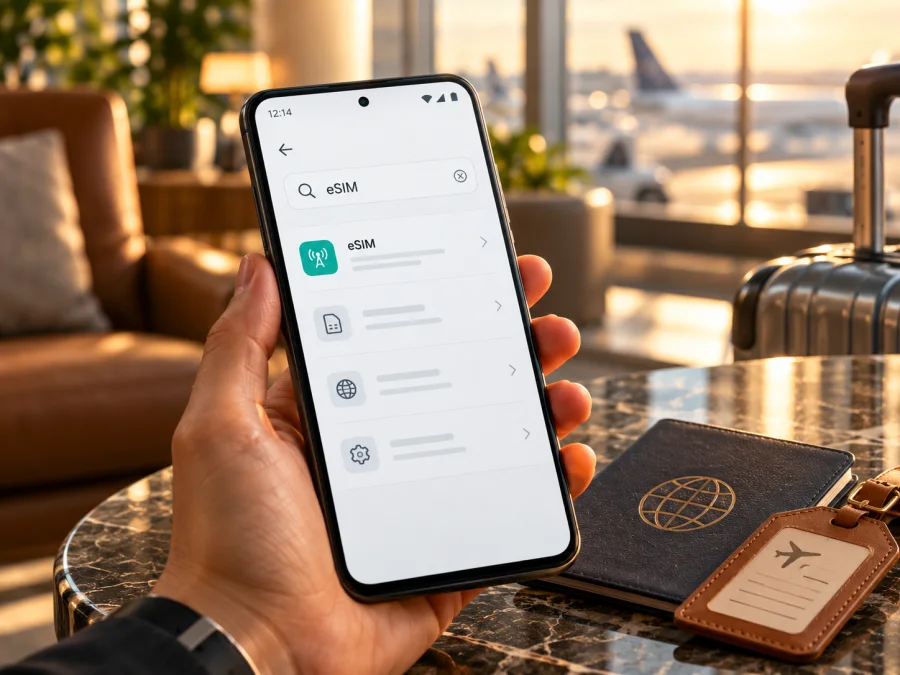
Vivo X80 Pro eSIM: compatibility and travel setup guide
Short answer: the official vivo specifications I could verify for the Vivo X80 Pro describe two physical Nano-SIM cards and do not list eSIM support. This indicates that the documented X80 Pro versions are not compatible with downloadable eSIM profiles. Because the exact regional model code and software build matter, check the phone itself and confirm with vivo or the seller before choosing a travel plan. A 5G label, dual-SIM capability, or a large display does not by itself mean that eSIM is supported.
Does the Vivo X80 Pro support eSIM?
For the versions covered by vivo’s official specifications, the answer is no: the network section identifies a Nano-SIM tray and dual-SIM standby, with no eSIM profile or embedded-SIM option documented. These specifications are a useful basis for the answer, but they do not identify every unit sold worldwide by its full model code. The safest statement for an individual handset is therefore: the verified retail versions are physical-SIM models; treat eSIM support as unavailable unless the exact unit shows an EID and an eSIM installation option or vivo confirms support for its precise model and market.
| Check | What the verified information indicates | What to confirm on your own phone |
|---|---|---|
| Device name | Vivo X80 Pro | Check the model code in Settings and on the box |
| SIM format in published vivo specifications | Nano-SIM; dual-SIM standby is listed | Inspect the tray and the regional documentation |
| eSIM in published specifications | No eSIM support is listed | Look for an EID and an eSIM add/download option |
| Mobile network | 4G and 5G bands vary by market | Compare the exact model’s bands with the destination network |
| Travel eSIM readiness | Not established by a 5G logo or dual-SIM status | Confirm device compatibility and that it is unlocked |
Why regional versions need a separate check
The Vivo X80 Pro name was used across more than one market, and regional pages can list different network bands or configurations. The global and Hong Kong specifications identify dual Nano-SIM; the India retail specification describes a Nano-SIM slot and Dual SIM Dual Standby. These are physical SIM details, not evidence of an eSIM variant. An imported phone may have a different model code, firmware, bands, or carrier restrictions, so check the exact unit.
“Dual SIM” may mean two physical Nano-SIM cards. A generic brand compatibility list may not cover the Vivo X80 Pro specifically. Ask for the full model number and confirmation that the regional variant supports eSIM downloads; if unclear, assume it cannot install one until vivo confirms otherwise.
What to check before choosing a travel eSIM
Use these checks before paying for a data plan:
- Find the full model code. Open Settings → About phone (menu wording can vary) and note the model number and software version. Compare these with the label on the box, if available.
- Look for an EID. In the phone settings, search for “EID” or open the status/SIM information page. An EID is a long identifier associated with an eSIM component. If the phone has no EID and does not expose an eSIM management menu, that is a strong sign that it cannot download eSIM profiles. A missing menu alone is not conclusive if settings are restricted by firmware or the device is managed, so ask vivo to confirm.
- Check for an eSIM setup control. Search the SIM or mobile-network settings for an option such as Add eSIM, Download a SIM, or Add mobile plan. If settings only let you manage SIM 1 and SIM 2 and show a physical tray, the feature is likely absent on that unit.
- Confirm the exact market and carrier status. A carrier-locked phone may reject another provider’s profile even if it has eSIM capability. Ask the original carrier whether the phone is unlocked for use with other services.
- Check the destination and plan conditions. Confirm that the package covers the country or route you will visit, its data allowance and validity, and when its validity starts. Also confirm whether the plan is data-only and whether roaming must be enabled for that eSIM.
- Keep an alternative ready. If the device has no EID or vivo confirms that this model code lacks eSIM, plan to use a physical local SIM, your home operator’s roaming option, Wi-Fi, or a separate compatible eSIM device instead.
Check your device before selecting a plan. This is especially important when the phone was imported, refurbished, sold through a marketplace, or described simply as “dual SIM.” Compatibility checks are specific to the device, not just the brand name.
How to verify eSIM availability on the Vivo X80 Pro
Perform the checks while connected to Wi-Fi, and do not remove or reset an existing SIM profile just to test. Android menus can differ slightly between Funtouch OS versions and by region.
- Open Settings and choose About phone. Record the model number, software version, and region shown on the device. Do not rely only on the retail name printed in an online listing.
- In Settings, use the search box for EID, eSIM, or SIM management. If an EID appears, copy it privately for a compatibility enquiry; do not post it publicly. If no result appears, check the SIM status page as well.
- Open Network & internet, Mobile network, or the similarly named SIM section. Look for a command to add or download an eSIM. On some Android devices an eSIM control is visible only after opening a SIM manager or tapping a plus icon.
- If you see only physical SIM slots, compare that with the device’s physical SIM tray and the regional vivo documentation for your model code. A tray designed for two Nano-SIMs does not itself prove that eSIM is impossible in every market, but together with no EID or eSIM menu it is a strong indication that this handset is physical-SIM only.
- Contact vivo support or the seller with the full model code and ask one precise question: “Does this exact regional Vivo X80 Pro variant support installing a third-party eSIM profile, and where should its EID appear?” Ask for confirmation in writing if you are buying the device specifically for travel eSIM use.
- Only proceed to a plan purchase when the exact phone shows the required eSIM capability and is unlocked. A compatibility checker can be a useful additional check, but it should not override contradictory device settings or the manufacturer’s answer.
An EID is more useful than a broad “eSIM-ready” claim, but does not guarantee that every plan will work. The phone must support profile installation and be free of restrictions that block another provider. A plan cannot add missing eSIM hardware.
When an eSIM is unavailable: practical travel options
If the phone has no EID or eSIM option, consider a physical SIM that matches its bands and SIM size, a roaming package from your home operator, or Wi-Fi where available.
A separate eSIM-compatible phone or mobile hotspot is another option. Check whether the plan allows tethering, and remember that a second device needs charging and protection.
If the X80 Pro does prove to have an eSIM in a specific regional variant, Kaspersky eSIM Store is an app and website where you can choose, arrange, and activate a data eSIM plan for an international trip. Plans and network availability depend on the selected destination and current offer terms. The Store is not the mobile operator or the network itself. Review the destination, coverage description, data amount, validity, and activation timing before confirming. If the destination is not yet selected, browse the Kaspersky eSIM Store to check current destinations and plans; this is a general store link, not a country-specific tariff.
How to install an eSIM on Android if your exact variant supports it
The following steps apply only after you have confirmed an EID, an eSIM download control, and an unlocked device. They cannot make eSIM work on an X80 Pro variant that lacks eSIM hardware. Connect to a reliable Wi-Fi network, keep the phone charged, and have the activation details ready. Many QR codes can be used only once, so do not scan the same code repeatedly or delete a working profile without instructions from the plan provider.
- Open your plan details in the provider’s app or website. Read the supported countries, data allowance, validity period, installation timing, and activation conditions. Keep the QR code visible on another screen or use manual activation details if offered.
- On the phone, open Settings → Mobile network/SIM management → Add eSIM (the wording and path vary). If there is no add/download option, stop and recheck compatibility rather than buying or attempting to install the plan.
- Choose the option to scan a QR code, then scan the code supplied for your plan. If you cannot scan it, use the provider’s manual activation method only when the plan instructions provide one. Avoid photographing or sharing activation credentials.
- Follow the prompts to download the profile. Give it a clear label such as Travel data so that you can distinguish it from a physical SIM. Keep your home SIM active if you still need its number for calls or verification messages, subject to your carrier’s roaming charges.
- Set the travel eSIM as the line for mobile data only after the profile is installed and you are ready to use it. Disable mobile data on your home line if you want to reduce accidental roaming charges. Do not change voice or SMS defaults unless that is your intention.
- At the destination, enable the travel line and select it for mobile data. Turn on data roaming for that eSIM only if its instructions require it. For a travel data plan, roaming may be the normal way to connect to a partner network; check the plan terms, as the setting itself does not create an extra charge beyond the package when used as directed.
- Wait for network registration, then test a simple web page. If the plan starts on first connection, install it when convenient but avoid enabling the line before the intended start time unless the provider’s activation rules say otherwise.
For illustrated steps, see the Android eSIM installation instructions and the iOS eSIM installation instructions. The iOS guide is for users installing on an iPhone; it is not an alternative installation path for the Vivo X80 Pro.
Using a travel eSIM for mobile data
If your particular handset supports an eSIM profile, the phone’s SIM manager controls which line supplies mobile data. Keep your usual number on its physical SIM if you need incoming calls or messages, then choose the travel eSIM as the data line. Some phones offer a setting that allows mobile data to switch between SIMs automatically; turning that off can help prevent unexpected use of your home line. Review the names and status of both lines before departure.
A travel data eSIM is often intended for internet access rather than a second regular phone number. Do not assume that it includes ordinary calls or SMS. Messaging and voice apps can work over data when you have configured them, but their accounts and verification may still depend on your usual number. Download boarding passes, maps, accommodation details, and any essential travel documents before leaving home, so they remain available if installation or coverage is delayed.
Confirm when validity starts: some plans begin at installation, others at first network connection, and some allow scheduled activation. Keep the activation details accessible over Wi-Fi and do not delete a used profile unless support instructs you to.
At your destination, check that the right line is selected for mobile data, that the profile is enabled, and that the phone has connected to a supported network. If the plan calls for data roaming, enable it for the travel profile. Turn off automatic data switching to your home SIM if your phone offers that option. A signal bar alone does not prove that data is flowing; test a page and check usage in the provider account.
Common problems and what to check
There is no “Add eSIM” option
This is the most relevant issue for the Vivo X80 Pro. Check the exact model code, search Settings for EID, and inspect SIM status. If there is no EID and no eSIM option, the phone likely lacks eSIM capability. Restarting or scanning another QR code will not add an embedded SIM. Ask vivo or the seller before purchasing.
The QR code will not scan or the profile will not download
Confirm stable Wi-Fi, the correct QR code, and that it has not already been used. Increase the other screen’s brightness and clean the camera lens. If there is no eSIM menu, return to compatibility checks. Use manual details only if the plan instructions provide them.
The profile installs but there is no service
Check that the plan covers the country you are in, its validity has begun, and the eSIM line is enabled. Select it for mobile data, verify the correct network-selection mode, and enable data roaming for that line if the instructions require it. Toggle airplane mode on and off or restart the phone once. If service still does not appear, check for local network outages and contact the plan provider with the destination, device model, and time of the issue.
The phone is connected but pages do not load
Confirm that the travel eSIM is the selected mobile-data line and that the data allowance remains available. Turn off Wi-Fi briefly to test the cellular connection, then verify roaming settings and the plan’s APN instructions if any were supplied. Avoid changing APN fields based on guesses. If your home SIM remains selected for data, switch the data line to the travel profile and test again.
The phone says it is locked or the plan is incompatible
Contact the carrier that originally supplied the phone and ask whether it is carrier-unlocked. A lock may block use of another provider’s eSIM or physical SIM. Also confirm that the eSIM offer supports the handset’s exact regional model. A plan cannot bypass a carrier lock or unsupported hardware.
Data appears to be using the home SIM
Open SIM management and verify the active data line. Turn off automatic switching between SIMs if available, and disable data on the home SIM while traveling if you do not need it. Keep voice and SMS preferences separate from the mobile-data selection. Review your home operator’s roaming terms before changing settings.
Frequently asked questions
Can I use a travel eSIM on every Vivo X80 Pro?
The official X80 Pro specifications reviewed here identify physical Nano-SIM cards and do not list eSIM support. Treat the model as incompatible unless your exact regional unit displays an EID and an eSIM installation menu, or vivo confirms support for its model code. Do not generalize from another Vivo model.
Does 5G mean the phone supports eSIM?
No. 5G describes the mobile network technology. eSIM is a separate capability for downloading and managing a digital SIM profile. A phone can support 5G and two physical SIM cards without supporting eSIM.
Is dual-SIM the same as eSIM plus physical SIM?
No. On the Vivo X80 Pro specifications checked, dual-SIM standby is paired with a Nano-SIM slot specification. That indicates physical SIM use in those listed versions. Always check how the particular regional model implements dual SIM.
Can a software update add eSIM support?
An update may change menus or software behavior, but it cannot add an eSIM component if the hardware configuration does not include one. Confirm the capability with vivo for the full model code instead of relying on a future update or an online workaround.
Will a travel eSIM replace my main phone number?
A travel data plan is commonly intended for mobile internet and may not include a regular number, voice calls, or SMS. Keep the home SIM available if you need its number, and check your operator’s roaming charges. Internet messaging apps can use the data connection but may still use your existing account and number.
What should I do if my phone is not compatible?
Use a supported physical SIM, check a roaming option with your home carrier, rely on Wi-Fi when appropriate, or use a second eSIM-compatible device. Choose based on coverage, cost, convenience, and the services you need while traveling.
Before your trip: verify the device, then choose a plan
For the verified Vivo X80 Pro specifications, eSIM is not documented and the listed SIM arrangement is physical Nano-SIM. Confirm the phone’s exact model code, look for an EID and an eSIM download option, and get a direct answer from vivo if anything is unclear. Do this before purchasing a plan; compatibility and an unlocked device are prerequisites, and the X80 Pro name alone cannot confirm them for an imported handset.
If your exact device is confirmed compatible, choose a travel plan only after checking destination coverage, data allowance, validity, activation timing, and roaming instructions. Kaspersky eSIM Store is an app and website for selecting, arranging, and activating a travel data eSIM when the phone supports it. If it does not, select a practical alternative such as a physical SIM or your operator’s roaming service. A few minutes spent confirming the handset now can prevent an unusable plan and leave you with a clear way to get online during the trip.


