Travel connectivity guide
Wanaka eSIM: Mobile Internet for Your Trip
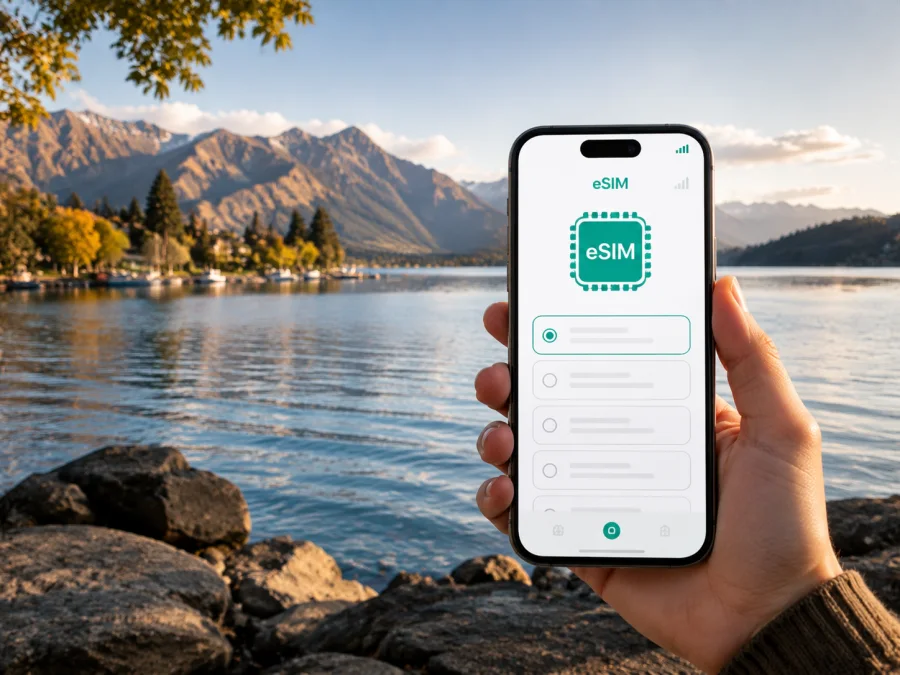
Wanaka eSIM: mobile connection and internet for your trip
Wanaka is a small resort town on Lake Wānaka in New Zealand’s South Island. It is a base for lakefront walks, mountain roads, ski days, cycling, business visits and journeys through Otago. A way to get online helps you check transfers, maps, bookings, accommodation messages and meeting points.
An eSIM, or digital SIM, lets you prepare a mobile data profile without replacing your phone’s physical SIM. For Wanaka, this can help you arrange data before departure, keep your usual number available and avoid searching for a physical SIM after arrival. The setup depends on the device, plan and route.
Why mobile data matters in Wanaka
Wanaka is easy to explore when you have a plan, but the practical need for data appears in many small moments. The road into town may be part of a larger South Island itinerary, your accommodation may be outside the center, and a day trip can take you away from the streets where you first arrived.
An eSIM can be especially convenient for:
- Arrival: confirm the next leg, contact a driver, check a rental-car message or send your arrival time.
- Town and lake navigation: compare walking, cycling and driving routes when weather changes the day.
- Bookings and messages: manage check-in, activities and travel-group plans without searching for public Wi‑Fi.
- Road trips and work: use maps, authentication, email, documents and a laptop hotspot with an allowance chosen for those tasks.
An eSIM is a practical data option for the settled parts of the Wanaka itinerary; it does not promise a signal in every landscape or replace preparation for remote roads.
Wanaka arrival: plan the first connection before the first drive
Many visitors reach Wanaka as part of a South Island road trip. Queenstown Airport is a common gateway, followed by a road journey toward town. The route may use the Crown Range road or go around the lower end of Lake Wakatipu, depending on the itinerary and conditions. Others arrive after Christchurch, Dunedin or another South Island stop.
The useful question is not only “Which airport am I using?” but also “At what point will I need data?” A rental-car pickup may require instructions and a map immediately; a passenger may need to confirm the accommodation address or message the group.
Before departure, prepare this arrival checklist:
- Save your accommodation address and check-in instructions.
- Download maps for the approach and the town.
- Keep rental-car, shuttle and activity details offline.
- Check weather and road conditions before a long drive.
- Prepare the eSIM with a stable internet connection.
- Decide which line will be used for data.
The profile can be installed before the flight or after arrival if you have temporary Wi‑Fi and your purchase details ready. Leave enough battery, time and access to the instructions; do not wait until you are driving.
Choosing an eSIM plan for a Wanaka itinerary
Wanaka is one stop in many South Island itineraries, so the plan should match the full route. A New Zealand plan may be relevant when the journey also includes Queenstown, Christchurch, Dunedin or the West Coast. Always confirm the stated destination and validity for every place you will visit.
Use four questions to narrow the choice:
1. Where will the plan be valid?
Check that New Zealand is included and consider whether your route leaves Wanaka. If you visit a ski area, continue west or cross to the North Island, do not assume that every stop is covered. The stated destination, region and exclusions decide whether the plan fits.
2. How long will you need data?
Count the arrival day, road transfers, excursions and departure journey, not only hotel nights. A stopover has different needs from a week of driving. Check when validity begins and whether activation or first use affects it.
3. What will you do online?
Light use may cover maps, messages, email, bookings and occasional photos. Video calls, cloud backup, streaming, laptop work and hotspot use need more data. Public Wi‑Fi can help, but should not be the only arrival plan.
4. Do you need a data-only setup?
Travel eSIMs are commonly intended for mobile internet. Unless the terms say otherwise, do not expect a local phone number, ordinary voice calls or SMS. Internet messaging and calling services remain an option, while the usual SIM can handle functions you still need.
The Kaspersky eSIM Store application and website help you choose, arrange and activate an eSIM with a plan for mobile internet during an overseas trip. You can review the destination, traffic allowance, validity and price before purchase. To prepare for Wanaka, choose an eSIM plan for your New Zealand trip and compare it with your route.
A practical data plan for different Wanaka trips
The same town can create very different data needs. Use the scenario below as a planning aid, then compare it with your own habits and the terms of the chosen plan.
| Trip scenario | Typical online use | What to check |
|---|---|---|
| Short stopover | Maps, messages, accommodation and transport | Keep automatic updates and backups under control |
| Lake holiday | Navigation, bookings, forecasts, messages and photos | Leave a reserve for days with several trips |
| Ski or active route | Roads, weather, schedules and group messages | Save important information offline before leaving town |
| Business trip | Email, calls, documents and two-factor authentication | Monitor hotspot use on a laptop |
| South Island road trip | Long drives, several stays, maps and bookings | Match validity and destination to the full route |
A useful habit is to separate essential and optional use. Essential data includes navigation, messages, check-in, transport coordination and access to travel documents. Optional use includes high-resolution photo backup, long video calls and streaming. Disable automatic updates and cloud synchronization for the eSIM line if you want to preserve the selected allowance; restore them later on Wi‑Fi when appropriate.
Moving around Wanaka without losing the thread of the trip
The town center is convenient for walking, cafés, services and the lakefront, while activities and some accommodation sit farther away. Transport changes the role of mobile data.
Walking in the center and by the lake
For a central walk and lakefront visit, keep a map downloaded and use live data for a changed meeting point or a message from your host. Save the accommodation address offline as a battery-saving backup.
Cycling and short local rides
Cycling routes may extend beyond the busiest streets. Check the route, distance, return plan and weather, share your plan, carry water and keep an offline record of the way back. Do not expect a signal near every trail.
Car rental and scenic drives
For a rental car, data helps with navigation, fuel stops, booking changes and rental-company messages. Enter the route before moving off and keep the driver free from phone handling. On alpine roads, an online map is an aid, not a substitute for careful driving and current road guidance.
Transfers and pickups
For a shuttle, guide or colleague pickup, agree on an easy-to-identify place. Keep the confirmation offline and use mobile data for the final message, especially when the group arrives at different times.
Navigation for trips beyond Wanaka
Wanaka is often a base rather than the only destination. A route may include Queenstown, Arrowtown, Cardrona, the Haast direction, the West Coast or another part of Otago. Check that the selected New Zealand plan covers the route, then download maps and save accommodation details before leaving town.
Do not treat the presence of a mobile data plan as a guarantee of coverage on an alpine road or in a remote valley. Signals can change with terrain, distance from settlements and weather-related conditions. Before a longer day out:
- tell someone where you are going and when you expect to return;
- check the forecast and current road information through the relevant local channels before departure;
- save the route, addresses and booking confirmations for offline use;
- charge the phone and carry a power bank;
- keep emergency information and important contacts available without data;
- avoid making a remote hike depend on a live map alone.
Wanaka for business travel and remote work
A business trip to Wanaka may involve a transfer, a hotel or venue meeting, an attachment, a verification code and calls with colleagues. A data eSIM can support these tasks when the plan covers New Zealand and the phone is configured correctly.
Before leaving, decide how you will work:
- Phone only: use email, messaging, document review and internet calls.
- Laptop: check hotspot settings and monitor background data.
- Wi‑Fi plus mobile backup: use Wi‑Fi for large files and the eSIM for navigation, authentication and urgent messages.
Before departure, verify your two-factor method. A data-only eSIM does not replace every function of your regular number, so review the primary line and roaming settings to avoid unexpected use.
Installing an eSIM before leaving home
Install when the phone is charged and connected to the internet, not while you are navigating. Menu names vary by operating system; see the Android eSIM installation instructions or the iOS eSIM installation instructions.
Step 1. Check the device
Make sure the phone supports eSIM and is not operator-locked. Models can differ by sales region, so check device compatibility before purchase.
Step 2. Prepare the profile
Open the purchase or profile information and locate the QR code or installation details. Use another screen if the phone cannot scan a code displayed on itself.
Step 3. Add the eSIM
Open mobile-network settings, choose to add an eSIM or mobile plan, and scan the QR code. Follow the prompts; do not delete or repeatedly reinstall the profile without checking the plan instructions.
Step 4. Label the lines
Label the profile “New Zealand travel data” and keep the regular line identifiable.
Step 5. Select mobile data
Choose the travel eSIM for mobile data. If asked about data roaming, follow the plan instructions; disable automatic line switching if you want tighter control.
Step 6. Test the setup
If the plan starts later, follow its activation terms. Otherwise, test a map or message; registration may take a few minutes. Keep the QR code and account details until the profile works.
What to check before buying or activating
Use this checklist for a Wanaka trip:
- [ ] New Zealand is included in the destination or region shown for the plan.
- [ ] The validity period covers the arrival, Wanaka stay and any onward travel.
- [ ] The traffic allowance matches your expected maps, messages, calls and hotspot use.
- [ ] Your phone supports eSIM and is not operator-locked.
- [ ] You have a stable internet connection for installation.
- [ ] The phone has enough storage, battery and an up-to-date operating system.
- [ ] You know which line will be used for mobile data.
- [ ] You have read when the plan starts, how the allowance is counted and what happens if you need more data.
- [ ] Important maps, booking details and contacts are available offline.
Common questions about eSIM in Wanaka
Will an eSIM work on every road near Wanaka?
No. An eSIM can provide mobile data where the relevant network is available and the plan is valid, but terrain and distance from settlements affect service. Download maps and carry offline information for remote routes.
Can I keep my regular number?
Usually, a dual-SIM phone can keep the regular line available while the travel profile is selected for data. Behavior varies by phone. Review call, message and data settings, including possible roaming charges on your usual contract.
Can I activate the eSIM after reaching Wanaka?
Yes, if you have internet access and the plan allows it. Preparing before departure reduces tasks after a long flight. If you wait, use stable Wi‑Fi and do not install while driving.
What if the phone shows no data?
Check that the profile is on, selected for data and configured according to the plan. Confirm destination and validity, review any required data-roaming setting, move to a clearer-signal location and consult the instructions. Do not delete the profile before checking recovery options.
A compact Wanaka preparation plan
Organize the connection in three moments. Several days before departure, check compatibility, operator lock status, route coverage, validity and expected data use. The day before travel, install the profile when appropriate, save the QR code and instructions, download maps, store accommodation details offline and charge the phone and power bank. On arrival, select the travel eSIM for data, send one test message through the internet and check the line before a longer drive from Wanaka.
Prepare mobile internet for Wanaka
Wanaka rewards flexible planning: a lakefront morning can become a road trip, a short stop can turn into several days, and an easy town walk can be followed by a journey into alpine country. A prepared eSIM gives you a clear mobile-data option for the urban and settled parts of that itinerary, while offline maps, charged devices and sensible route planning cover the places where a signal may be limited.
Check your device, match the plan to the whole New Zealand route, install the profile carefully and keep your regular line under control. When you are ready, choose an eSIM plan for your New Zealand trip and prepare your mobile internet for Wanaka with the conditions that fit your journey.


