Travel connectivity guide
Xiaomi 13 Pro 12GB RAM eSIM Compatibility
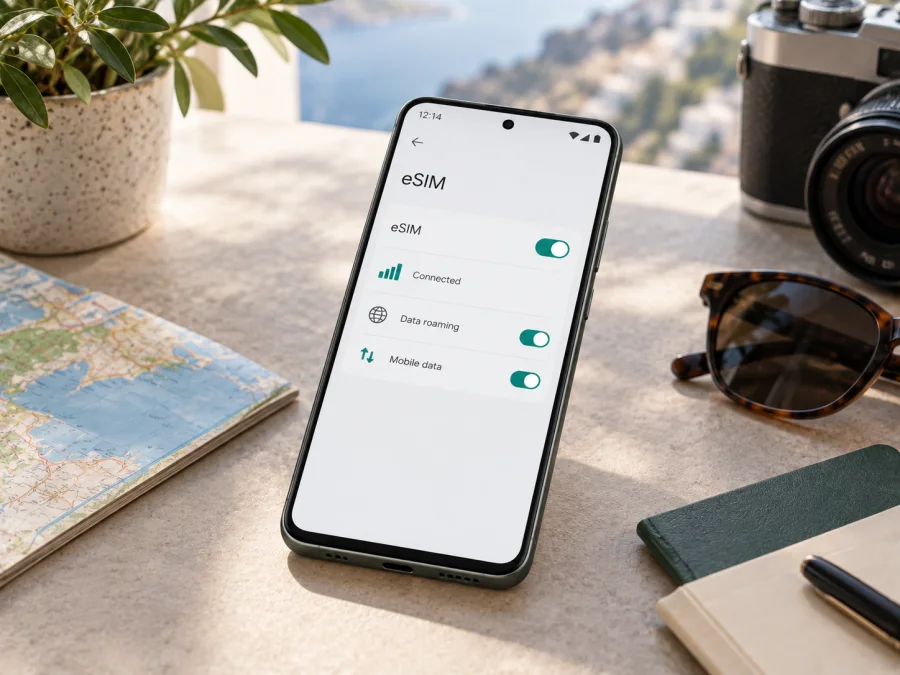
Xiaomi 13 Pro 12GB RAM eSIM compatibility and setup guide
The Xiaomi 13 Pro 12GB RAM supports eSIM on certain regional versions. Xiaomi’s official specifications for some international markets list dual SIM as nano-SIM plus nano-SIM or nano-SIM plus eSIM. The exact handset’s region, software and carrier status matter, so verify it before purchasing a travel plan.
Check Settings for an EID and an eSIM option. If both an EID and an add/manage eSIM control appear, that is strong evidence of support. If neither appears, confirm the exact model with Xiaomi or the seller. “12GB RAM” identifies memory, not region or eSIM configuration.
An eSIM is a digital SIM profile stored in the phone. It can provide travel mobile data without another physical SIM. Depending on the regional configuration, you may retain a physical SIM and use an eSIM for data. A data plan does not automatically include a phone number, voice calls or SMS; check its terms.
Xiaomi 13 Pro 12GB RAM at a glance
| Item | What to know |
|---|---|
| Device | Xiaomi 13 Pro 12GB RAM |
| eSIM support | Available on certain regional versions; check the actual unit |
| SIM arrangement | Supported international specifications list nano-SIM + nano-SIM or nano-SIM + eSIM |
| Does 12GB RAM confirm support? | No. RAM does not identify regional SIM hardware or software provisioning |
| Checks to make | EID, eSIM add/manage setting, sales region and carrier-unlock status |
| Travel use | An eligible travel eSIM can provide mobile data on a compatible, unlocked phone |
Does the Xiaomi 13 Pro 12GB RAM support eSIM?
It can, depending on the region. Xiaomi’s market-specific specifications list nano-SIM plus eSIM as an option, and its support instructions explain how to enable eSIM, manage profiles and add a mobile plan. These confirm support on the model’s supported configurations.
That does not mean every Xiaomi 13 Pro worldwide has eSIM. Hardware, firmware and carrier provisioning can differ by market; imported or refurbished phones may have an unclear history. The exact phrase “Xiaomi 13 Pro 12GB RAM” does not identify a country or full model code, so it cannot guarantee compatibility.
Treat it as potentially compatible, pending checks on your own unit. RAM is not an eSIM feature. Check for the EID and eSIM menu, then confirm the phone is unlocked. If results conflict, give Xiaomi support the model number, sales country and software version before buying a plan.
Regional and carrier differences
Xiaomi’s SIM combinations vary by market, and carrier policies can affect profile downloads and network registration. A carrier-locked phone may reject another profile; travel service also depends on the plan, destination and local networks.
For an imported or used phone, ask for its full model identifier, sales country and unlock status; do not rely only on the listing. If you have the device, use these checks.
<a id="kesim-device-compatibility"></a>
Check eSIM support on the phone
Connect to Wi-Fi, then follow these steps. Names can vary between Android, MIUI and HyperOS versions and language settings.
- In Settings, search for EID. Alternatively, look under About phone, Status or SIM status. An EID (embedded identity document) identifies the eSIM component.
- Open Settings → SIM cards & mobile networks or search Settings for “eSIM.” Look for Use eSIM, Manage eSIM, Add eSIM or Add mobile plan.
- Open the eSIM manager and verify that an add-plan flow is available. You do not have to scan a QR code or install a profile merely to check compatibility.
- Check whether the phone is carrier-unlocked. If the status is unclear, ask the carrier that originally sold the device.
- If SIM 2 is in use, note that Xiaomi’s support instructions say eSIM and SIM 2 may not work at the same time on the configuration they cover. Follow the message shown on your own phone.
An EID and add/manage option together provide a useful check. Menus can depend on software or local provisioning. If both are absent, a QR code or update cannot add missing hardware: confirm the model with Xiaomi or the seller. If only the menu is missing, ask whether the region or software build restricts eSIM. When contacting support, include the exact model identifier (not just the retail name), the country where the phone was purchased and its MIUI or HyperOS version. A screenshot of the SIM menu can help distinguish a software navigation issue from a region-specific limitation. If menu labels differ, search Settings and inspect SIM status rather than concluding from a label alone. Match Xiaomi’s regional support information to the phone’s exact model and sales country before relying on eSIM. Check whether your device is compatible before purchase.
Prepare and install a travel eSIM
Before installation, connect to stable internet (preferably Wi-Fi) and keep the plan’s activation details accessible. Check destination coverage, data allowance, validity and activation timing. Validity may begin at installation, first supported-network connection or another stated event; installation and service start are not always the same.
Check compatibility and unlock status before departure. If the QR code is shown on the Xiaomi itself, display it on another device or use manual entry if provided. Keep activation details private.
Step-by-step installation and activation
- Confirm the handset. Check the EID, eSIM menu, model region and unlock status. Resolve uncertainty before selecting a plan.
- Choose a plan for the trip. In the Kaspersky eSIM Store app or website, choose and arrange an eSIM with a mobile-data plan for the destination or route. Review coverage, data, validity and activation terms. The Store helps you select, arrange and activate a travel eSIM; it is not a mobile network operator.
- Open the eSIM settings. On the phone, go to Settings → SIM cards & mobile networks. Depending on the software, enable Use eSIM, open Manage eSIM, then choose Add mobile plan or the similar option.
- Download the profile. Scan the plan’s QR code or enter details manually if provided. Keep the phone online and follow the prompts until setup completes. Do not scan a code that was not issued for your plan.
- Label the line and choose its role. Give the new profile a clear label, such as “Travel data.” Select which SIM handles mobile data, calls and messages. Xiaomi configurations may require SIM 2 to be disabled before eSIM is used.
- Set roaming as instructed. Some travel profiles need data roaming enabled on that eSIM; others have different steps. Follow the plan’s instructions and make sure you are changing roaming for the travel profile, not unintentionally for your home SIM.
- Enable service at the right time. If the plan allows pre-installation, it may be convenient to install over Wi-Fi before leaving. Turn on the profile and select it for data at the time specified by the plan.
- Test the connection. On arrival, turn Wi-Fi off briefly and try opening a webpage. If it does not work, check data-line selection, plan timing and troubleshooting steps below before deleting the profile.
For Xiaomi, follow the phone’s current on-screen prompts and support instructions. Kaspersky eSIM Store also has platform guides for Android installation and iOS installation. The iOS guide is for travelers using an Apple device; it does not describe Xiaomi menus. Always use the instructions shown for the particular plan.
Using the home SIM and travel eSIM together
A supported version may use a physical SIM and eSIM, but the active combination varies. Xiaomi notes that SIM 2 and eSIM may not work together on the covered setup; disable SIM 2 if prompted. Do not assume all three profiles can be active at once.
If supported, keep the home line for calls or texts and select the travel eSIM for data. Check each line’s role: home-carrier roaming charges may still apply to voice or SMS, and a data plan usually does not provide a regular number.
Practical travel scenarios
Install before departure. If plan terms allow it, add the eSIM at home over Wi-Fi. Leave it off until the plan says to activate it if validity starts with first network connection.
Arrive without Wi-Fi. An installed profile may connect to mobile data after you enable it and select the travel line. If the eSIM is not yet installed, Wi-Fi may be needed to download it. Save essential booking details offline and consider installing the profile before travel where permitted.
Visit multiple countries. Check that each destination is included. A regional plan can cover several countries, but service still depends on the plan, partner networks and local conditions. Do not assume a one-country plan works across a border or during a layover.
Keep the home number available. If the handset and carrier allow it, use the travel eSIM for data while keeping the home SIM for calls or SMS. Disable data roaming on the home SIM if you do not want it used for data, and check voice and text charges with your normal carrier.
Share data with another device. Use the phone’s hotspot only if the plan permits tethering. It uses the same data allowance and can affect battery life and connection speed.
Troubleshooting
- No eSIM setting: Search for EID and eSIM in Settings, check the full model number and region, and install available official system updates. If both EID and eSIM options are absent, ask Xiaomi or the seller to confirm the exact unit.
- QR code will not scan: Improve the screen brightness on the device showing the code, avoid reflections and hold the phone steady. If the code is on the Xiaomi itself, show it on another device. Use manual entry only if the plan provides it.
- Profile download fails: Use stable Wi-Fi, restart the phone and try again. Confirm the activation code is valid and has not already been used or installed elsewhere. Many codes are single-use; do not delete a profile as a first step.
- Profile is installed but there is no data: Turn the travel profile on, select it for mobile data, check that the plan is active and includes your location, and follow its roaming instructions. Toggle airplane mode, restart, and allow time for network registration.
- Network appears but webpages fail: Confirm mobile data is on for the correct line and check plan allowance and validity. Enter APN details only if the plan provides them. Try automatic network selection first; use manual selection only as instructed.
- No service after a border crossing: Confirm the new country is covered, refresh the connection by toggling the profile or restarting, then check network selection. Service can vary by location and partner network.
- SIM 2 prevents eSIM use: Follow the device prompt to disable the second physical SIM, then retry. Recheck which line handles calls, messages and data.
- Home SIM uses roaming: Review data-line selection and disable data roaming on the home SIM if appropriate. Calls and SMS may have separate charges under your home carrier’s terms.
- Still offline: Note the error, destination, software version, selected data line and EID status. Contact the plan’s support team or Xiaomi as appropriate. Keep the profile installed until advised; a deleted profile may not be recoverable with a used code.
Frequently asked questions
Is eSIM guaranteed on every Xiaomi 13 Pro 12GB RAM?
No. Xiaomi confirms eSIM on some regional configurations, but RAM does not identify sales region. Check EID, eSIM settings and unlock status on your phone.
Can I keep a physical SIM?
Supported versions list nano-SIM plus eSIM, but SIM 2 may need to be disabled. Follow your handset’s prompt.
Does the travel eSIM include a phone number?
Not necessarily. Many travel plans provide data only, without standard voice calls, SMS or a local number. Read the plan conditions; messaging and voice apps may work over data.
Should I install the eSIM before flying?
It depends on the plan’s installation rules and validity start. Pre-installing over Wi-Fi can help when permitted, but use the plan’s instructions to decide when to enable the profile.
Can I move an installed eSIM to a new phone?
Do not assume so. Transfer and reinstallation depend on the profile and plan rules, and a QR code can be single-use. Check before deleting or moving it.
Does 5G mean the phone supports eSIM?
No. 5G connectivity and eSIM are separate capabilities. Verify eSIM directly in the phone’s Settings and check EID.
Conclusion: verify first, then prepare your trip
The Xiaomi 13 Pro 12GB RAM can support eSIM on certain regional versions, but that cannot be guaranteed from the RAM configuration or product name alone. Confirm the EID, eSIM settings, original market and carrier-unlock status before purchase. Then check destination coverage, data allowance, validity and activation timing for your plan.
Final device check and trip eSIM
- Confirm the phone is Xiaomi 13 Pro 12GB RAM and note its model number and sales region.
- Look for an EID and an option to add or manage an eSIM.
- Check unlock status and whether the phone requires SIM 2 to be disabled.
- Match the plan to each destination and the amount of data you expect to use.
- Follow plan-specific activation, roaming and network instructions.
When the phone passes those checks, explore eSIM options for your trip. Kaspersky eSIM Store’s app and website let you choose, arrange and activate an eSIM with a mobile-data plan for travel abroad. Review the plan details before leaving, and keep your regular SIM’s roaming settings in mind so the intended profile handles data.


