Travel connectivity guide
Xiaomi 14T Pro eSIM: compatibility and setup
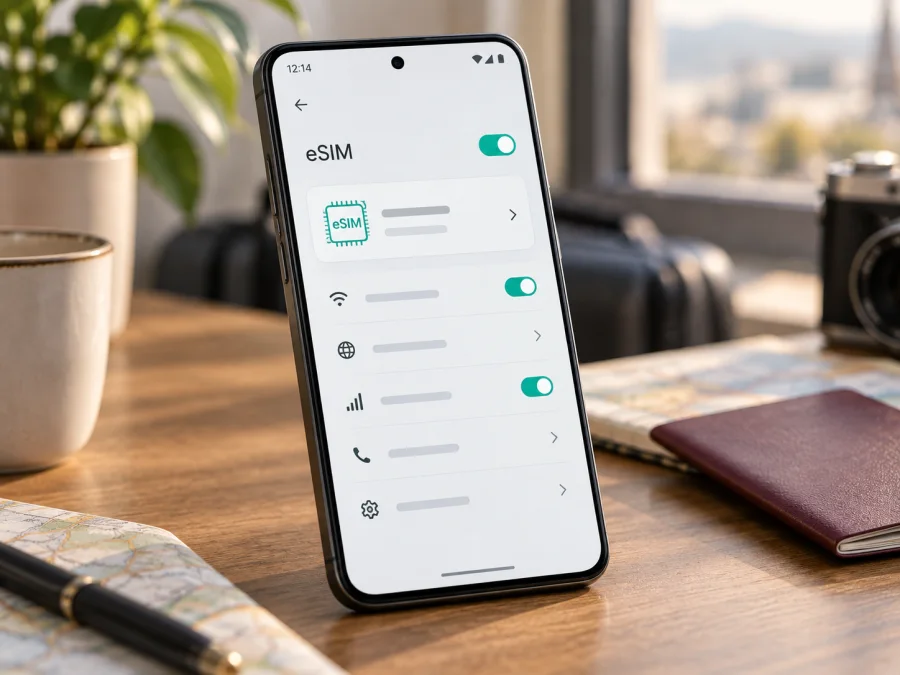
Xiaomi 14T Pro eSIM compatibility and travel setup
Does the Xiaomi 14T Pro support eSIM? Yes. Xiaomi’s official support instructions explain how to add an eSIM to the Xiaomi 14T Pro, and its global specifications list dual-SIM arrangements including nano-SIM + eSIM and eSIM + eSIM. Xiaomi also states that eSIM availability may vary by country or region and carrier. So the model supports eSIM, while the exact handset, software build and service plan should still be checked before you buy.
This guide shows how to check your phone’s eSIM controls and EID, install a profile, use it for mobile data abroad, and troubleshoot common issues. HyperOS menu names may vary slightly by version or region.
Xiaomi 14T Pro eSIM at a glance
| Check | Information |
|---|---|
| Model-level support | Yes, confirmed in Xiaomi’s official support guidance |
| Listed SIM combinations | nano-SIM + nano-SIM, nano-SIM + eSIM, or eSIM + eSIM in the global specifications |
| Software | Xiaomi HyperOS; settings labels may differ across builds |
| Regional note | Availability may vary by country/region and carrier |
| Before purchasing | Look for Add eSIM, check EID, verify the phone is unlocked, and confirm plan support |
An eSIM is a digital SIM profile provisioned on the phone. It can connect to a mobile network without another physical card, but it still requires an eligible plan and coverage in the place you are visiting. eSIM capability alone does not guarantee a particular speed, network, or uninterrupted service.
Does the Xiaomi 14T Pro support eSIM?
Yes. Xiaomi’s support page specifically describes adding an eSIM on the Xiaomi 14T Pro. The documented path is Settings → Mobile networks → Turn on eSIM → OK → Add eSIM, followed by scanning the QR code supplied by the plan provider. Xiaomi’s global specifications also list nano-SIM + eSIM and eSIM + eSIM dual-SIM arrangements.
This confirms eSIM support for the model, but does not mean every phone sold under the same name has identical availability. Product configurations, regulatory settings, firmware and carrier policies can differ by market. Imported or carrier-customized phones deserve an additional check. The practical answer for your handset is the eSIM menu in Settings, supported by the model and region information in About phone.
It helps to separate three questions:
- Is the model eSIM-capable? Xiaomi says yes for the Xiaomi 14T Pro.
- Can this handset add a profile? Check for an EID and an Add eSIM control. If both are missing, confirm the exact model and region with Xiaomi or the seller.
- Will this plan work? The provider must support the phone, destination and network, and the device must not be locked against that provider.
Regional and carrier differences
Xiaomi explicitly cautions that eSIM availability can depend on country or region and carrier. The Xiaomi 14T Pro is sold across many markets, and a phone imported from another market may have a different software build or local service support. A carrier can support eSIM for some account types and not others, require a particular activation method, or limit profile transfers. Local regulations may affect availability too.
A network lock is separate from eSIM support. The phone may have eSIM capability yet reject a profile from another provider because it is locked to the original carrier. Ask the seller or original carrier whether it is unlocked. This matters particularly for travel data profiles that use a provider other than your home network.
Check EID and eSIM settings before buying
EID is an identifier associated with the phone’s embedded SIM. Its presence is useful evidence, but the clearest practical check is that Settings shows eSIM controls and lets you reach the add-profile screen. You do not need to scan a code simply to check menu availability.
- Open Settings → Mobile networks. Look for Turn on eSIM, Use eSIM, Manage eSIM, or similar wording.
- If there is an eSIM switch, enable it and confirm the prompt. Look for Add eSIM.
- Check Settings → About phone → Detailed info and specs, Status, or the closest device-information page for EID. HyperOS may place identifiers in different sections.
- You can also open the dialler and enter
*#06#. On some versions, the EID appears with the IMEI numbers; this code may not display the same fields in every region. - Note the model and software region. If EID and Add eSIM are both absent, do not purchase yet; ask Xiaomi support or the seller to verify the exact handset.
An EID alone does not prove that a particular plan will work, and not seeing it in one menu is not conclusive proof that eSIM is impossible. Menus can move or be restricted by the software build. Before purchase, confirm the exact model, accessible eSIM settings, unlocked status and provider compatibility.
Check your Xiaomi 14T Pro and plan requirements before ordering. Confirm coverage for each destination, the data allowance, validity, activation timing, price, hotspot rules and whether the profile can be installed before departure. Save the instructions so they remain available without mobile data.
Choose a travel eSIM
Read when validity starts. It may begin at purchase, installation, first connection in the destination or another event defined by the provider. Check any speed, fair-use, top-up or tethering conditions. Video, cloud backups and laptop hotspots can use data quickly, so choose an allowance based on realistic use rather than trip length alone.
Kaspersky eSIM Store is an app and website where you can choose, arrange and activate an eSIM with a mobile data plan for an overseas trip. Review each plan’s coverage, data amount, validity, price and activation rules before choosing. An eSIM plan is generally for mobile data and does not include a regular phone number, voice calls or SMS unless its terms explicitly say otherwise; internet messaging and calling apps can work over data.
Before installing, connect to reliable Wi-Fi, charge the phone and keep your regular SIM available until the travel profile is ready. Follow the provider’s timing instructions. Some QR codes are single-use, so do not scan repeatedly, delete the profile, or transfer it unless the provider confirms this is allowed. Treat the QR code as private because it contains profile installation details.
Install and activate an eSIM
Xiaomi’s support flow is Settings → Mobile networks → Turn on eSIM → OK → Add eSIM. HyperOS labels can vary. Follow the instructions that came with your plan if they describe a different approved method.
- Connect to Wi-Fi. Keep the connection stable throughout profile download.
- Open eSIM settings. Go to Settings → Mobile networks, enable Turn on eSIM or its equivalent, and accept the prompt.
- Add the profile. Tap Add eSIM and scan the provider’s QR code. If the provider offers manual activation details or in-app installation, use only its official steps.
- Wait for confirmation. Leave the setup screen open until the phone reports that the profile was added. Avoid repeated scans if download takes time.
- Name the line. Use a label such as “Travel data” to distinguish it from your usual SIM.
- Choose the data line. In SIM management or Mobile data settings, select the travel eSIM when you intend to use it. Keep calls or texts on your usual line only if useful and check your home carrier’s roaming costs.
- Set roaming as directed. Some travel profiles require Data roaming on for that eSIM. Enable it for the travel line only when the provider instructs you to.
- Activate at the correct time. A plan may connect only in its destination or begin its validity on first network registration. Follow the terms and test when appropriate.
See the Android eSIM installation guide. The iOS installation guide is for travelers setting up an additional Apple device; it does not describe Xiaomi menus.
Installation downloads the profile; activation may mean enabling it, registering on a supported network, or completing a provider-specific step. Check when the validity period begins. If allowed, you can install before departure and leave the line off until you need it. If the provider says to wait until arrival, install over reliable Wi-Fi at the destination.
Use mobile data while travelling
At your destination, open SIM management and make sure the travel profile is enabled and selected for mobile data. Turn on mobile data for that line. If the provider requires data roaming, enable it for the travel eSIM. Keep roaming off on your home SIM if you want to avoid unintended data charges, subject to your carrier’s rules.
Allow the phone a few minutes to register. If it does not connect, move to an area with better reception. Try automatic network selection first; if needed, consult the plan instructions and select one of the listed supported networks manually. A profile that worked in one country may need a different partner network after a border crossing, so check the coverage list for every destination.
If you need hotspot sharing, confirm it is allowed by the plan. Download maps, tickets and boarding passes over Wi-Fi before you leave, and consider disabling automatic photo backups and app updates when the allowance is limited. A data-only eSIM usually will not receive standard SMS verification messages or conventional calls, so decide whether you need your usual line for those services and review its roaming costs.
Troubleshooting
If the profile is installed but data does not work, check one item at a time:
- Plan status: Confirm it is valid, its activation window has started, and your destination is included.
- Line selection: Make sure the travel eSIM is enabled and selected for mobile data; an installed profile may still be off.
- Roaming: If required, enable Data roaming for the travel profile only. Check that the home SIM is not selected for data.
- Signal: Toggle airplane mode briefly, move to a better coverage area, then restart if it still does not register.
- Network choice: Try automatic selection first. If that fails, follow the provider’s directions for a supported manual network.
- APN: Change it only if the provider supplies settings. Enter them exactly and do not copy settings from a different plan.
- Usage limits: Check that data remains and that a system data limit is not blocking the connection. Turn off VPN or private DNS only if provider support recommends it for diagnosis.
- Software: Restart and install an available official update when practical. A HyperOS update may change the location or wording of settings.
- Profile recovery: Do not delete the eSIM casually. A QR code may be single-use or the profile may not transfer. Ask the provider how to reinstall or reissue it first.
If Add eSIM is missing, verify the precise model, region, EID and software version, then ask Xiaomi whether eSIM is enabled for that handset. If a profile is rejected, contact the plan provider with the error, destination and software version. Do not share your QR code or activation details publicly.
Frequently asked questions
Can I use eSIM with a physical SIM?
Xiaomi lists nano-SIM + eSIM for the Xiaomi 14T Pro. Actual operation and which line handles data, calls or messages depend on the handset’s market, software and carrier.
Does eSIM support mean my phone is unlocked?
No. Ask the original carrier or seller whether your specific handset accepts other providers’ profiles.
Can I install before departure?
Often yes, but provider rules differ. Some plans can be installed early and start in the destination; others specify a different installation or activation time. Check before scanning the code.
Will a travel eSIM include a phone number?
Usually the offer is for mobile data. Voice calls and SMS are included only if the plan explicitly says so; internet calling and messaging apps work over data.
What if EID is not shown?
Check About phone, Detailed info, Status or *#06#. If neither EID nor Add eSIM is available, have Xiaomi verify the exact model and region before buying.
Final device check and trip eSIM
Before you choose a plan, confirm all of the following:
- The handset is the Xiaomi 14T Pro; note its market and HyperOS version.
- Settings shows Turn on eSIM and Add eSIM; check EID where available.
- The phone is unlocked for the provider you plan to use.
- The plan supports the device and every destination on your route.
- You understand the data amount, validity start, roaming, hotspot rules and price.
- You have saved the installation steps and know whether the QR profile can be restored.


