Travel connectivity guide
Xiaomi 15 Ultra 512GB eSIM: Compatibility & Setup
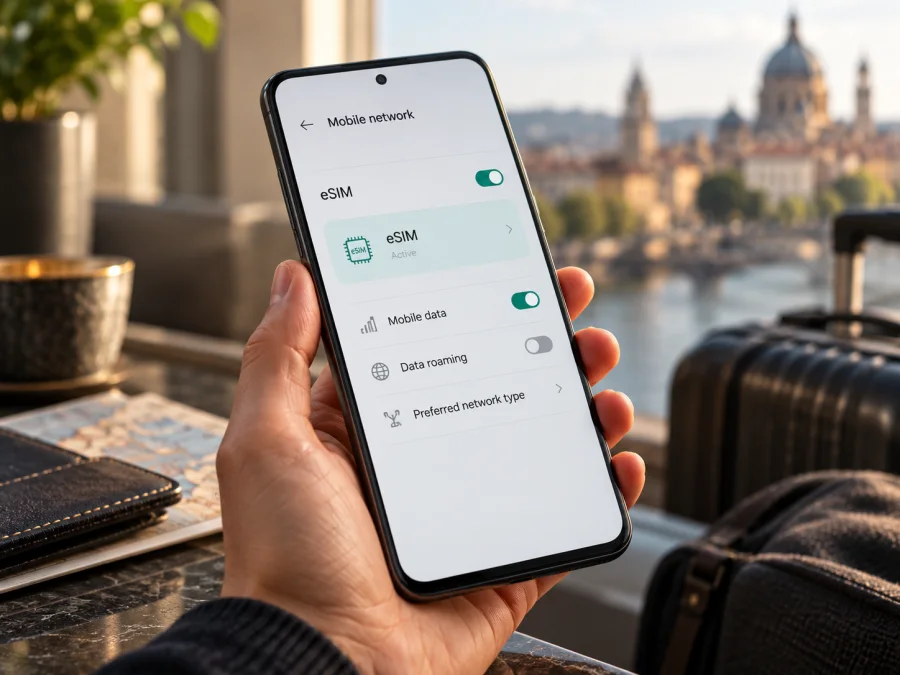
Xiaomi 15 Ultra 512GB eSIM: compatibility and setup guide
The Xiaomi 15 Ultra 512GB is listed by Xiaomi as an eSIM-capable phone in the global product specifications. That is a useful starting point, but the storage label alone does not identify the phone’s sales region, hardware code, firmware, carrier restrictions, or current network plan. If you own this exact configuration, check the eSIM controls on your handset before choosing a travel plan. Xiaomi notes that eSIM availability can vary by country or region and carrier.
This guide explains what Xiaomi’s published information confirms, what still needs to be checked on an individual phone, and how to add a data eSIM for a trip. It applies to the stated 512GB configuration; it does not assume that a phone with a similar name from every market has identical connectivity options.
Does Xiaomi 15 Ultra 512GB support eSIM?
Yes: Xiaomi’s global specifications list the Xiaomi 15 Ultra with eSIM support. The page describes dual-SIM configurations as two nano-SIMs, one nano-SIM plus one eSIM, or two eSIMs. Xiaomi’s support FAQ also says the Xiaomi 15 Ultra can store up to 10 eSIM profiles, subject to available eSIM/eSE memory, and use up to two at once. The number of stored profiles is not a promise that every carrier or plan will work in every country.
There is an important qualification. Xiaomi says eSIM availability depends on country or region and the carrier. Also, “512GB” describes storage capacity; it is not a regional model code. A listing may describe the global 16GB + 512GB version, but the wording by itself does not prove the origin or eligibility of the particular handset in your hands. Imported stock, a carrier-customized unit, market-specific firmware, or a device that is network locked may behave differently. The reliable answer for your handset is the one shown in its own settings and confirmed by Xiaomi or the seller for its exact model code and market.
| Check | What Xiaomi’s published global information says | What to confirm on your phone |
|---|---|---|
| eSIM capability | Xiaomi lists eSIM configurations for Xiaomi 15 Ultra | An eSIM or “Add eSIM” control appears in your system settings |
| SIM combinations | nano-SIM + nano-SIM, nano-SIM + eSIM, or eSIM + eSIM are listed | The available combinations can depend on your region and carrier |
| Saved profiles | Up to 10 eSIM profiles according to Xiaomi’s FAQ, subject to memory use | Your device may have fewer free profile slots |
| Active profiles | Xiaomi says up to two eSIMs can be used simultaneously | Which lines can be active and used for data depends on your setup |
| Travel data | A compatible eSIM can be selected for mobile data | Check device unlock status, destination, plan terms, and local partner-network support |
| Storage variant | The task names the 512GB configuration | Storage size does not establish the phone’s market or regional model code |
Regional versions and operator restrictions
Xiaomi publishes regional product pages, and the network and service details can vary by market. Global Xiaomi specifications explicitly warn that eSIM availability may differ by country or region and carrier. This is why a general product-family answer cannot replace a check of the exact device. Two phones sold as Xiaomi 15 Ultra with the same advertised storage may have different market origins, firmware, available network bands, SIM configuration, or carrier status.
Before relying on eSIM, look up the full model number in Settings → About phone and compare it with the box, invoice, or seller’s listing. Ask the seller or Xiaomi support to confirm eSIM eligibility for that exact model number and original sales market. If the phone came from a mobile operator, check whether it is SIM-unlocked. A locked phone may reject a profile from another provider even though the hardware supports eSIM. A roaming arrangement, regional carrier approval, and mobile-network compatibility are separate matters; one does not guarantee the others.
Check eSIM support on your own phone
Use these checks before buying a plan. Menu labels can vary slightly across HyperOS versions, regions, and languages, so look for equivalent wording if the path is not exact.
- Look for an EID. In Settings, search for “EID” or open About phone → Detailed info and specs → Status (the precise route can vary). The EID is an identifier associated with an eSIM-capable device. If an EID is shown, record it only for your own support or carrier check; do not post it publicly. Its presence is a strong sign that eSIM hardware is available, but carrier and plan eligibility still need confirmation.
- Look for eSIM controls. Open Settings → Mobile networks and inspect SIM management. Depending on the software build, you may see Turn on eSIM, Manage SIM, Add eSIM, Download a SIM, or a similar control. Xiaomi’s own setup instructions for eSIM-capable models use Mobile networks and SIM management. The wording and order may differ on your Xiaomi 15 Ultra.
- Check the SIM management screen. If the phone offers to add or manage an eSIM, continue only as far as the preview or setup page until you are ready to install. Do not scan a one-time activation QR code just to test whether the menu works. A code may be single-use or bound to the device once installation begins.
- Check device lock status. If the phone was sold through a carrier, ask that carrier whether it is unlocked for other providers’ profiles. A settings menu cannot confirm that another carrier’s eSIM will be accepted.
- Confirm the exact model and market. Give Xiaomi support or the seller the model number, country of original sale, and software version. Ask whether eSIM can be enabled on that exact unit and whether there are any market or operator limitations.
Check your device compatibility before selecting a plan. An EID is helpful evidence, not a universal guarantee. If no EID or eSIM menu appears, restart after updating, search settings again, and ask Xiaomi support to check the model code. If the official response and the menu disagree, do not assume the feature will work; resolve the discrepancy before purchase.
Compatibility checklist
Use this short checklist before paying for a travel eSIM:
- [ ] The phone’s exact model number and sales region are known.
- [ ] Settings shows an EID or an option to add/manage eSIM.
- [ ] Xiaomi or the seller confirms eSIM support for that precise unit if there is any doubt.
- [ ] The phone is unlocked for the provider whose profile you plan to install.
- [ ] The plan includes the country or countries on your route.
- [ ] The phone supports the network bands and service type used by the plan’s local partner network.
- [ ] You have a stable internet connection for profile download and enough battery to finish setup.
- [ ] You have read the plan’s data allowance, validity period, activation rules, and roaming conditions.
What you need before installing an eSIM
Prepare while you still have reliable internet access. You will need an eSIM-capable and unlocked Xiaomi 15 Ultra, the plan details and installation method provided after checkout, a Wi-Fi connection or another working data connection, and access to the account or email where the installation instructions were delivered. If installation is done by QR code, display the code on another device or print it; most phones cannot scan a QR code displayed on their own screen.
Review the plan’s activation conditions before installing. Some plans begin their validity period when the profile is installed; others begin when the eSIM first connects to a supported network or when a specific activation step is completed. Read the instructions attached to the plan and choose the timing that matches your trip. If the plan allows installation ahead of time but you want to delay data use, install it without selecting it for mobile data, keep it turned off if the instructions allow that, and follow the provider’s activation rules. Do not delete a profile to pause it unless the provider explicitly says that it can be reinstalled; many activation codes are one-time use.
After confirming your phone’s compatibility, you can browse current eSIM plans for travel and check the current destinations and plan terms. The homepage is a general starting point for browsing; it is not a tariff page for a particular country. Choose the plan only after confirming that it covers your itinerary and that its validity and activation rules suit your dates.
How to install and activate an eSIM on Xiaomi 15 Ultra 512GB
Keep the phone connected to Wi-Fi during installation. Exact labels can vary with software version and region. If the plan’s own instructions show a different route, follow those instructions. Xiaomi’s menu path in its support guidance is Settings → Mobile networks → Turn on eSIM → Manage SIM → Add eSIM; your build may show only some of those labels.
Install with the provider’s app or QR code
- Open eSIM settings. Go to Settings → Mobile networks → Turn on eSIM → Manage SIM → Add eSIM (labels may differ).
- Start installation. Use the provider app’s Install option or select QR-code scanning. For a QR code, display it on another screen or print it.
- Confirm and download. Check that the plan details match your order, then approve adding the profile while connected to Wi-Fi.
- Finish setup. Wait for installation, label the line “Travel data,” and keep the order details available. Follow the plan instructions for when to enable it and select it for mobile data.
If the QR code cannot be scanned, check that the entire code is visible, the screen brightness is high enough, and the camera lens is clean. If the code was already used or the device reports that the plan cannot be added, do not repeatedly retry or delete any installed profile. Check the order’s installation method and ask the provider whether a replacement or manual installation is available.
For more detail, see the Android eSIM installation guide or the iOS eSIM installation guide. For this Xiaomi phone, use the Android steps and HyperOS menu options.
Select the eSIM for mobile data
Installing a profile and using it for data are separate actions. When you are ready to connect, open the SIM or mobile-network settings and set the travel eSIM as the line for Mobile data. If you want to keep your home SIM active for calls or messages, verify which line is selected for those services and check whether the home line could incur roaming charges. Turn off automatic data switching if your phone offers it and you do not want the device to move data to another SIM unexpectedly.
Some travel eSIMs require Data roaming to be enabled on the eSIM profile so it can connect to a partner network. This setting does not itself determine the plan’s price; follow the provider’s instructions and check that the travel profile, rather than your home SIM, is selected for data. If the provider requires roaming for the travel profile, enable it only for that line. Confirm that your home SIM’s data roaming remains off if you want to avoid using its roaming allowance.
Using the Xiaomi 15 Ultra 512GB on a trip
A travel eSIM can be useful when you want mobile data for maps, transport bookings, hotel details, translation, messaging, and work while away from home. It can reduce the need to find a physical SIM counter or depend on public Wi-Fi, but the actual connection depends on the plan’s destination coverage, partner network, device compatibility, local signal, and plan conditions. No phone or eSIM can promise uninterrupted service in every location.
Before departure: confirm the destination is included, compare the plan allowance and validity with the length of your trip, and check when the package starts. Install the profile over Wi-Fi if the provider permits advance installation. Give it a recognizable name and keep the original QR code or activation details somewhere accessible, but do not assume that the code can be used again. Leave the travel line turned off or unused until the correct activation time if required by the plan instructions.
On arrival: turn on the travel eSIM, select it as the mobile-data line, and enable data roaming for that profile only if instructed. Allow the device to register on a local partner network. If there is no connection, confirm that the selected destination and plan are right, that the profile is enabled, and that airplane mode is off. Avoid removing the profile while troubleshooting.
Troubleshooting common eSIM issues
There is no EID or Add eSIM option
Check the full model number and original region in About phone. Restart after installing official updates, then search Settings for “eSIM” and “EID.” If the options are still missing, ask Xiaomi support or the seller to verify the exact unit. The advertised 512GB capacity does not identify whether the handset is a region-specific or restricted version. Do not purchase a plan based only on a listing headline.
The phone says the eSIM cannot be added
Confirm that you are connected to the internet, the code or manual details belong to this order, and the provider supports the Xiaomi 15 Ultra in the phone’s region. Some codes are limited to one installation. Check whether the eSIM profile was partly added in SIM management before trying again. If the code may have been used, contact the provider with the order reference and the exact error message; never share your EID or QR code in a public forum.
The profile is installed but there is no signal
Make sure the profile is turned on and your location is included in the plan. Check that the phone is not in airplane mode and that the travel eSIM is selected for mobile data. Follow the provider’s instructions for data roaming and network selection. Restart the phone once, then allow a few minutes for registration. If the problem continues, check with the provider for a local outage or supported network. A strong signal from another SIM does not prove that the travel plan can connect to the same network.
The wrong SIM is using data
Open SIM management and inspect the mobile-data default. Turn off automatic switching between SIMs if available and unnecessary. Review both profiles separately: your home SIM may have its own data-roaming control, while the travel eSIM may need roaming enabled. Keep the home line’s roaming off if you do not intend to use its data service. The exact labels vary by HyperOS version.
The QR code is rejected or the camera cannot read it
Increase screen brightness on the device displaying the code, enlarge the code without cropping it, and avoid glare. If scanning from another phone, display the code on a laptop or print it. Use the manual installation details only if the provider supplies them. An error that says the code is invalid or already used requires provider assistance; repeated scans are unlikely to fix a one-time activation limit.
Frequently asked questions
Is Xiaomi 15 Ultra 512GB definitely eSIM-compatible?
Xiaomi’s global specifications list eSIM for Xiaomi 15 Ultra, and its support FAQ confirms eSIM support. The 512GB label alone does not identify the market version, so verify EID or the eSIM menu and confirm the exact model and carrier status before purchase.
Does a travel eSIM give me a phone number?
Usually not. A data-only travel plan provides mobile data and does not include a regular phone number, voice calls, or SMS unless its terms explicitly say otherwise. Internet messaging and calling apps can work over the data connection, subject to their own account requirements.
What should I do if Xiaomi settings contradict the seller’s claim?
Pause the purchase. Note the model number, software version, sales market, and the exact settings you see. Ask Xiaomi or the seller to confirm compatibility for that unit in writing. If eSIM support remains uncertain, use a compatible unlocked device or ask the seller about an appropriate return or exchange before buying a data plan.
Final checklist: verify first, choose your travel eSIM second
For the Xiaomi 15 Ultra 512GB, Xiaomi’s published global specifications and support information provide a positive eSIM indication. Your own phone still needs a device-level check because market, carrier, firmware, and lock status can affect whether a profile can be added and used. Look for an EID or eSIM management control, confirm the precise model number and unlock status, and make sure your destination and local network are covered by the plan you choose.
Once those checks are complete, compare current travel plan terms for your itinerary: destination, data allowance, validity period, activation timing, roaming requirements, and any hotspot conditions. Kaspersky eSIM Store’s app and website let you browse, purchase, and activate an eSIM with a travel data plan; the plan’s actual mobile service is subject to its stated terms and partner-network availability. Take a moment to verify compatibility before checkout, then install the profile over a reliable connection and select the correct SIM for data when your trip begins.


