Travel connectivity guide
Xiaomi 15 Ultra 5G eSIM: compatibility and setup
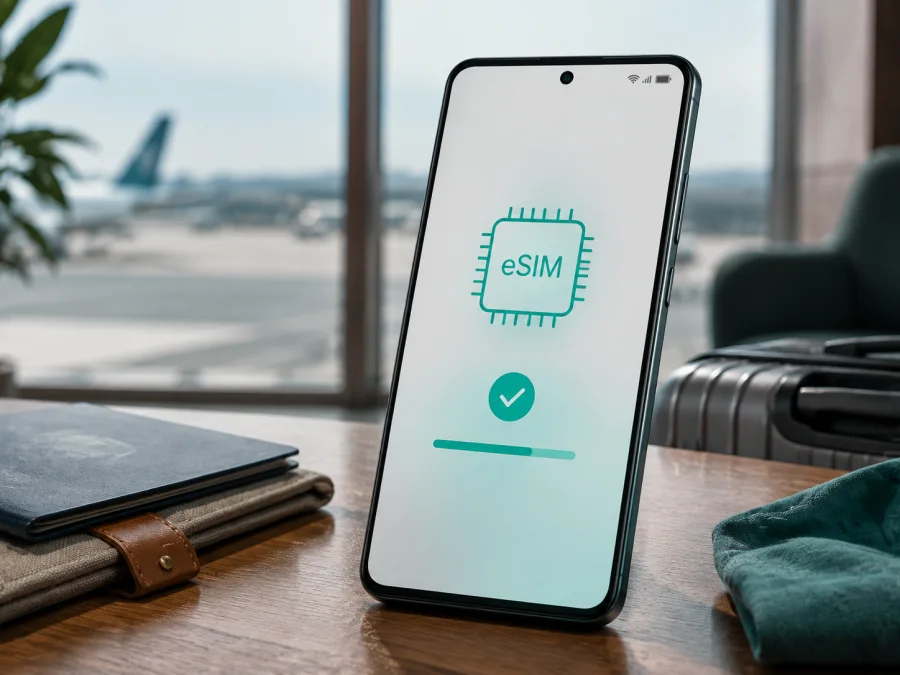
Xiaomi 15 Ultra 5G eSIM: compatibility and installation
The Xiaomi 15 Ultra 5G can use an eSIM on supported regional versions. Xiaomi’s current official information confirms eSIM support for the Xiaomi 15 Ultra, but also says that availability may vary by country, region and carrier. That distinction matters when buying an imported phone: two devices with the same commercial name can expose different SIM controls.
Quick answer: does Xiaomi 15 Ultra 5G support eSIM?
Yes, provided that your exact Xiaomi 15 Ultra 5G version, firmware and mobile service plan support the feature. Xiaomi’s global FAQ lists the Xiaomi 15 Ultra as eSIM-compatible, with up to 10 stored eSIM profiles and up to two eSIMs active at once. The practical storage limit can depend on eSIM and eSE memory, and the available active combination can still depend on the market and carrier.
Xiaomi’s regional specifications list combinations including nano SIM + nano SIM, nano SIM + eSIM and eSIM + eSIM. Other official support information describes two Nano SIM slots for the Xiaomi 15 Ultra. These statements are version-specific, not a guarantee that every unit has every configuration. The phone’s settings and EID are the decisive checks.
If your phone has an EID and offers Use eSIM, Manage eSIM or Add eSIM in mobile-network settings, it is a strong candidate for a travel eSIM. If those controls are absent, pause before purchase and confirm the exact SKU with the seller or Xiaomi support.
An eSIM is a digital SIM profile stored in the phone. A travel eSIM plan provides mobile data for a stated destination, allowance and validity period. It does not automatically provide a new ordinary phone number, voice calls or SMS.
Xiaomi 15 Ultra 5G eSIM facts at a glance
| Item | Practical meaning |
|---|---|
| Device | Xiaomi 15 Ultra 5G |
| Software | Android with Xiaomi HyperOS; labels can change after updates |
| eSIM support | Confirmed for the Xiaomi 15 Ultra, subject to version and market |
| Stored profiles | Up to 10 according to Xiaomi; actual capacity depends on eSIM/eSE memory |
| Active profiles | Xiaomi describes up to two eSIMs; the combination remains region-dependent |
| SIM configurations | Regional specifications may show nano SIM + eSIM or eSIM + eSIM |
Why region and carrier matter
Compatibility has three parts: the phone must contain and expose eSIM hardware; it must not be locked against another service provider; and the chosen plan must be able to provision on that model in the destination. A general product name cannot answer all three questions.
An imported Xiaomi 15 Ultra 5G may have a physical dual-SIM tray and no eSIM controls if it was made for a market where the function is not enabled. A regional phone may show the correct menu while a local carrier still does not support eSIM for that account. Firmware updates can move or rename menu items, but changing the interface language does not change the phone’s market configuration.
5G access is separate: the phone may use 4G where the local network, plan or signal does not provide 5G. That alone does not indicate an eSIM problem. For an imported device, record the model number, purchase market and HyperOS build, and ask about that exact version rather than the Xiaomi 15 Ultra family in general.
How to verify compatibility before buying
Use the EID, the mobile-network menu and the plan conditions together. An EID is an identifier associated with the eSIM component. Its presence is a strong sign of hardware support, but it does not override a carrier lock or regional service restriction. Do not post the full EID publicly; just verify that the field exists.
<a id="kesim-device-compatibility"></a>
Check the EID
Open Settings and look under About phone, Detailed info and specs, Status or a SIM-information page. Xiaomi’s HyperOS wording varies by release. Look for EID near the IMEI details. Two IMEIs without an EID do not prove that eSIM is available.
Find eSIM settings
Open Settings, then Mobile networks or SIM cards & mobile networks. Search for Use eSIM, Turn on eSIM, Manage eSIM, Add eSIM, Add mobile plan or Discover eSIMs. Some versions show the management controls only after the eSIM switch is enabled. If no eSIM control appears after a restart and normal system update, treat the phone as unverified.
Confirm the software and plan
Compare the model number and HyperOS build with documentation for the market where the phone was sold. Avoid unofficial firmware changes just to reveal a menu: they do not guarantee carrier provisioning and can create update or warranty issues. Then check the plan’s destination, data allowance, validity start, roaming requirement and reinstallation rules. Many profiles are intended for one device and cannot simply be moved after activation.
For a concise pre-purchase routine, Check your device, then verify the destination, allowance, validity and activation conditions of the travel plan.
Compatibility checklist
- [ ] The exact retail region of Xiaomi 15 Ultra 5G is known.
- [ ] An EID is visible in the phone’s information or SIM-status screen.
- [ ] Mobile-network settings include eSIM management or an add-plan option.
- [ ] The phone is not carrier-locked against the intended service.
- [ ] The selected plan covers every country or region on the route.
- [ ] You understand when validity starts and whether data roaming is required.
- [ ] Reliable Wi-Fi is available for installation.
Resolve any uncertain item before payment; compatibility cannot overcome an unsuitable plan or carrier restriction.
How to install and activate an eSIM
Prepare the phone over reliable Wi-Fi and keep the QR code or activation details on another screen. If the QR code is displayed on the Xiaomi 15 Ultra 5G itself, it cannot scan its own screen. Read the plan’s activation rule first: some plans start validity at installation, while others start when the profile connects.
For additional guidance, see the Android eSIM installation instructions or the iOS eSIM installation instructions. Android is the relevant guide for Xiaomi.
1. Confirm the prerequisites
Verify the EID or eSIM menu, an unlocked phone, an active plan and destination coverage. Do not repeatedly scan a code if the first attempt may already have added the profile.
2. Open mobile-network settings
Go to Settings and open Mobile networks or SIM cards & mobile networks. Enable Use eSIM or Turn on eSIM if shown. Select Manage eSIM, Add eSIM, Add mobile plan or the closest available option.
3. Scan or enter the activation details
Choose QR-code scanning and point the camera at the code from your order or activation message. Keep it fully visible and well lit. If manual entry is offered, copy the details exactly. Do not guess or edit an SM-DP+ address or confirmation code.
4. Download the profile
Follow the on-screen prompts and stay on Wi-Fi. The download may take several minutes. When prompted, give the profile a clear label such as Travel data so it is easy to identify beside your everyday line.
5. Select the data line
In the SIM manager, choose the travel eSIM for Mobile data. Disable automatic data switching if available, so the phone does not silently return to the physical SIM. Keep the regular line for calls or messages only if its roaming conditions are acceptable.
6. Activate at the right time
Before departure, install only when the plan’s validity rules allow it. At the destination, turn on the travel profile and enable data roaming for that eSIM only if the plan requires it. Allow a few minutes for network registration.
7. Test the connection
Turn off Wi-Fi briefly and open a simple page or app. Check that mobile data is assigned to the travel eSIM. Re-enable Wi-Fi after the test if you want to conserve data, and do not delete the profile until the trip and any support case are finished.
Using eSIM mobile data while travelling
A practical two-line setup keeps the usual physical SIM for its number and assigns mobile data to the travel eSIM. Install over Wi-Fi when permitted, confirm when validity starts, then enable the travel profile on arrival and test without Wi-Fi.
Choose the allowance according to your own use. Maps, messaging and ride-hailing use less data than video, photo backup, system updates or hotspot sessions. Set an Android data warning or limit when available, and confirm that a multi-country plan includes every country on the route.
For work travel, keep the everyday line for important calls or verification codes only if its roaming charges are acceptable. Use the travel eSIM for data and internet-based apps, and download offline maps in advance.
Kaspersky eSIM Store is an app and website where you can choose, arrange and activate an eSIM with a suitable mobile-data plan for an overseas trip. It is not the mobile operator, network owner or provider of the underlying mobile internet. Review the destination, allowance, validity and activation conditions shown for the selected plan; the service helps with the choice and activation workflow, while network availability remains dependent on the plan and local networks.
Common problems and settings checks
The QR code will not scan
Increase the brightness of the screen displaying the code, clean the Xiaomi camera lens and keep the full code in view. Use another screen if the code is on the phone being configured. Use manual entry only when the provider supplies those details. A code already installed elsewhere may not work again, so check its status before requesting help.
There is no eSIM option
Search Settings for “eSIM” and check both mobile-network menu names. Confirm that Use eSIM is enabled, restart once and look for the EID again. If both the EID and eSIM controls are missing, the regional version or carrier policy may not support the function. Confirm the exact model and market rather than assuming an update will add it.
The profile will not download
Reconnect to stable Wi-Fi, set date and time automatically, and confirm that the QR code belongs to this order and has not been used. If a partial profile is visible, record the error before deleting anything and contact support with the order details.
The profile is installed but there is no service
Turn on the eSIM, select it for mobile data and briefly toggle airplane mode. Confirm the destination, validity window and remaining allowance. Enable data roaming for the travel eSIM if required by its conditions. Automatic network selection is usually a good starting point; manual selection should be a targeted troubleshooting step.
Data uses the wrong SIM
Open the SIM manager and make the travel profile the mobile-data line. Turn off automatic data switching and disable roaming data on the everyday line if you are concerned about charges. Check the status bar and test with Wi-Fi off before using data-intensive apps.
The phone shows 4G instead of 5G
This is not automatically an eSIM failure. Network generation depends on local coverage, signal, supported bands and the selected plan. Confirm that 5G is available and included, but remember that a stable 4G connection can still deliver the plan’s mobile data.
FAQ
Is Xiaomi 15 Ultra 5G eSIM-compatible everywhere?
No universal promise applies. Xiaomi confirms eSIM support for the Xiaomi 15 Ultra, while warning that availability varies by country, region and carrier. Check the EID, the eSIM menu and the chosen plan for your particular unit.
How many profiles can it store?
Xiaomi describes up to 10 stored eSIMs, with the actual limit depending on eSIM and eSE memory. Stored profiles are different from active profiles, so you may need to switch or deactivate one before using another.
Can two eSIMs be active together?
Xiaomi’s global FAQ describes up to two active eSIMs, but the available combination remains dependent on the regional version, firmware and carrier. Use the SIM manager on your phone as the final check.
Does a travel eSIM replace my normal number?
Usually not. A data-only profile provides mobile internet and does not add ordinary calls, SMS or a phone number unless the plan expressly includes them. You can keep the physical SIM for its number and assign data to the travel profile.
Do I need Wi-Fi to install it?
Normally an internet connection is required to download the profile, so Wi-Fi is the safest method. Install on another screen’s QR code and follow the plan’s validity rules before travelling.
Why can activation fail when the EID is visible?
The EID shows an eSIM component, not guaranteed access to every plan. A carrier lock, unsupported regional firmware, used QR code, destination mismatch or plan restriction can still block activation. Save the error message for support.
Final check before your trip
Before paying for a travel eSIM, verify the exact Xiaomi 15 Ultra 5G unit: confirm its retail region, find the EID, locate the eSIM management option and make sure the phone is not carrier-locked. Then choose a plan for the actual country, region or route and review its allowance, validity, network access, roaming requirement and reinstallation rules. Install over reliable Wi-Fi when appropriate, label the profile, select it for mobile data and test it with Wi-Fi off before relying on it abroad.
Kaspersky eSIM Store helps you choose, arrange and activate an eSIM plan for mobile internet during an overseas trip through its app or website. It does not replace device or carrier checks. When they agree, Xiaomi 15 Ultra 5G can be a convenient travel-data setup; if not, resolve the mismatch before purchase or ask support for guidance.


