Travel connectivity guide
Xiaomi 15 Ultra 8GB RAM eSIM: Compatibility Guide
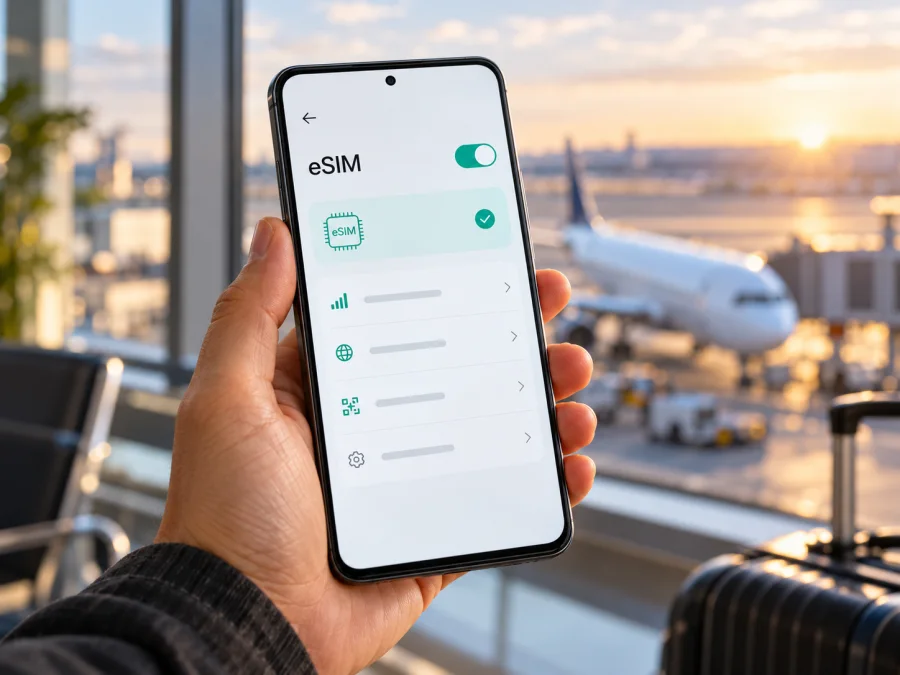
Xiaomi 15 Ultra 8GB RAM eSIM: compatibility and travel setup
If you are preparing a trip, an eSIM can give you a way to use mobile data without swapping a physical SIM card. The first question is whether the specific phone can add an eSIM profile, and the second is whether that profile can register on a network in the country you are visiting. For Xiaomi 15 Ultra 8GB RAM, Xiaomi’s official support information confirms eSIM capability for the Xiaomi 15 Ultra family. However, Xiaomi’s published market specifications do not confirm an official retail configuration named “Xiaomi 15 Ultra 8GB RAM”; the regional configurations listed by Xiaomi include 16GB RAM. Treat the 8GB wording as an unverified variant label until the seller, model number, and device settings confirm what it means. RAM capacity by itself does not tell you whether the embedded SIM hardware or regional software is enabled.
The practical answer is therefore conditional: the Xiaomi 15 Ultra is listed by Xiaomi as eSIM-capable, but check the exact unit in hand before buying a travel plan. Regional model, firmware, carrier restrictions, and the eSIM service available in the destination market can affect what works. Use the on-device EID and eSIM menu checks below, then verify the plan’s country coverage and activation terms.
Xiaomi 15 Ultra 8GB RAM eSIM compatibility at a glance
| Check | What can be confirmed | What you should verify |
|---|---|---|
| eSIM on the Xiaomi 15 Ultra family | Xiaomi’s global support FAQ says the Xiaomi 15 Ultra supports eSIM. Its UAE specification page lists dual Nano SIM, Nano SIM plus eSIM, or eSIM plus eSIM combinations. | Confirm that the exact regional handset shows the eSIM controls and EID. |
| “8GB RAM” configuration | Xiaomi’s official market specifications do not confirm an 8GB RAM retail version. Xiaomi’s Philippines FAQ lists 16GB LPDDR5X RAM for its stated configurations. | Ask the seller for the model code and original regional specification. Check Settings > About phone and do not infer eSIM status from the RAM label. |
| Profiles and simultaneous lines | Xiaomi states that the model can store up to 10 eSIM profiles; its FAQ says up to two eSIMs can be used at the same time. | Stored profiles and active lines are different limits. Your carrier and local rules may impose additional limits. |
| Physical SIM | Xiaomi lists two Nano SIM slots in product support material. | The available combination of physical SIMs and eSIMs can depend on the version and enabled SIM slot. Read the on-screen SIM manager. |
| Country and operator | Xiaomi warns that eSIM availability varies by country or region and carrier. | Confirm that the provider supports eSIM for this model and that the selected travel plan covers your destination. |
| Memory extension | Xiaomi’s product FAQ says memory extension is supported. | Virtual memory or “memory extension” is not the same as installed physical RAM, and does not establish the phone’s eSIM compatibility. |
What the official confirmation does and does not mean
Xiaomi’s global support FAQ confirms eSIM for the Xiaomi 15 Ultra and says it can store up to 10 profiles. Xiaomi’s UAE specification lists two Nano SIMs, Nano SIM plus eSIM, or eSIM plus eSIM. These sources confirm support for the family, subject to the exact market version and carrier.
The requested “8GB RAM” retail configuration could not be confirmed in the official Xiaomi materials checked. Xiaomi’s Philippines FAQ and UAE specification list 16GB RAM configurations. This does not prove that no other market listing exists, but the label could refer to a seller error or memory extension. Check the box, model code, and About phone page; ask the seller to explain any mismatch.
RAM capacity and eSIM capability are separate. Virtual memory extension is not installed physical RAM, and neither RAM nor a 5G indicator proves that an eSIM can be installed.
Regional versions, operator restrictions, and where you will use it
A product-family name does not identify every market build. Xiaomi’s market-specific pages confirm eSIM on the Xiaomi 15 Ultra, while the company also cautions that availability varies by country, region, and carrier. The exact model code, firmware, SIM settings, and original carrier therefore matter. A carrier-sold phone may be locked or restricted from adding another provider’s eSIM even when its hardware supports the feature.
Keep these checks distinct: the EID and Add eSIM menu indicate phone capability; the issuing provider must accept your handset and issue a profile; and the plan must cover the country where you will connect. Verify each destination on a multi-country itinerary, including territories and stopovers where you expect to use data. A regional plan’s name alone does not prove that every nearby country is included.
Compatibility checklist before you choose a plan
- [ ] Confirm the complete device name and model code from Settings > About phone and the device label or original box.
- [ ] Check whether the exact phone shows an EID and an option such as Add eSIM or Manage eSIM.
- [ ] If the “8GB RAM” description came from a seller, confirm the physical RAM and whether “memory extension” is being counted separately.
- [ ] Install available official system updates over Wi-Fi, then check the eSIM menu again.
- [ ] Ask the original carrier whether the phone is unlocked and whether eSIM provisioning is permitted.
- [ ] Confirm that the eSIM provider accepts this device and that its plan lists every destination you need.
If you are buying from a reseller, ask for the phone’s full model identifier rather than relying on a headline or generic product photo. Compare it with the About phone screen and the label on the box; a seller’s “8GB RAM” claim should match the device information or be clearly explained as memory extension. You can ask Xiaomi support whether that model code and software region expose eSIM. Do not send your EID or QR code to an unverified seller: for a basic compatibility check, the model code and a description of the menu are usually enough. If the phone is imported, ask which market it was made for and whether the original carrier has locked or limited eSIM provisioning. These details help distinguish a hardware capability from a profile that a particular provider can activate.
- [ ] Read the plan’s data allowance, validity, start conditions, supported networks, hotspot rules, and refund or cancellation terms.
- [ ] Keep access to stable Wi-Fi and your activation details until the profile appears in SIM settings.
Check your device before purchase if you are uncertain about the exact model or its regional software.
How to check EID and eSIM settings on the phone
Menus can change slightly between HyperOS versions and regional software builds. Start with Settings and use the search box if the labels below differ. Xiaomi’s support instructions describe eSIM controls under the mobile network or SIM management menus; the exact wording on your screen is the most useful evidence for your unit.
Look for the EID
- Open Settings.
- Tap About phone or use Settings search for EID.
- If the system does not show it there, open SIM cards & mobile networks or Mobile networks.
- Look for Manage eSIM, eSIM, or View device EID. On some software builds, the EID appears after enabling Use eSIM.
- Record the EID privately if a provider’s support team requests it. Do not post it publicly or include it in a screenshot shared online.
An EID is a useful hardware check, but it is not an activation code. It does not prove the phone is unlocked, that a provider accepts the device, or that a plan covers a destination. If neither an EID nor an eSIM control appears, search Settings for “eSIM” and “mobile networks,” update the software, and verify the model code and region with Xiaomi or the seller. If those checks still show no eSIM capability, wait for confirmation before paying for a plan.
Look for the add eSIM control
Depending on software version, a likely path is Settings > Mobile networks > Turn on eSIM > Manage SIM > Add eSIM. Some Xiaomi support instructions use Settings > SIM cards & mobile networks and then Use eSIM or Manage eSIM. Choose the closest matching menu on your phone. If the switch is off, enabling it may reveal a management page; read the prompt before changing a physical SIM slot’s mode. Do not remove a working physical SIM unless you understand which slot will be affected.
When you can see Add eSIM, the phone’s software offers a route to load a profile. That is encouraging, but complete the provider and destination checks as well. If the phone asks you to select SIM 2 or temporarily disable a physical SIM, pause and confirm how the device handles that configuration before proceeding.
Install and activate an eSIM
Prepare the installation while you have reliable Wi-Fi. Keep the QR code or activation details available on another screen or in the provider’s app. A QR code is usually for one installation attempt or one device, depending on the provider’s policy; do not assume you can scan it repeatedly or transfer the profile later. Follow the provider’s instructions if they differ from the general phone steps.
Add the profile using a QR code
- Check the plan and phone. Confirm that the plan is for your destination and that your exact Xiaomi 15 Ultra 8GB RAM unit has an EID and Add eSIM option.
- Open mobile network settings. Go to Settings > Mobile networks or SIM cards & mobile networks.
- Enable eSIM management if prompted. Turn on Use eSIM only if the screen explains the effect on your SIM configuration.
- Choose Add eSIM. Keep the activation email or plan page open on a second device, or use a manual entry option if the provider supplies one.
- Scan the provider’s QR code. Align the code inside the phone’s frame and wait for the profile details to load. Do not share the code; anyone who can use it may be able to claim the profile, depending on provider rules.
- Confirm the installation. Review any displayed provider or plan name, then tap Add, Download, or Confirm as shown.
- Wait for the profile to appear. Leave Wi-Fi on and do not close the settings page until the phone confirms the eSIM has been added.
- Name the line. Use a clear label such as “Travel data” so you can distinguish it from your home SIM.
- Choose the data line. In SIM management, select the travel eSIM for mobile data when you are ready to use it. Keep your usual line available for calls or messages if desired, while checking roaming charges with your home provider.
- Set activation timing. Some plans start their validity when installed; others start on first connection to a supported network or at a stated time. Follow the plan’s own terms and avoid enabling the travel line early if the validity clock could start.
For screenshots and platform-specific guidance, see the Android eSIM installation instructions and the iOS eSIM installation instructions. The iOS guide is useful only if you are installing on an Apple device; use Android steps for the Xiaomi.
After installation: activation and data selection
Adding a profile and using it for mobile data are separate steps. Once the eSIM appears in SIM manager, select it as the mobile data line when the plan should begin. If the plan requires roaming to connect to a partner network, enable Data roaming for that eSIM only, as instructed by its provider. Roaming settings and charges on your home SIM are separate, so confirm those settings before travel.
You may install in advance and leave the line off until arrival only if the provider’s terms allow it. Check whether validity begins at installation or first network connection, and keep your plan details accessible offline.
Using the Xiaomi 15 Ultra eSIM on a trip
For a single-country trip, choose a plan that covers that destination and matches your expected data use and trip length. For a multi-country route, compare the explicit country list of a regional plan with individual destination plans. Do not infer coverage from the plan name or from a nearby country. Check what happens when data runs out and whether validity starts on purchase, installation, or first network connection.
Maps, messaging, email, and browsing usually need less data than video streaming, cloud photo backup, large uploads, or hotspot use. Estimate your own habits and leave some room for navigation or delays. The phone’s signal icon alone does not confirm data access: at arrival, switch off Wi-Fi briefly, select the travel eSIM for mobile data, and load a simple web page. Start with automatic network selection. Use a manual network or APN only when the provider gives exact instructions.
A travel data eSIM may not include an ordinary phone number, calls, or SMS. Check the terms; messaging apps can use mobile data, while bank texts or regular calls may need your home SIM. Ask your home operator about roaming charges. Set the travel profile as the data line and review automatic switching so the phone does not unexpectedly use your home SIM.
Kaspersky eSIM Store is an app and website where you can choose, arrange, and activate an eSIM with a suitable plan for mobile data during an international trip. The underlying service and coverage depend on the plan and available networks. You can browse the Kaspersky eSIM Store to check current destination options and plan terms; the homepage is not a claim that a specific country plan is included.
Common problems and practical checks
There is no EID or Add eSIM menu
Search Settings for “EID,” “eSIM,” and “mobile networks.” Restart the phone, install any official update over Wi-Fi, and confirm the model code and software region with Xiaomi or the seller. If the menu remains unavailable, do not assume a similar model name guarantees support; ask for confirmation before buying a plan.
The QR code fails or says it has already been used
Check that you are scanning the current code and that the screen is bright and free of glare. If the message says invalid, expired, or used, stop retrying and contact the plan provider with your order reference. Some codes are single-use, and deleting a profile may not make the code reusable.
The profile installs but there is no service
Confirm that the profile is on and selected for the intended use, and that the current country is included in the plan. Toggle airplane mode briefly, then try automatic network selection. Use a specific network only if the provider names it. Ask the provider whether the plan is active and valid in your location.
Signal appears but apps have no data
Turn Wi-Fi off for the test. Check that mobile data is enabled for the travel eSIM and that the plan has remaining allowance and validity. Enable Data roaming for that eSIM only if its provider requires it. Enter an APN only from the provider’s instructions; a guessed value can stop data working.
The phone uses the home line, or you need to move the profile
Select the travel eSIM as the data line and review automatic data switching. Check with the provider before deleting, transferring, or reinstalling a profile; some cannot be reused after removal. Review backups, updates, streaming, and hotspot use if data runs out quickly. For a covered country with no service, contact the provider with your location and model code. Keep QR codes and EID private.
Frequently asked questions
Does the Xiaomi 15 Ultra 8GB RAM support eSIM?
Xiaomi confirms eSIM for the Xiaomi 15 Ultra family. Its published materials list 16GB RAM configurations, so the “8GB RAM” label remains unverified. Check the exact model code, EID, and Add eSIM menu; RAM alone does not establish compatibility.
How many eSIMs can it store or use?
Xiaomi says it can add up to 10 profiles and use up to two eSIMs at once. Actual limits can depend on eSIM memory, software, and operator rules.
Can I use an eSIM and physical SIM together?
Xiaomi’s UAE specification lists Nano SIM plus eSIM. Confirm the combination on your exact phone and check that the original carrier has not restricted another provider’s eSIM.
Will it work in every country, and does it replace my number?
No. The phone, provider, plan, and local network must all support the use. A travel data eSIM may not include a regular number, voice, or SMS; check the terms and home-line roaming charges.
Should I install it before leaving, and can I transfer it later?
Install over Wi-Fi if convenient, after checking when the plan’s validity begins. Do not assume transfer or reinstallation is possible after deletion; follow the provider’s rules before resetting the phone.
Final check before you travel
For Xiaomi 15 Ultra 8GB RAM, the family-level eSIM support is confirmed by Xiaomi, while Xiaomi’s published market specifications do not confirm the exact 8GB RAM variant label. Verify the model code, EID, eSIM menu, carrier unlock status, and your intended configuration on the phone you will actually carry. Then make sure the selected plan covers every country on your itinerary, has enough data and validity for your needs, and explains when activation begins.
Once those checks line up, install the profile over Wi-Fi, label it clearly, and set it as the mobile-data line when the plan should be used. Keep your home line and roaming settings under review, and retain the provider’s setup details in case you need to troubleshoot. This makes an eSIM a practical travel data option without relying on the RAM listing or a product-family name alone.


