Travel connectivity guide
Xiaomi 15 Ultra eSIM: Compatibility and Setup
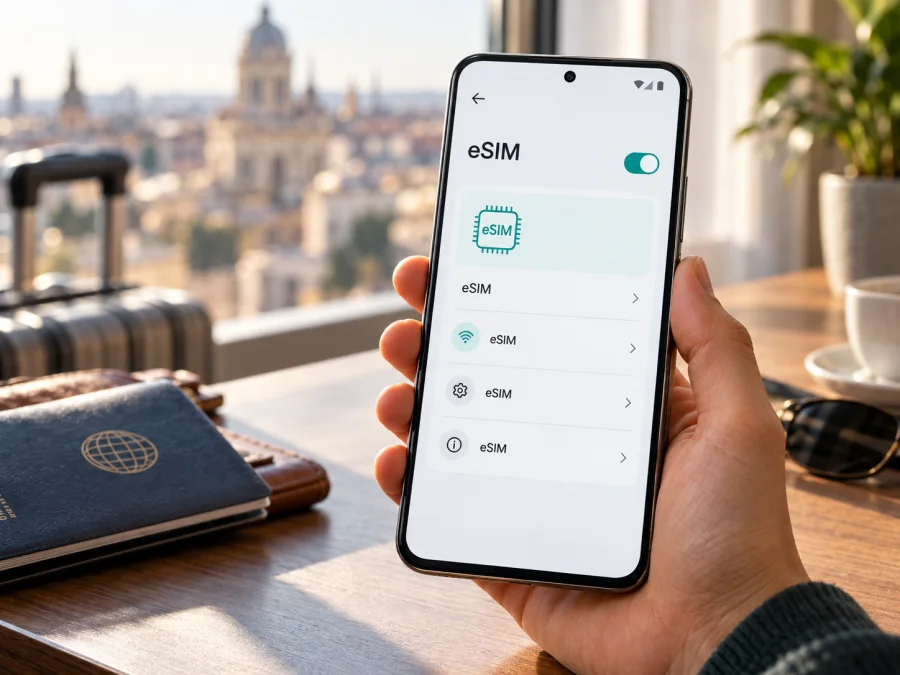
Xiaomi 15 Ultra eSIM: compatibility, setup, and travel use
Short answer: Xiaomi’s official international product specifications list the Xiaomi 15 Ultra with eSIM support. The phone can use combinations such as nano-SIM + eSIM or eSIM + eSIM where the regional version and carrier support them. However, eSIM availability is not universal: Xiaomi says it can vary by country, region, and carrier. If your phone was bought for a different market, verify the exact unit in its settings before choosing a travel plan.
That distinction matters because “Xiaomi 15 Ultra” names a product family sold in different markets. A global specification is a good starting point, but it does not prove that every handset, firmware build, or carrier-locked unit has the same eSIM functions. The most practical check is whether your own phone shows an EID and offers an option to add or manage an eSIM.
An eSIM is a digital SIM profile stored in the phone. It can provide mobile data for a trip without replacing the physical SIM you use at home. The profile and service still depend on a compatible device, a supported plan, local network availability, and the phone being unlocked for use with another provider.
Xiaomi 15 Ultra eSIM compatibility at a glance
Xiaomi’s global specifications describe the international Xiaomi 15 Ultra as dual SIM and list nano-SIM + nano-SIM, nano-SIM + eSIM, and eSIM + eSIM combinations. Xiaomi’s support FAQ also says the model supports eSIM profiles. Its guidance notes that the number of profiles that can be stored depends on eSIM memory use; the phone may store multiple profiles, while only a limited number can be active at the same time.
This does not mean every eSIM will work in every country. The phone’s eSIM hardware, its software menu, the carrier or travel-plan provider, and the destination network all need to line up. Xiaomi’s own product information says country, region, and carrier can affect availability. Before purchase, check both the handset and the plan’s country or regional coverage.
| Check | What the official information tells you | What to verify on your unit |
|---|---|---|
| Device family | International Xiaomi 15 Ultra specifications list eSIM combinations. | Confirm your exact market version and firmware. |
| SIM combinations | The listed combinations include physical SIM and eSIM, as well as two eSIMs. | Check whether the menu permits eSIM while your current SIM setup is active. |
| Profile storage | Xiaomi support describes multiple stored profiles, with the actual count depending on memory use. | Do not assume every stored profile can be active at once. |
| Local service | Xiaomi says eSIM availability varies by country, region, and carrier. | Confirm the travel plan supports your destination and device. |
| Network lock | A carrier restriction can prevent a profile from connecting even when eSIM setup exists. | Ask the seller or original carrier whether the phone is unlocked. |
The Xiaomi support material also describes eSIM as occupying a SIM position on some devices and explains that physical SIM 2 may need to be switched off to use eSIM. Menu wording and slot behavior can differ by software version and market. If the phone prompts you to disable a physical SIM or change a slot, follow the prompt and check how that affects your existing line before proceeding.
Regional versions: why the market matters
Xiaomi’s global and several international product pages list eSIM, but Xiaomi cautions that availability varies by country, region, and carrier. A phone bought locally, an imported handset, and a carrier-supplied unit can differ in model code, firmware, provisioning, or network lock. Do not use a global listing as proof for every Xiaomi 15 Ultra.
For a mainland China-market, imported, or carrier-branded unit, check the exact model number in Settings > About phone and verify eSIM in Settings before buying a plan. If the phone has no EID and no eSIM control after an update and restart, ask Xiaomi or the seller to confirm that exact unit. A dual physical-SIM tray alone does not settle the question because hardware, software, and market configurations can differ.
Before purchase, check:
- Model number and market: compare the full code in Settings with the listing or box.
- EID and eSIM menu: search Settings for “EID,” “Use eSIM,” “Manage eSIM,” or “Add mobile plan.”
- Carrier lock: confirm the phone accepts another provider’s eSIM profile.
- SIM arrangement: check whether eSIM setup requires disabling SIM 2.
- Destination and terms: confirm country coverage, data allowance, validity, and activation timing.
- Internet access: have Wi-Fi available to download the profile.
An EID and a working “Add eSIM” control are strong on-device signs that the feature is available, but they do not guarantee that every plan will install or connect. The carrier, plan, firmware, and destination network also matter.
How to check EID and eSIM settings yourself
Check the phone as you intend to use it. Install available HyperOS updates over Wi-Fi and restart first. Menu labels vary by software release, so Settings search is often quickest.
- Search for “EID.” Open the result and confirm that an EID is shown. Keep the number private.
- Open SIM settings. Look for SIM cards & mobile networks or Mobile networks.
- Look for eSIM controls. Find Use eSIM, Manage eSIM, Add eSIM, or Add mobile plan. A working add option is more conclusive than a general mention of eSIM.
- Record the model number. Find it under Settings > About phone, along with the HyperOS version.
- Check unlock status. If an operator sold the phone, ask that operator whether it is unlocked.
Do not delete an existing profile as a test. Activation codes can be single-use, and removing a profile does not necessarily cancel a plan or make its code reusable. If Settings still shows no EID or eSIM option, contact Xiaomi or the seller with the full model number before arranging a travel plan.
For another compatibility reference, check your device compatibility before choosing a plan. The EID, add-eSIM menu, model number, and confirmation from the seller or carrier are the checks that apply directly to your phone.
Installing and activating an eSIM on Xiaomi 15 Ultra
Prepare a stable internet connection and the QR code or manual activation details supplied with your plan. If the QR code is displayed on this phone, use another screen or a manual method if offered. Kaspersky eSIM Store is an app and website where you can choose and purchase an eSIM plan for mobile data on an international trip, then follow the steps to activate it. Check destination, data allowance, validity, and activation terms first. A data-only plan does not add a regular number, calls, or SMS unless its terms say otherwise.
- Confirm compatibility and unlock status. Check the EID or eSIM menu and verify the phone is not carrier-locked.
- Choose a suitable plan. Match its destination, data allowance, validity, and activation rules to your itinerary.
- Connect to Wi-Fi. Keep a stable connection while the profile downloads.
- Open eSIM settings. On many Xiaomi versions, go to Settings > SIM cards & mobile networks > Use eSIM > Manage eSIM > Add mobile plan. Enable “Use eSIM” if needed.
- Add the profile. Scan the QR code or follow the manual steps. Do not share the activation code.
- Wait for setup to finish. Keep the phone on and connected; installation or registration can take several minutes. Avoid repeatedly scanning a one-time code.
- Choose the data line. Name the profile clearly, then select it for mobile data. Keep your home SIM active only if you need it and understand its roaming terms.
- Set network options and test. Enable data roaming for the travel eSIM only if the plan requires it. Enter an APN only when the plan instructions provide one. Turn Wi-Fi off briefly and open a webpage to confirm mobile data works.
Xiaomi’s general help path also uses eSIM settings, profile management, and adding a mobile plan. Wording can differ by region and software version. See the Android eSIM installation instructions or the iOS eSIM installation instructions for general guidance; follow the Xiaomi menu shown on your phone when labels differ.
Using the Xiaomi 15 Ultra eSIM for mobile data on a trip
A common setup is to keep your home SIM available for calls or messages and select the travel eSIM for mobile data after arrival. Your home operator may charge for roaming if that line uses data or makes calls abroad. Review its terms and turn off roaming for the home SIM if you do not need it.
You may be able to install the eSIM before departure, but installation and plan activation are not always the same event. Read when validity begins and when data use starts. Depending on the plan, activation may happen on installation, on first connection in the destination, or at another stated time.
Plan for the way you will use data:
- Maps and messaging: downloading offline maps over Wi-Fi can reduce data use.
- Work, video, and hotspot: allow for heavier use and check whether tethering is supported by the selected plan.
- Several countries: confirm that a regional plan covers every stop; a country plan may not include nearby destinations.
- Keeping your usual number: choose the travel eSIM for data and review roaming settings for both lines.
After landing, check that the travel profile is enabled and selected for mobile data. Keep automatic network selection on first. Enable roaming for that profile only if required by the plan. A data-only eSIM generally has no standard phone number, voice calls, or SMS; internet calling and messaging apps can use its data connection.
After the trip, switch mobile data back to the line you prefer and check the eSIM’s balance and validity. Do not delete a profile until you understand the provider’s rules for reinstallation, reuse, and top-ups.
Common Xiaomi 15 Ultra eSIM problems
There is no EID or eSIM menu. Update HyperOS, restart, and search Settings for “EID” and “eSIM.” Check the full model number and purchase market. If the options remain absent, ask Xiaomi or the seller to confirm the exact unit’s support.
The QR code will not scan. Increase brightness on the screen displaying it, clean the camera lens, and hold the phone steady. Use a second screen if the code is on the Xiaomi 15 Ultra. If manual details are offered, enter them carefully. Never share the code.
The phone will not add the plan. Confirm Wi-Fi works, eSIM is enabled, and the code has not already been used. Check whether the phone asks you to disable SIM 2. If setup partly completed, ask the provider before deleting the profile or retrying a one-time code.
The profile installs but there is no service. Make sure it is enabled, the destination is covered, and you are in a supported area. Toggle airplane mode briefly, restart once, and allow time to register. Try manual network selection only if the plan’s instructions recommend it.
Signal appears but mobile data does not work. Select the travel eSIM as the data line. Enable roaming on that profile if required. Enter the APN only if the plan provides a value. Check that the plan is active, has data remaining, and covers your location.
The wrong line is using data. Recheck the default mobile-data line and the roaming switches for both profiles. Data, calls, and messages may have separate line settings.
The connection is slow or unstable. Reception depends on the local network, location, congestion, and supported partner networks. Move to an area with stronger signal, re-enable the travel profile, or restore automatic network selection. Contact the plan provider if the issue continues.
Xiaomi 15 Ultra eSIM FAQ
Does every Xiaomi 15 Ultra support eSIM?
Xiaomi’s international specifications and support information list eSIM, but Xiaomi says availability varies by country, region, and carrier. Check imported, carrier-branded, and market-specific units individually in Settings and against the exact model number.
How do I confirm compatibility?
Look for an EID and an “Add eSIM” or “Add mobile plan” option. Also confirm that the phone is unlocked and the plan supports your destination. An EID does not guarantee that a particular plan or network will work.
Can I use a physical SIM and an eSIM together?
The international specifications list nano-SIM + eSIM. Actual behavior can depend on the region and software; Xiaomi help pages note that some setups require SIM 2 to be disabled. Check the phone’s prompt and test the intended arrangement before travel.
Does a travel eSIM include a phone number?
Usually, travel data plans provide mobile internet only. Regular calls and SMS are included only when the plan explicitly says so. Messaging and voice apps can use the data connection.
Should data roaming be enabled?
Some travel eSIMs require roaming on that profile. Check its instructions and apply the setting to the travel line. Keep roaming disabled on your home SIM if you do not want to use your home operator’s roaming service.
What if there is no “Add eSIM” option?
Update and restart, then search Settings for EID and eSIM. If both are still missing, contact Xiaomi or the seller with the exact model number. Confirm compatibility before choosing a plan.
Final check before choosing a travel eSIM
For the international Xiaomi 15 Ultra, Xiaomi’s official product information supports eSIM use, but the exact handset and destination still matter. Confirm the EID and add-eSIM control on your own device, check that it is unlocked, and make sure the plan covers every place on your itinerary. Read the plan’s validity, activation, roaming, APN, and hotspot conditions before you install it.
Once compatibility is clear, Kaspersky eSIM Store’s app and website let you review available options for a trip, choose a plan, and follow its activation steps. Use the Kaspersky eSIM Store to browse current destinations and plans; the available offers depend on the destination and can change. If your model’s eSIM status is uncertain, resolve that with Xiaomi or the seller before arranging a plan.


