Travel connectivity guide
Xiaomi 15T Pro 5G eSIM: Setup and Compatibility
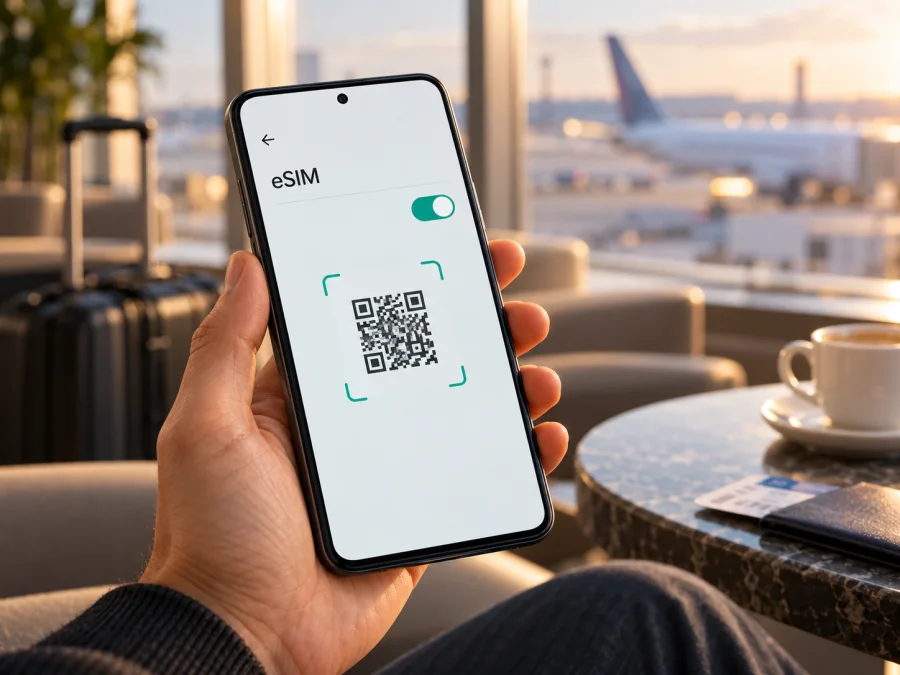
Xiaomi 15T Pro 5G eSIM: compatibility, setup and travel use
The Xiaomi 15T Pro 5G supports eSIM according to Xiaomi’s current product specifications and regional support information. Its listed dual-SIM configurations include nano-SIM + nano-SIM, nano-SIM + eSIM, and eSIM + eSIM; Xiaomi also confirms EID support. That means the phone hardware and software family can use a digital SIM profile. It does not guarantee that every unit sold in every market, on every carrier, will expose eSIM or accept a particular travel plan.
For a specific phone, the decisive checks are the device’s EID, the eSIM controls in its own settings, its exact regional model and firmware, and whether the carrier or travel-plan provider supports that device. Check these before choosing a plan. If the eSIM settings are present and the phone is unlocked, Xiaomi 15T Pro 5G can be a practical way to keep a home SIM available while using a separate data eSIM on a trip.
Xiaomi 15T Pro 5G eSIM at a glance
| Item | What is confirmed | What to check on your own phone |
|---|---|---|
| eSIM support | Xiaomi lists eSIM for Xiaomi 15T Pro 5G and confirms EID support. | Verify that your unit shows an EID and an eSIM menu. |
| SIM combinations | The official global specification lists nano-SIM + nano-SIM, nano-SIM + eSIM, or eSIM + eSIM. | Available combinations can depend on your unit and local carrier. |
| Network generation | The device is a 5G model. | 5G service depends on local bands, coverage, plan, and operator support. |
| Region and carrier | Xiaomi warns that eSIM availability may vary by country or region and carrier. | Ask the seller and carrier about the exact model code and market. |
| Device identifier | EID is supported on Xiaomi 15T Pro 5G. | Find the EID in settings or by entering the device information code. |
| Travel data | A compatible travel eSIM can provide mobile data where its plan is valid. | Check the destination, data amount, validity, activation trigger, and roaming requirement. |
The “5G” in the model name describes the phone’s mobile-network capability; it does not mean that a travel plan will connect to 5G in every destination. The plan, partner network, local coverage, and supported frequency bands determine the connection available during a trip. LTE may be the available or more reliable option in some places.
What Xiaomi’s confirmation means
Xiaomi’s global specifications identify eSIM as one of the supported SIM arrangements. Xiaomi’s regional FAQ for the Xiaomi 15T Pro 5G separately answers yes to eSIM and EID support. This is stronger evidence than a generic list of phones that may support digital SIMs: the model family itself is documented by its manufacturer as eSIM-capable.
There are still several layers of compatibility. First, the phone must include and expose the eSIM function. Second, the unit’s regional software and sales configuration must allow its use. Third, the carrier or provider issuing the profile must accept the device and support the destination network. A “yes” at the model-family level does not settle all three questions for an individual handset.
Xiaomi specifically notes that eSIM availability can vary by country or region and carrier. The wording applies to the service and use of eSIM, not merely to the radio standard. A handset imported from another market, a carrier-supplied phone with restrictions, or a device running different regional firmware may therefore behave differently from a unit sold through Xiaomi’s local channel. Do not assume that a product listing for another country describes your phone.
Also distinguish “stored profiles” from “active lines.” A phone may let you save multiple eSIM profiles but have a limit on how many can be enabled at once. The combinations in Xiaomi’s specification describe possible SIM configurations; they do not promise that all profiles can be active simultaneously or that every carrier permits a particular pairing. For dual-SIM behavior, follow the options shown on your handset and confirm any operator limitations.
Check the exact unit before buying a plan
Run these checks on the phone you will take on the trip. If you do not have it yet, request screenshots or a written confirmation from the seller rather than relying only on a general Xiaomi 15T Pro 5G product page.
- [ ] Open the phone’s settings and look for Settings → SIM cards & mobile networks or the equivalent mobile-network menu in your HyperOS version.
- [ ] Look for an option such as Use eSIM, Manage eSIM, Add eSIM, or Download a SIM. Menu wording may differ after software updates or by language.
- [ ] Find the device’s EID. Xiaomi’s general instructions place it under Manage eSIM → View device EID after enabling eSIM.
- [ ] Confirm that the phone is not carrier-locked. An eSIM-compatible phone can still reject profiles from another provider if the device is restricted.
- [ ] Check the exact model code, sales region, and installed software version under Settings → About phone. Give those details to the phone seller or the travel-plan support team if you need a confirmation.
- [ ] Confirm that the eSIM can be added while you have reliable Wi-Fi or another working internet connection.
- [ ] Check that your intended travel plan covers every country on your route and review its data volume, validity period, activation rules, and any local-network restrictions.
A visible EID is strong evidence that the phone has an embedded SIM component. The add-eSIM menu is a useful second check because the option should be available to install a profile. If either is missing, do not buy a plan on the assumption that the model name alone is enough. Restart the phone, install any available official system update, and check again. If the controls remain absent, ask Xiaomi support or the seller about that exact regional variant.
Check whether your device is compatible before selecting a travel plan. The check should cover both eSIM support and carrier lock status; matching the model name by itself is not sufficient.
Install and activate an eSIM
Complete installation before departure when possible, while you have stable Wi-Fi and enough time to troubleshoot. Follow the instructions provided with the specific plan: some profiles install from a QR code, while others can be installed directly from an app or activation link. A one-time QR code may not be reusable after the profile has been added, so keep the confirmation and do not delete the eSIM while troubleshooting unless support tells you to.
- Check the plan and phone. Confirm eSIM support, remove any carrier lock, and verify that the plan covers your destination. Read when validity begins and whether installation itself starts the plan clock.
- Connect to Wi-Fi. Keep the phone online while it downloads the profile. Charge the phone or make sure it has enough battery to finish setup.
- Open the SIM manager. On Xiaomi’s general instructions, go to Settings → SIM cards & mobile networks, enable Use eSIM, and open Manage eSIM. Your Xiaomi 15T Pro 5G may show slightly different names depending on HyperOS version and region.
- Add the profile. Choose the add or download eSIM option. Scan the provider’s QR code, enter its activation details, or use the provider’s in-app installation flow. Follow the prompts until the new profile appears in the SIM manager.
- Give the line a clear name. Rename it to identify the destination or purpose, such as “Travel data.” This is especially helpful when a home SIM remains in the phone.
- Choose the data line. In SIM settings, set the travel eSIM as the line for mobile data when you want it to provide internet. Keep your home line selected for calls or texts only if you need it and understand your home operator’s roaming charges.
- Set data roaming only as instructed. Some travel eSIM profiles require data roaming to be enabled on that eSIM. This setting does not automatically mean that your home SIM must roam. Check the plan instructions, select the correct data line, and keep roaming off for the home line if you want to avoid home-plan data charges.
- Activate at the right time. The profile can sometimes be installed before a trip and switched on later. Whether installation, arrival, or first connection starts the validity period depends on the plan terms. Follow those terms rather than assuming every eSIM activates in the same way.
- Test after arrival. Turn off airplane mode, select the travel eSIM for mobile data, and allow time for it to register on a supported local network. If it does not connect, use the troubleshooting checks below before deleting or reinstalling the profile.
For more detailed steps, use the Android eSIM installation instructions. The iOS guide is useful if you are helping someone with an Apple device: iOS eSIM installation instructions.
Use Xiaomi 15T Pro 5G for mobile data abroad
When you reach the destination, select the travel eSIM as the mobile-data line. If the plan requires roaming, enable roaming for that line only. Keep the home SIM enabled for calls or messages if needed, but check your domestic operator’s charges for incoming calls, outgoing calls, SMS, and any background data. A data-only travel eSIM typically does not provide a regular phone number or standard voice and text service unless its terms explicitly say otherwise. Internet calling and messaging apps can use the data connection.
The phone may show signal bars before data works. Signal only indicates that the handset can see a network; it does not confirm that the correct plan is selected, that the local network accepts the profile, or that the plan has active data. Check the mobile-data icon and try a simple webpage or messaging app after confirming the selected SIM and plan status.
For a trip across several countries, verify whether the plan is valid in each destination rather than assuming that a nearby country is included. Regional plans may cover several named places, but the coverage list and terms control. For a city stopover, compare the country or regional validity with the length and route of the trip. A good match depends on where you will actually travel, how much data you expect to use, and how long you need the plan.
A travel eSIM can be useful for maps, translation, bookings, ride requests, messaging, and other online tasks. It can also reduce reliance on public Wi-Fi. It does not guarantee signal in every building, remote area, or transit route, and network speed depends on the local network and plan. Download maps, tickets, and essential travel information for offline access as a backup.
Kaspersky eSIM Store is an app and website where you can choose, arrange, and activate an eSIM with a suitable data plan for an international trip. Plan availability, data allowance, validity, supported destinations, activation timing, and price are shown with the current offer and can change. Review those details before confirming. If you have not chosen a destination yet, browse the Kaspersky eSIM Store to check current destinations and plan options; this homepage is for browsing and is not a country-specific tariff.
Troubleshooting: if the eSIM does not connect
Work through these checks in order. Avoid deleting the profile as a first step: some activation codes can only be used once, and deleting the eSIM may require the provider to issue a replacement.
- Check that the eSIM is enabled. Open the SIM manager and confirm the travel profile is switched on and has not been accidentally disabled.
- Check the selected data line. Make sure mobile data is assigned to the travel eSIM, not the home SIM. If automatic data switching is available, turn it off while testing.
- Check the plan status. Confirm that the data plan is active or scheduled as expected, has not expired, and includes the country where you are located.
- Check roaming for the correct profile. If the plan instructions require roaming, enable it on the travel eSIM. Do not enable roaming on the home SIM unless you intend to use that service and accept its charges.
- Refresh the connection. Turn airplane mode on briefly, turn it off, and wait for network registration. If necessary, restart the phone once.
- Try network selection. If automatic selection fails, use the provider’s instructions to select a supported local network manually. Restore automatic selection later if needed.
- Check mobile data settings. If the provider supplied APN details, compare them carefully with the phone’s APN settings. Do not invent an APN value; ask support if the instructions do not provide one.
- Check software and restrictions. Confirm the phone is up to date, the profile is not disabled by a carrier restriction, and the unit is not locked. A missing eSIM menu or EID may point to a regional or software issue rather than a plan problem.
- Contact the plan provider. Share the destination, phone model code, software version, eSIM status, and the exact error message through its official support channel. Do not send the activation QR code publicly.
If the phone shows “No service,” check coverage, profile status, and network selection. If it shows a network but pages do not load, check the data-line selection, plan balance or status, roaming requirement, and APN instructions. If eSIM installation fails, verify the Wi-Fi connection, the activation details, and whether the QR code was previously used. Preserve the profile and error message until support advises what to do.
Frequently asked questions
Does Xiaomi 15T Pro 5G support eSIM?
Yes. Xiaomi’s product specifications list eSIM configurations for Xiaomi 15T Pro 5G, and Xiaomi’s regional FAQ confirms eSIM and EID support. Availability for a specific handset still depends on its regional variant, software, carrier restrictions, and the provider’s supported-device rules.
Can I use a physical SIM and an eSIM together?
Xiaomi lists nano-SIM + eSIM as one supported configuration. Which lines can be enabled together and what each line can do may depend on the phone’s regional version, software, and operator. Check the SIM manager on your handset and test your intended configuration before travelling.
How do I find the EID on Xiaomi 15T Pro 5G?
Open the eSIM controls in SIM settings and look for View device EID under Manage eSIM. The exact path can vary by software version. You can also try *#06# in the dialer and look for an EID entry. Do not mistake the IMEI for the EID.
Why is there no “Add eSIM” option?
The menu can be unavailable because of a regional model, operator restriction, firmware, or software state. Restart and update the phone, then check the exact model code with Xiaomi or the seller. Do not buy a data plan until the phone shows eSIM controls or support confirms that your particular unit can install a profile.
Does a travel eSIM include calls and SMS?
A data-only eSIM plan does not normally provide a standard phone number, calls, or SMS unless the offer explicitly includes them. Keep your home line for regular calls and messages if needed, while checking its roaming charges. Messaging and internet calls can work through apps over mobile data.
Should I install the eSIM before I travel?
Installing in advance can help you avoid setup delays, provided you have stable internet and the plan permits it. Read when the plan’s validity starts. Some plans begin at a first connection in the destination; others have different activation rules. Keep the profile intact and follow the provider’s instructions.
Will Xiaomi 15T Pro 5G always connect to 5G abroad?
No. The 5G label means the device supports 5G, not that every destination or plan will provide it. The local network, supported bands, coverage, and plan determine whether 5G is available. The phone may use 4G or another supported technology instead.
Can I transfer the installed eSIM to another phone?
Do not assume that you can. Transfer and reinstallation rules depend on the provider and profile. Some activation codes are single-use, and deleting a profile may make it impossible to reinstall without help. Check the plan terms and contact support before replacing or resetting the phone.
Final check before choosing a travel eSIM
Xiaomi 15T Pro 5G is documented by Xiaomi as an eSIM-capable phone, with EID support and several dual-SIM arrangements. Before paying for a travel plan, verify that your own handset displays an EID and an add-eSIM control, confirm that it is unlocked, and check the exact regional model with the seller or provider if anything is unclear. Then match the plan to the countries on your route, the data you expect to use, its validity period, and its activation and roaming rules.
Once compatibility is confirmed, install the profile over a reliable connection, label it clearly, and select it for mobile data when you arrive. This simple check-first sequence helps you prepare the phone in advance and makes it easier to identify whether an issue is with the device, the plan settings, or local network availability.


