Travel connectivity guide
Xiaomi Poco X8 Pro Max 512GB 5G eSIM Guide
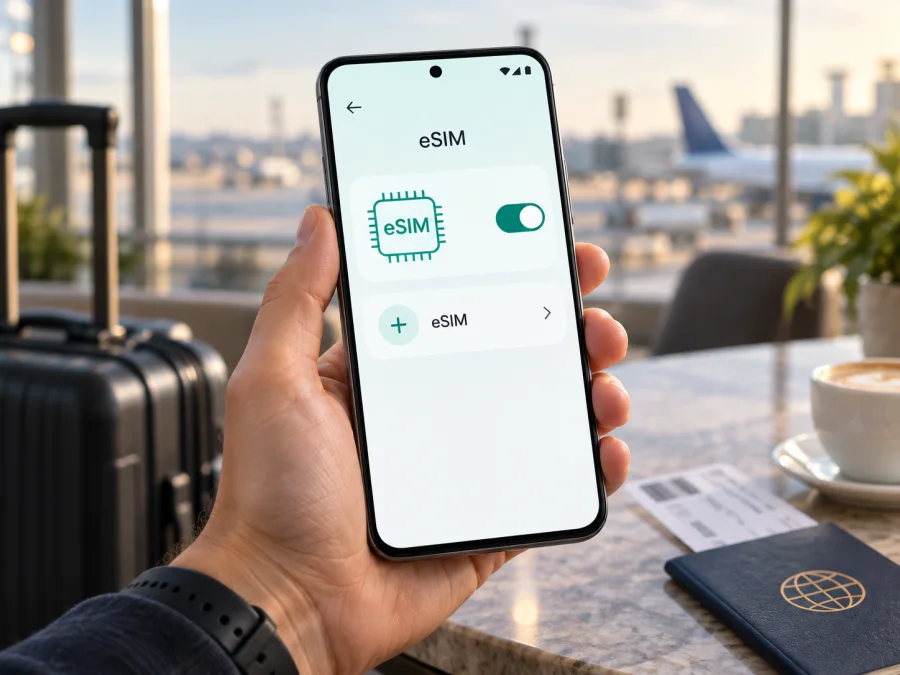
Xiaomi Poco X8 Pro Max 512GB 5G eSIM compatibility and setup
The Xiaomi Poco X8 Pro Max 512GB 5G supports eSIM according to Xiaomi’s official POCO X8 Pro Max specifications and support information, checked on 25 September 2026. Xiaomi lists dual-SIM use as either two nano-SIM cards or one nano-SIM with one eSIM, and its official FAQ says the phone supports one eSIM. The 512GB storage option does not by itself change that capability. Xiaomi also cautions that eSIM availability can vary by country, region, and carrier. Check the actual phone for an EID and an option to add an eSIM, and confirm that it is unlocked before choosing a plan.
This guide covers compatibility, setup, and use on this exact variant; menu labels may vary by software and language.
At a glance
| Item | What to know |
|---|---|
| Exact variant | Xiaomi Poco X8 Pro Max 512GB 5G |
| Storage configuration | 512GB; Xiaomi lists 12GB + 512GB |
| eSIM support | Yes, listed by Xiaomi for the POCO X8 Pro Max |
| SIM combinations | nano-SIM + nano-SIM or nano-SIM + eSIM |
| eSIM count | Xiaomi’s FAQ says one eSIM |
| 5G | Supported; access depends on local bands and networks |
| Variables | Region, firmware, carrier lock, and plan terms |
The storage capacity does not guarantee identical network features in every market. Check the model code and SIM options on the handset, especially if imported, refurbished, or carrier-branded.
Does the Xiaomi Poco X8 Pro Max 512GB 5G support eSIM?
Yes. Xiaomi’s current official POCO X8 Pro Max specification page lists dual-SIM use as nano-SIM + nano-SIM or nano-SIM + eSIM. Its official support FAQ confirms those combinations and says one eSIM is supported. Xiaomi also explicitly describes eSIM support in product information. The manufacturer’s current statements verify eSIM capability for the model family that includes the 512GB configuration.
Xiaomi qualifies this by saying eSIM availability may vary by country, region, and carrier. A specification for one market cannot guarantee that every regional SKU, firmware build, or carrier edition exposes the same option. Sellers may use the same broad product name for units intended for different markets. The answer is positive for the family, but verify the exact handset before paying for a plan.
The listed eSIM configuration is one physical nano-SIM plus one eSIM, or two physical nano-SIM cards. Xiaomi’s FAQ says one eSIM is supported; do not assume two eSIMs can be active together. Follow the SIM manager and provider’s instructions. Deleting an installed profile may prevent reuse of its activation code.
A compatible phone does not guarantee access to a particular network. Connection also depends on destination coverage, supported bands, activation, and plan conditions. Although the phone supports 5G, a travel eSIM may connect over 4G if 5G access is unavailable or unsupported by the plan or local network.
Regional and carrier differences
Check where the handset was sold and whether it is local, imported, carrier-branded, or refurbished. Regional firmware can affect Settings options, and a carrier can restrict eSIM use. Xiaomi itself notes that availability varies by country, region, and carrier. Ask the seller to confirm the specific model code and unlock status, ideally in writing. A device can have eSIM hardware and still be locked to its original carrier.
Install the latest official software and search Settings again, but do not assume an update will enable eSIM on an unsupported variant or remove a lock. If the option is absent, confirm the code and region with the seller or Xiaomi support before buying a plan.
<a id="kesim-device-compatibility"></a>
What to check before choosing an eSIM plan
Check the phone while you still have Wi-Fi and before purchasing. These steps help separate device compatibility from plan or coverage problems.
- Find the EID. Search Settings for “EID” or “eSIM”. Depending on software, it may be under About phone, Detailed info and specs, or Status. An EID is associated with eSIM capability, but does not guarantee a particular plan will activate.
- Look for Add eSIM. Open Settings → SIM cards & mobile networks and look for “Add eSIM”, “Set up eSIM”, or “Download a SIM”. Searching Settings may be faster. You can inspect the flow without installing a plan.
- Confirm model and lock status. Compare the model code in Settings with the box and seller listing. Ask whether it accepts eSIMs from other providers.
- Update official software. Restart after updating, then check the EID and SIM menu again.
- Read the plan terms. Confirm destination, data, validity, activation deadline, network access, and when validity starts. Some plans start on installation; others at first connection.
- Keep internet available. Profile downloads generally require Wi-Fi or working mobile data. Do not erase an installed profile unless the provider instructs you to.
If unsure about the handset, check your device’s compatibility before choosing a travel plan. The EID, add-eSIM option, and regional confirmation are more useful than the storage label alone.
How to install and activate an eSIM
Screens vary with software and provider. Read the plan instructions first, connect to Wi-Fi, and keep the phone charged. Do not scan a one-time activation code until you are ready to add it to this device.
- Prepare the phone. Install official updates and restart if needed. Keep your current SIM active until the travel eSIM is installed and tested; confirm the phone is unlocked.
- Open the SIM manager. Go to Settings → SIM cards & mobile networks. The control may be called “Add eSIM”, “Set up eSIM”, or “Add mobile plan”. Search Settings for “eSIM” if needed.
- Add the profile. Choose QR scanning if the provider issued a QR code. Otherwise, use an app flow or manual details only when supplied by the provider. QR codes are often single-use; do not share or reuse them unless permitted.
- Download and label it. Follow the prompts and give the line a clear name such as “Travel data”. Check the plan’s activation rule: installing a profile and starting its validity may be separate events.
- Select it for data. When ready, set the travel eSIM as the mobile-data line. Keep calls or messages on your regular SIM if needed, and check that line’s roaming charges.
- Set roaming and test. Enable data roaming on the travel profile if the plan requires it. Once active in the coverage area, turn Wi-Fi off briefly and load a webpage to confirm cellular data works.
See the Android eSIM installation instructions for screen-by-screen guidance. The iOS installation instructions are for Apple devices and may help when preparing another phone. Xiaomi Poco X8 Pro Max 512GB 5G runs Android, so use the Android steps here.
If QR-code installation does not work
Make sure the entire QR code is visible, focused, and free of glare. If it is on the phone being configured, show it on another screen or print it. Use manual details only if the provider issued them, and enter them exactly. If the code is invalid, expired, or used, contact its provider. Avoid deleting the profile as a first step: the same code may not work again, and reinstalling can require a replacement code.
Using the eSIM for mobile data while travelling
Before departure, decide which line will provide data and whether your usual number needs to remain active for calls or messages. You may be able to keep a physical SIM on for calls while assigning data to the travel eSIM, but behavior varies by software, carrier, and region. Check your home carrier’s roaming charges; disable data on that line if you want to avoid accidental roaming use.
A simple setup is to install the profile over Wi-Fi, label it, and leave it off until the plan’s terms say to enable it if pre-installation is allowed. At your destination, switch on the travel profile and select it for data. Enable roaming for that profile if required. Begin with automatic network selection; if the phone does not connect, follow the provider’s guidance before choosing a network manually. Check remaining data and validity in provider tools where available.
Choose a plan that includes each country or region in your itinerary, including layovers and day trips. A regional plan may suit a multi-country route, while a destination plan can fit a stay in one country. Review coverage before relying on mobile maps, transport bookings, translation, or hotel messages, and save key details offline as a backup.
Many travel eSIMs are for mobile data only. Do not expect a local number, voice minutes, or SMS unless the plan terms include them. Messaging and internet calls can use data when supported by the apps. Keep account recovery in mind if a service sends verification codes to your usual number.
Kaspersky eSIM Store is an app and website where travelers can choose, arrange, and activate an eSIM with a mobile-data plan for an international trip. It does not make a handset compatible: check the phone and its unlock status first, then choose a plan that fits your destination and usage.
Common problems and what to try
There is no “Add eSIM” option
Search Settings for “EID” and “eSIM”, check SIM cards & mobile networks, and install available official updates. If the EID and add-eSIM control are both missing, confirm the model code and sales region with the seller or Xiaomi support. Firmware or carrier restrictions may affect what appears. Changing the displayed region is not a reliable compatibility test.
The QR code will not scan or the profile will not download
Check that the whole code is visible, focused, and unused. Try stable Wi-Fi and another screen with higher brightness. Use manual details only if supplied by the provider. If the code is invalid, expired, or already used, ask the provider to check it rather than scanning repeatedly.
The eSIM is installed but there is no service
Confirm the profile is enabled, selected for data, and valid in your destination. Toggle airplane mode briefly and restart. Enable data roaming on the travel profile if required. If automatic network selection fails, follow provider guidance before selecting manually. Coverage may be weak indoors or outside a partner network’s service area.
The phone connects but data does not work
Check that the travel profile is selected for mobile data and that the plan is active with data remaining. Enter an APN only if the provider supplied it. Turn Wi-Fi off briefly to test cellular data and check data-saver restrictions. Try simpler checks before resetting network settings, which can remove saved Wi-Fi and Bluetooth details.
Calls behave differently or activation is refused
Recheck the default SIM lines for data, calls, and messages. Ask the original carrier or seller to confirm the phone is unlocked; a plan provider cannot remove a carrier lock. If the handset is unlocked but activation fails, share the error message with the plan provider. Keep QR codes, EID, IMEI, and account details private.
Frequently asked questions
Does the 512GB version support eSIM specifically?
Xiaomi lists a 12GB + 512GB configuration, and its current POCO X8 Pro Max specifications and FAQ confirm eSIM for the model family. The FAQ says one eSIM is supported. Check the exact unit because availability may vary by region and carrier.
Can I use an eSIM and physical SIM together?
Xiaomi lists nano-SIM + eSIM as a supported combination, as well as two nano-SIM cards. Check your regional unit’s SIM manager and select the intended data line. Do not infer support for two active eSIMs.
Where is the EID, and does it guarantee 5G?
Search Settings for “EID”; it may appear under About phone, device details, or Status. Keep it private. An EID does not guarantee 5G abroad: the plan, local bands, network, and coverage must also support it.
Can I move the eSIM, or use it for calls and SMS?
That depends on the provider and plan. Some profiles require a new activation code when moving to another phone, and many travel plans are data-only. Check the terms before deleting a profile or expecting a local number, voice service, or SMS.
Before your trip: check the phone, then choose the plan
Xiaomi lists the Xiaomi Poco X8 Pro Max 512GB 5G’s model family as eSIM-capable, including nano-SIM + eSIM use. Because Xiaomi says availability can vary by country, region, and carrier, confirm the EID, add-eSIM option, model code, and unlock status on the handset you will travel with. Before checkout, review the plan’s destination, data allowance, duration, activation rules, and network requirements.
After those checks, use the Kaspersky eSIM Store app or website to choose, arrange, and activate a plan for mobile data on your trip. Install over Wi-Fi, select the eSIM for mobile data when appropriate, and follow the plan’s roaming instructions. Save support details and essential travel information offline in case local coverage or activation takes longer than expected.


