Travel connectivity guide
Xiaomi Redmi Note 14 Pro+ 512GB eSIM Compatibility
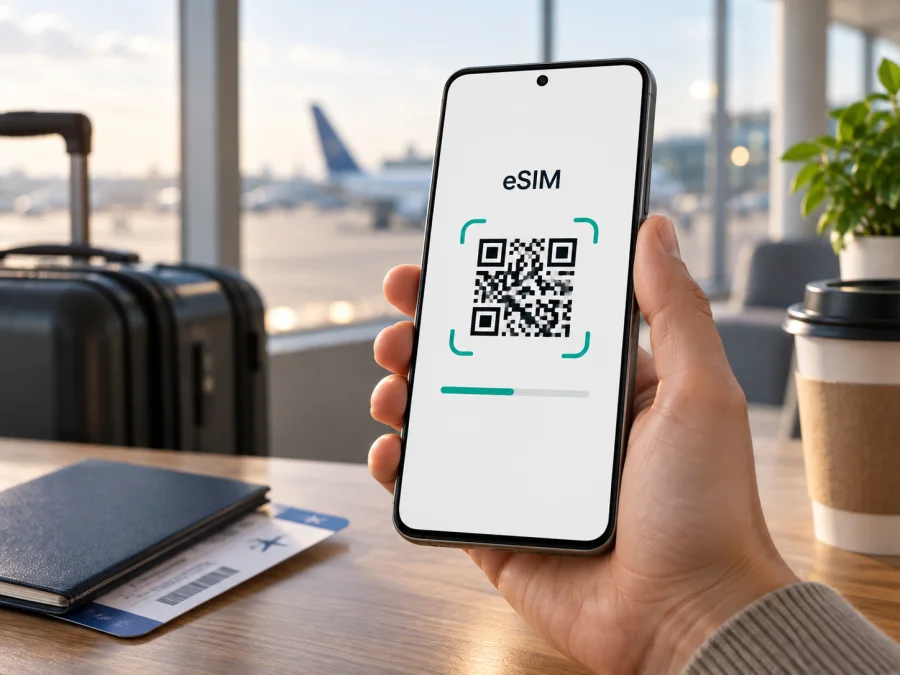
Xiaomi Redmi Note 14 Pro+ 512GB eSIM compatibility and setup guide
The Xiaomi Redmi Note 14 Pro+ 512GB supports eSIM on the eSIM-enabled regional version. Xiaomi’s official global support information confirms eSIM support for REDMI Note 14 Pro+ 5G, and its European specifications list a 12 GB + 512 GB model with nano-SIM + eSIM as an option. Xiaomi warns that eSIM availability can vary by country or region and service provider. Because your product name omits “5G,” verify the model code and eSIM controls on your own phone before purchasing a plan.
Storage capacity does not determine eSIM support. The actual regional model, software, and carrier restrictions do. This guide covers how to check your phone, install a profile, activate it for travel, and resolve common issues.
Quick compatibility summary
| Item | Details |
|---|---|
| Device | Xiaomi Redmi Note 14 Pro+ 512GB |
| Storage / RAM | 512 GB; Xiaomi lists a 12 GB + 512 GB regional configuration. Check your SKU for RAM. |
| eSIM | Supported on eSIM-enabled REDMI Note 14 Pro+ 5G versions; regional and carrier availability applies. |
| SIM options | Supported regional specification lists nano-SIM + nano-SIM or nano-SIM + eSIM. |
| Check before purchase | EID, Add eSIM/Manage eSIM menu, model code, carrier lock, and plan coverage. |
Does Xiaomi Redmi Note 14 Pro+ 512GB support eSIM?
The practical answer is yes for the eSIM-enabled regional version. Xiaomi’s support FAQ confirms eSIM for REDMI Note 14 Pro+ 5G, and its regional specification lists nano-SIM + eSIM as a dual-SIM option. Xiaomi also says eSIM availability depends on country, region, and service provider. This supports the 512 GB configuration where that SKU is offered, but does not establish that every import, carrier-branded handset, or software build has eSIM enabled.
The supplied name, Xiaomi Redmi Note 14 Pro+ 512GB, omits “5G,” while Xiaomi’s eSIM documentation names the 5G model. Retailers sometimes shorten product names, and Pro+, Pro, and other Redmi Note generations are different variants. Check the model code in Settings and on the box, and ask the seller to verify eSIM for that exact regional SKU. Do not rely on a marketplace title alone.
Xiaomi lists 12 GB RAM with 512 GB storage in its European configuration, but RAM pairings vary by market. Storage is not eSIM capacity: an eSIM profile is a carrier configuration, while your plan’s data allowance is separate from internal storage.
Regional hardware, carrier customization, software builds, and plan rules can all affect use. A carrier may lock a phone or hide eSIM controls; updates can change menu labels; and a compatible phone still needs a plan that covers the destination. A travel data eSIM usually supplies data rather than a phone number, calls, or SMS, unless its terms explicitly include them. Internet messaging and calls can use data through apps.
Check your phone before purchasing a plan
Check the actual handset you will travel with, especially if it is imported, used, refurbished, or carrier-issued.
- Find the EID. In the phone app, enter
*#06#; an eSIM-capable device may show an EID alongside its IMEI number(s). You can also check Settings → About phone → Detailed info and specs → Status or a similarly named page. EID and IMEI are different identifiers; do not post them publicly. - Look for eSIM controls. Open Settings → SIM cards & mobile networks and look for Use eSIM, Manage eSIM, or Add eSIM. Xiaomi’s support instructions describe enabling eSIM there and viewing the EID in eSIM management. HyperOS wording varies.
- Confirm the model and lock status. Compare the model code in Settings with the box or invoice. Ask the seller or Xiaomi to confirm eSIM for that SKU and ask the carrier whether the phone is unlocked.
- Check the plan. Verify Android activation support, destination coverage, start date or activation trigger, data allowance, and whether installation needs internet access.
An EID alone does not confirm that a phone is unlocked or that a specific plan will work. If the EID and eSIM controls are missing, update the system and check again. If they remain absent, treat the phone as unverified and contact Xiaomi or the seller before buying a time-limited plan. If a menu appears but activation fails, check the regional SKU, lock status, and plan eligibility.
If you are checking a secondhand or imported phone, make sure you can open its settings yourself rather than relying on a seller’s screenshot. A screenshot can show that one handset has eSIM, but it may not match the model code, software region, or carrier status of the unit you will receive. Record the model code for your own reference and confirm that the eSIM menu is available after any required system update. Once the device check passes, compare the plan’s destination coverage and activation timing with your itinerary.
Use this check before choosing a package: Check your device.
Install an eSIM on Xiaomi Redmi Note 14 Pro+ 512GB
Install over reliable Wi-Fi or another working internet connection. Keep the QR code on a second screen or printed copy. Follow the plan’s steps; HyperOS menu labels vary.
See the Android eSIM installation instructions for this Xiaomi, or the iOS eSIM installation instructions for iPhone.
Before you scan or enter details
- Confirm that an EID and eSIM option appear and the phone is unlocked.
- Review destination, data allowance, validity, supported networks, and activation trigger.
- Check whether validity begins at purchase, installation, first connection, or first data use.
- Have Wi-Fi available and keep the QR code and activation details private; a code may work only once.
- Keep your usual SIM enabled until you choose which line handles calls, texts, and data.
Install using a QR code
- Open Settings → SIM cards & mobile networks and choose Use eSIM, Manage eSIM, or Add eSIM. Enable eSIM first if prompted.
- Select add/download a mobile plan and connect to Wi-Fi if requested.
- Scan the provider’s QR code, or enter the supplied SM-DP+ address and activation code exactly. Do not invent server details.
- Review the plan and confirm download. Keep the phone online while the profile installs; do not repeatedly scan or delete a stalled profile before checking with the provider.
- Label the profile “Travel data” if offered. Check its status and leave roaming off until the plan says to enable it or you are ready to use it.
Add a plan through an app or activation code
Some providers install a profile through an app or account instead of a QR code. Open the provider’s official app, select the plan, and follow Android’s prompts. Verify the destination and plan before accepting. Activation codes can be single-use, so do not reset or remove a profile to repeat setup without provider guidance.
Installation saves the profile but may not start service immediately. A plan can begin at installation, on a stated date, at first network connection, or at first data use. Follow its stated activation trigger and keep your order details available.
Activate it for a trip
You can often install before departure and enable the eSIM after landing, but check the plan’s activation rules first. Some plans need internet to install; others start their validity as soon as the profile is added.
- In Settings → SIM cards & mobile networks, enable the travel eSIM and select it for Mobile data.
- Keep the home SIM for calls or texts only if desired, and check home carrier charges.
- Enable Data roaming for the travel eSIM only if the plan requires it. The home SIM has separate roaming settings and possible charges.
- Wait for a supported network, then test a webpage with Wi-Fi off. Check that data is assigned to the travel line.
- Monitor usage. Video, maps, backups, app updates, and hotspot use can consume data quickly.
Dual-SIM behavior varies. A call on one line may affect the other, and using a home SIM abroad can incur charges even when the travel eSIM handles data. Check your carrier terms.
Practical travel scenarios
Maps and messaging: Install on Wi-Fi if the plan permits, then enable the travel line and required roaming after arrival. Test data before leaving the airport; offline maps are a useful backup.
Keep your regular number reachable: Keep the physical SIM on for calls or verification texts only if you understand possible roaming charges. Set the travel eSIM as the data line. Data plans usually do not include a regular number, calls, or SMS.
Visit multiple countries: Confirm the plan includes each destination and transit country. A country plan may stop at a border; a regional plan may have exclusions. Check service again after crossing.
Use a hotspot: Confirm tethering is allowed and available with the plan. Hotspot use can consume data and battery quickly; secure it and switch it off when finished.
Troubleshooting: eSIM will not install or connect
Start with the least disruptive checks. Avoid deleting the profile or resetting network settings until you have confirmed whether the activation code can be used again.
| Symptom | Check |
|---|---|
| No eSIM option | Check EID, update HyperOS, verify the model code and region with Xiaomi or the seller. |
| QR will not scan | Use a second screen, increase brightness, or enter supplied manual details. Check whether the code was already used. |
| Download fails | Check Wi-Fi, date/time, software updates, and provider instructions. Avoid repeated attempts if the code may be single-use. |
| No service after install | Ensure the profile is enabled, the plan has started, you are in its coverage area, and required roaming is on. |
| Data does not work | Choose the eSIM as data line, enable mobile data, check provider APN details, and test with Wi-Fi off. |
| Wrong line or unexpected charges | Check preferred data SIM, disable home-SIM data roaming, and review calls, texts, voicemail, and line settings. |
| Stops across a border | Confirm the new country is covered and follow provider advice for automatic or manual network selection. |
| Activation code already used | Check Manage eSIM for an installed profile. Contact the provider before deleting it or requesting reissue. |
If service still fails, record the model code, software version, and error. Contact the plan provider about provisioning or network issues; contact Xiaomi or the seller about a missing EID or eSIM menu. Do not post QR or activation codes publicly.
Frequently asked questions
Does 512GB mean the phone has eSIM?
No. Storage and eSIM are separate. Xiaomi confirms eSIM for REDMI Note 14 Pro+ 5G and lists a 12 GB + 512 GB regional model, but availability varies. Check the EID and settings on your handset.
Is this the same as Redmi Note 14 Pro or another version?
No. This guide is for Xiaomi Redmi Note 14 Pro+ 512GB. Other Redmi Note 14 models, storage variants, and generations can differ; verify the model code.
Can I use eSIM with a physical SIM?
Xiaomi lists nano-SIM + eSIM for supported regional versions. Active-line combinations and stored profile limits may vary by model and software.
Does a travel eSIM include calls and SMS?
Often it is data-only. Check the plan terms; internet calls and messaging apps can use data.
Should I enable data roaming?
Follow the plan instructions. Enable roaming for the travel line if required, and check the home SIM separately to avoid unexpected charges.
Can I transfer or reinstall the profile?
Do not assume so. Activation codes may be single-use, and transfer or reinstallation depends on provider rules. Check before deleting the eSIM.
Choose a trip plan after checking compatibility
Before you purchase, confirm that your own Xiaomi Redmi Note 14 Pro+ 512GB has an EID and an eSIM management option, that it is unlocked, and that the exact plan covers your destination. Review its data allowance, validity period, activation trigger, roaming instructions, and any hotspot limits. A little preparation helps avoid trying to troubleshoot a new profile when you need directions or a booking confirmation.
Kaspersky eSIM Store is an app and website where you can choose, arrange, and activate an eSIM with a mobile-data plan for an international trip. After checking compatibility, choose a destination or region, compare the plan’s stated allowance and validity with your itinerary, and follow its setup instructions. The eSIM plan provides the mobile data service under its own terms; Kaspersky eSIM Store helps you prepare and manage the eSIM purchase and activation.
Final device and trip eSIM check
- [ ] My phone is the exact regional model I plan to take, and I have confirmed its model code.
- [ ] An EID and an eSIM management or add-eSIM option appear in settings.
- [ ] The device is unlocked and its software is up to date.
- [ ] The plan covers all countries on my route, and I understand when its validity begins.
- [ ] I know which SIM handles mobile data, which line handles calls or texts, and which roaming settings apply.
- [ ] I have saved the installation instructions and know whom to contact if activation fails.
If each item is confirmed, the eSIM-enabled Xiaomi Redmi Note 14 Pro+ version can be a practical way to prepare mobile data for a trip. Because regional availability can differ, the EID and settings on your own 512GB handset are the final checks before you buy.


