Travel connectivity guide
Xiaomi Redmi Note 14 Pro+ eSIM: compatibility
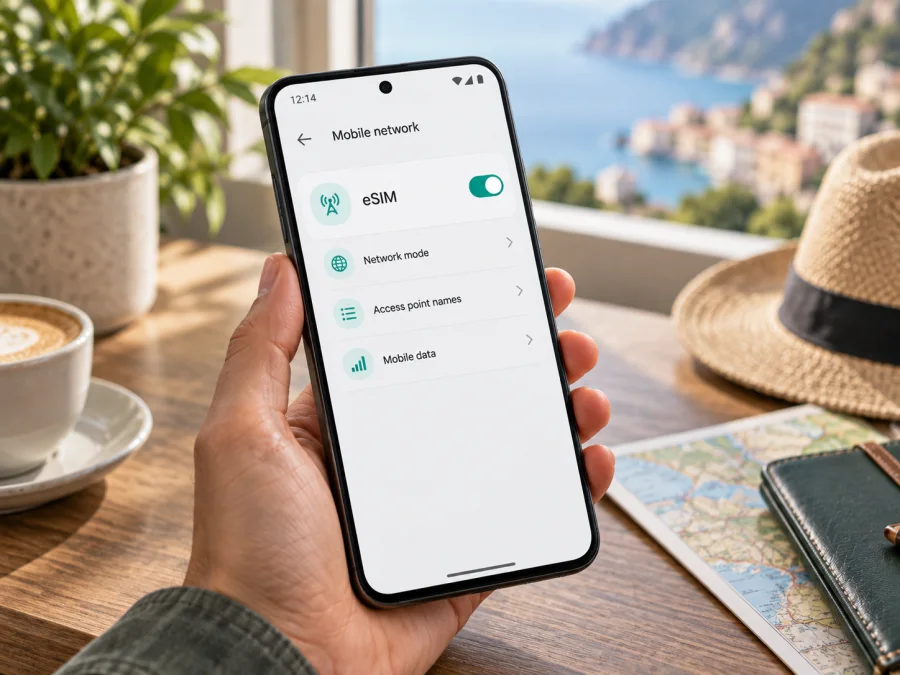
Xiaomi Redmi Note 14 Pro+ eSIM: compatibility and setup
Can Xiaomi Redmi Note 14 Pro+ use an eSIM for mobile data on a trip? The short answer is yes for a qualifying regional version: Xiaomi's current specifications for the corresponding REDMI Note 14 Pro+ 5G list a dual-SIM arrangement with nano-SIM + eSIM, and Xiaomi's support information says that the model supports an eSIM card. The answer is conditional, however. Xiaomi also states that eSIM availability can vary by country, region, and carrier. Check the actual phone before you buy a plan.
Does Xiaomi Redmi Note 14 Pro+ support eSIM?
Xiaomi's current regional product pages describe the related REDMI Note 14 Pro+ 5G as Dual SIM (nano SIM + nano SIM or nano SIM + eSIM). Xiaomi's support guidance likewise identifies the REDMI Note 14 Pro+ 5G as an eSIM-compatible phone. This confirms eSIM capability for the qualifying product configuration, but not automatically for every phone sold with the shorter name Xiaomi Redmi Note 14 Pro+.
The manufacturer specifically warns that eSIM availability may differ by country or region and by carrier. A regional SKU, firmware build, SIM tray arrangement, or carrier restriction can change what appears in the settings. A shop listing or a product photograph is not enough evidence for an imported unit. If the phone does not show an eSIM setup option or an EID, confirm the exact regional model with Xiaomi, the seller, or the carrier before arranging a travel plan.
An eSIM is a digital SIM profile stored in the phone. It is not automatically a phone number, voice service, or SMS package. Travel eSIM plans used with Kaspersky eSIM Store are intended for mobile internet in a foreign trip unless the individual plan says otherwise. Kaspersky eSIM Store is an app and website that helps you choose, arrange, and activate an eSIM with a suitable travel data plan. It is not a mobile operator, network owner, or provider of mobile internet; network access and coverage depend on the selected service and local networks.
Key compatibility facts
| Check | What to know about Xiaomi Redmi Note 14 Pro+ |
|---|---|
| Manufacturer confirmation | The corresponding REDMI Note 14 Pro+ 5G is listed with nano-SIM + eSIM. |
| Direct answer | A qualifying regional version supports eSIM. |
| Regional condition | Xiaomi says availability can vary by country, region, and carrier. |
| Best device test | Look for an eSIM setup option and an EID. |
| Travel use | A compatible profile can be selected for mobile data abroad. |
| Important restriction | A carrier lock or unsupported plan can prevent activation. |
The official specification pages use the 5G designation for this product family, while the target name here is Xiaomi Redmi Note 14 Pro+. Compare the model information and market of sale; if they do not line up, treat support as unconfirmed.
Why regional and carrier versions can differ
One marketing name does not always mean one identical configuration worldwide. Xiaomi may publish different regional pages, while carriers can add provisioning or a lock. Possible differences include:
- A market version may expose Add eSIM, while an imported version with a similar name may offer only physical nano-SIM positions.
- A carrier-branded phone may restrict another provider's profile until it is unlocked, even when the hardware is ready.
- The label can vary by HyperOS version: Add eSIM, Download a SIM, Set up eSIM, or a similar phrase.
- Two lines may be installed while the phone limits which line is used for data or active at the same time.
How to check eSIM support before purchase
Do this on the exact phone you will take on the trip. Keep it on Wi-Fi and charged, and leave the physical SIM in place.
Check the mobile-network settings
- Open Settings.
- Open Mobile networks, SIM cards & mobile networks, or the closest equivalent.
- Look for Add eSIM, Add mobile plan, Download SIM, Set up eSIM, or a plus sign in the SIM section.
- Open the setup screen far enough to confirm that the phone offers an eSIM profile, but do not scan a travel QR code unless you are ready to install it.
Find the EID
An EID is an identifier associated with the embedded-SIM component. It is commonly shown in Settings → About phone → Detailed info and specs → Status, or inside SIM status or regulatory information. The path can vary; you may also try *#06#, although codes differ by build.
Look for EID. Its presence is useful confirmation that eSIM hardware exists. If it is absent, search Settings for “eSIM” and “SIM” and confirm the model and region with the seller. Keep your EID, IMEI, QR code, and activation details private.
Check your device before selecting a travel plan. Perform the check on your phone, not on a similar model in a review.
Compatibility checklist before buying
- [ ] An eSIM option is visible in Settings, or an EID is displayed.
- [ ] The model and region match the purchase documents.
- [ ] The phone is not carrier-locked, or the carrier has confirmed eSIM use.
- [ ] The phone can connect to Wi-Fi while the profile is downloaded.
- [ ] The selected plan covers every country or region on the itinerary.
- [ ] The data allowance, validity, activation rule, and roaming requirement fit the trip.
- [ ] You know whether to install before departure or activate after arrival.
- [ ] You have a second screen available if the QR code cannot be scanned from the same phone.
- [ ] You understand whether the plan includes data only or also calls and SMS.
If the phone passes these checks, Kaspersky eSIM Store can help you choose and arrange an eSIM plan. Read the plan conditions before confirming.
How to install an eSIM on Xiaomi Redmi Note 14 Pro+
You need a compatible, unlocked phone, an internet connection, and the activation details supplied after you arrange the plan.
1. Prepare the phone
Charge the phone, connect to Wi-Fi, and confirm that airplane mode is off. Keep activation details private.
2. Open eSIM setup
Open Settings, then Mobile networks or SIM cards & mobile networks. Choose Add eSIM or the closest equivalent. If the option is missing, stop and return to the compatibility checks; repeated scanning cannot add eSIM capability to an unsupported regional model.
3. Scan or enter the details
Choose the QR-code option and scan the code displayed on another screen. If the plan supplies manual activation details, use that option instead. A QR code may be single-use, so do not share it or scan an untrusted copy.
4. Download the profile
Keep Wi-Fi connected while the profile downloads. Installing a profile and starting the plan can be separate events, so follow the selected plan's activation rule rather than assuming installation starts the countdown.
5. Name and select the line
Label the profile Travel data or another clear name. Enable it when ready. Choose which SIM handles calls, messages, and mobile data. If you keep your home physical SIM active, make sure mobile data is assigned to the travel eSIM.
6. Allow data roaming when required
Open the travel eSIM's network settings and enable Data roaming if the plan requires it. A travel profile may connect through a partner network outside its home market. To reduce accidental charges, consider disabling data roaming on the home SIM while keeping that line available for calls or messages.
7. Test the connection
After enabling the eSIM, select it for mobile data and open a simple webpage. At home, the profile may not connect until you reach the covered destination; check the activation rule before deleting it.
For a platform walkthrough, use the Android installation instructions or the iOS installation instructions. Xiaomi Redmi Note 14 Pro+ uses Android-based software; follow the screen and plan conditions.
Using the eSIM for mobile data while travelling
Before departure, decide which line will handle each job. A common arrangement is to keep the home physical SIM for its number, choose the travel eSIM for mobile data, and disable data roaming on the home line. Confirm possible charges and dual-SIM behavior with your home carrier.
At the destination:
- Turn off airplane mode and wait for registration.
- Confirm that the travel eSIM is enabled.
- Select it for mobile data.
- Enable data roaming for that profile if required.
- Check the network indicator and open one lightweight webpage.
- Monitor data use.
For a short holiday, match the plan's destination and validity to the dates. Maps, tickets, messaging, translation, and transport apps are typical uses; download offline information in advance and limit video, cloud backup, and automatic updates.
For a work trip, install and test over Wi-Fi before departure. Check whether hotspot use is allowed before relying on it for a laptop. A travel eSIM supports data-based work tools but does not replace a business number.
Common problems and checks
There is no eSIM option
Check the exact region, search Settings for “eSIM” and “EID”, and ask whether the phone is carrier-locked. A factory reset cannot add a regional eSIM feature.
The QR code will not scan
Increase the display brightness, clean the camera lens, and use the eSIM scanner if provided. Display the code on a second screen or use manual activation details. If the code was used or expired, contact support; do not post it publicly.
The profile will not download
Reconnect to stable Wi-Fi, check free storage, and confirm automatic date and time. Check SIM settings before trying again, and do not delete an installed profile until you know the reissue rules.
The eSIM is installed but there is no signal
Confirm that the profile is enabled, selected for data, and covered at your destination. Check activation, data roaming, and network selection; restart once and allow several minutes. Return to automatic selection unless the plan names a network.
Data uses the home SIM
Select the travel profile for mobile data, turn off automatic data switching if present, and disable data roaming on the home line.
Data is slow or stops
Check remaining data, validity, coverage, and signal strength. Pause high-use apps and move to better reception. If the issue continues, contact support with the profile status, destination, and settings; never send a full QR code or EID publicly.
Calls and SMS do not work
That may be expected. A travel data eSIM generally supplies mobile internet and may not include a standard phone number, voice calls, or SMS. Use internet messaging where suitable, keep your home line for its number, and check the individual plan conditions.
FAQ
Is Xiaomi Redmi Note 14 Pro+ eSIM-compatible?
The corresponding REDMI Note 14 Pro+ 5G is listed by Xiaomi with nano-SIM + eSIM support, so a qualifying version is compatible. Because availability varies by country, region, and carrier, confirm the EID and eSIM menu on your exact phone before purchase.
Can I use a physical SIM and an eSIM together?
Potentially, yes. Xiaomi lists a nano-SIM + eSIM arrangement, but active-line rules depend on the regional version, software, and carrier. Check which line is assigned to data.
Do I need to remove the physical SIM?
Usually not. A supported phone can keep a physical nano-SIM while an eSIM is installed, subject to dual-SIM limits. Make sure the travel profile, not the home SIM, is selected for mobile data.
Does installation start the plan immediately?
Not always. Profile installation, activation, first network registration, and the start of validity can be separate events. Follow the conditions shown for the selected plan.
Can Kaspersky eSIM Store unlock my phone or add eSIM support?
No. Kaspersky eSIM Store helps you choose, arrange, and activate an eSIM plan for mobile internet in a foreign trip. It cannot remove a carrier lock or change a regional hardware limitation.
Can I move an eSIM to another phone?
Do not assume that you can. Transfer or reissue depends on the profile and plan conditions. Check them before deleting the profile or changing devices.
Conclusion: check the phone, then choose the trip eSIM
Xiaomi Redmi Note 14 Pro+ can support eSIM when it is the qualifying regional version identified in Xiaomi's current documentation. Xiaomi lists the corresponding REDMI Note 14 Pro+ 5G with nano-SIM + eSIM and warns that eSIM availability depends on country, region, and carrier. The safe sequence is simple: open mobile-network settings, look for an eSIM setup option, find the EID, confirm the regional model and carrier-unlock status, and only then choose a plan.
After compatibility is confirmed, match the eSIM to the journey: check the route, data, validity, activation rule, roaming requirement, and whether you need the physical SIM for calls or messages. Kaspersky eSIM Store helps you choose, arrange, and activate an eSIM with a suitable mobile-data plan through its app or website. Install over Wi-Fi, assign it to mobile data, and test it when ready.
Final device-and-trip check
- Verify the EID or Add eSIM control on your exact Xiaomi Redmi Note 14 Pro+.
- Confirm the phone's country or region and that it is not carrier-locked.
- Select an eSIM plan covering every destination on the route.
- Check data, validity, activation timing, roaming, and restrictions.
- Install securely, keep the QR code private, and label the travel line.
- At the destination, choose the travel eSIM for mobile data and monitor usage.
If either of the first two checks fails, do not assume that a similar Redmi model will work. Verify the exact phone first; then choose the eSIM for your trip with the same care you use to check its destination and conditions.


