Travel connectivity guide
Xiaomi Redmi Note 15 Pro 128GB 5G eSIM Guide
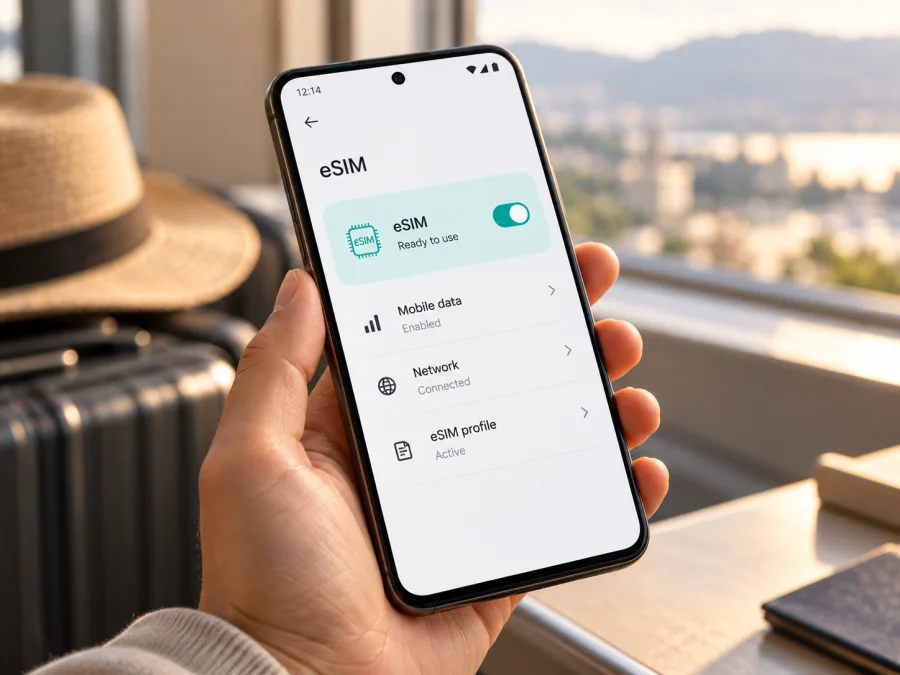
Xiaomi Redmi Note 15 Pro 128GB 5G eSIM: compatibility and setup guide
Short answer: Xiaomi’s official information for the REDMI Note 15 Pro 5G says that the phone supports eSIM, one eSIM profile, and an EID. However, the exact Xiaomi Redmi Note 15 Pro 128GB 5G storage variant could not be confirmed in the manufacturer’s current global specification list, which shows 256GB and 512GB options. Because Xiaomi also says eSIM availability can depend on country, region, and carrier, check the actual phone before purchasing a travel plan. If its settings show an EID and an option to add an eSIM, and the phone is not carrier-locked, it is ready for the next compatibility checks.
An eSIM can be useful when you want mobile data while travelling without swapping out your main physical SIM. The practical steps are straightforward: identify the exact regional version, confirm eSIM in Settings, install the profile over a reliable internet connection, and select it for mobile data when you reach your destination. The guide below explains how to verify each step without assuming that every handset sold under a similar name has the same configuration.
Compatibility at a glance
| Item | What can be confirmed | What you should check on your phone |
|---|---|---|
| Requested device name | Xiaomi Redmi Note 15 Pro 128GB 5G | Match the name and model number on the box, receipt, and About phone screen. |
| eSIM on the REDMI Note 15 Pro 5G family | Xiaomi’s UK support FAQ says the 5G model supports eSIM and EID. | Confirm that the specific handset has an EID and an eSIM menu. |
| Number of eSIMs | Xiaomi’s FAQ lists support for one eSIM. | Do not assume that multiple eSIM profiles can be active together; review the phone’s SIM controls. |
| SIM arrangement | Xiaomi lists dual SIM as nano-SIM + nano-SIM or nano-SIM + eSIM for the supported 5G configuration. | The available arrangement may depend on the tray and market version. |
| 128GB storage option | Not listed on the current global specification page reviewed for this guide. | Ask the seller for the full regional model number and confirm eSIM on the device itself. |
| Travel data | Depends on the eSIM plan, destination, partner networks, and local availability. | Check destination, data allowance, validity, compatible network bands, and activation conditions before purchase. |
This table separates the confirmed capability of the REDMI Note 15 Pro 5G family from the unconfirmed 128GB retail configuration. Storage capacity by itself does not enable or disable eSIM. The important details are the precise regional model, its embedded SIM hardware, software configuration, and whether its carrier has restricted it. A seller’s shortened product title is not a reliable substitute for checking those details.
Does Xiaomi Redmi Note 15 Pro 128GB 5G support eSIM?
The REDMI Note 15 Pro 5G is listed by Xiaomi as supporting eSIM, but the exact 128GB version still needs to be checked. Xiaomi’s UK FAQ confirms eSIM and EID support, and lists one eSIM. Xiaomi’s global specification page lists dual SIM as either two nano-SIMs or one nano-SIM plus eSIM; it also cautions that eSIM availability can vary by country, region, and carrier.
The exact name in this guide is Xiaomi Redmi Note 15 Pro 128GB 5G. The current global page lists 256GB and 512GB storage combinations, not 128GB. This does not prove a 128GB local listing cannot exist, but the precise market SKU is not verified by that page. Storage capacity alone does not determine eSIM support. Confirm the complete model number and eSIM controls on the phone you will use.
Do not confuse this phone with the separate REDMI Note 15 Pro without “5G.” Xiaomi’s product pages describe different network and SIM configurations, and the non-5G page does not list eSIM in its SIM details. Likewise, do not assume the 5G suffix proves compatibility for every regional edition.
Regional versions may differ in model code, supported cellular bands, SIM tray, software configuration, and feature availability. Xiaomi says eSIM and network-band availability may depend on region and local carrier support. The operator market for the 128GB listing is not specified, so check the seller’s full model identifier, whether the phone is carrier-locked, and whether its supported bands match the destination. A device can have an EID but still be blocked from using another provider’s eSIM.
Check compatibility before buying a travel eSIM
Check the phone you will actually take on the trip. If you have not bought it yet, ask the seller to show these settings on the exact unit; a title or generic listing may describe another regional version.
On-device compatibility checklist
- [ ] In Settings → About phone, note the full model name, model number, and software version.
- [ ] Find the EID in About phone → Detailed info and specs or the eSIM management screen.
- [ ] Open Settings → SIM cards & mobile networks and look for Use eSIM, Manage eSIM, Add eSIM, or Add mobile plan. Wording can vary by software version and region.
- [ ] Search Settings for EID or eSIM if the menu is not obvious.
- [ ] Confirm the device is unlocked and the seller or original carrier has not restricted other eSIMs.
- [ ] Match the plan’s destination and network support to the phone’s supported bands.
- [ ] Keep Wi-Fi available for setup and retain access to the QR code or activation details.
Xiaomi’s general instructions place eSIM controls under SIM cards and mobile networks, where the user can enable eSIM and view the device EID through Manage eSIM. If no EID or add-eSIM control appears after checking Settings search and available official updates, ask Xiaomi or the seller to confirm the model. A software update cannot add missing eSIM hardware.
Check whether your device is compatible before choosing a plan. This is particularly useful for an unusual storage or imported-market listing.
An EID identifies the phone’s embedded SIM hardware. It is different from the IMEI and from a phone number. Its presence is a strong indication of eSIM capability, but not a promise that a particular carrier or plan will work: region, device lock, network support, and plan terms still apply. Share an EID only through an official support channel when requested.
How to install and activate an eSIM
Install over reliable Wi-Fi and first check the plan’s activation rules. Some plans start validity when installed; others begin when they connect in the destination. Some QR codes can be used only once, so do not remove a profile just to retry it.
Menu names vary by HyperOS version and region. Follow any automatic installation flow supplied for the plan; otherwise use these general Android steps:
- Confirm compatibility. Check the model number, EID, add-eSIM option, and carrier-lock status before purchase.
- Prepare. Connect to Wi-Fi, charge the phone, and open the order details on another screen if possible.
- Open SIM settings. Go to Settings → SIM cards & mobile networks. Enable Use eSIM if shown, then open Manage eSIM or Add eSIM.
- Install the profile. Scan the supplied QR code or enter manual details if the plan provides them. Wait for the profile to download.
- Label the line. Use a clear name such as Travel data so you can distinguish it from your regular SIM.
- Follow activation timing. Keep the profile installed and follow the plan’s stated start conditions.
- Choose data. Select the travel profile as the mobile-data line when you are ready to use it.
- Enable roaming if required. Turn on data roaming only for the travel eSIM if its instructions require it.
- Wait for registration. On arrival, give the phone a few minutes to connect before troubleshooting.
See the Android eSIM installation instructions for a general screen-by-screen overview. The iOS eSIM installation instructions apply to Apple devices and are included for comparison; they are not the menu steps for this Android phone.
If setup fails, keep the profile on the phone, note the error, and ask the plan support team whether a retry is safe. Deleting a profile may not make a single-use QR code reusable or restore the plan.
Use the eSIM for mobile data on a trip
Install before departure if the plan permits it and its validity will not start too early. If the countdown begins on first connection in the destination, early installation can be convenient. If it begins at installation, follow the plan’s stated timing instead.
At your destination, select the travel profile for mobile data. You can leave your regular SIM enabled for calls or SMS if your handset’s SIM settings allow it and the home operator’s roaming conditions are acceptable. Turn off automatic data switching if you want to prevent the phone from moving data to the home SIM. If the plan requires roaming, enable it for the travel profile only.
A travel eSIM is generally for mobile internet, not a regular phone number, voice service, or SMS unless the specific plan says otherwise. Internet messaging and calling apps can use the data connection. Review the plan’s destination list, allowance, validity, and terms before you travel; a single-country plan may not cover every border on your itinerary. Service also depends on local networks and signal conditions, so prepare offline maps or essential tickets as a backup.
Common situations:
- Keep your usual number reachable: leave the home SIM on for calls and select the eSIM for data. Check the available dual-SIM combinations on your own handset.
- Use maps and messaging: choose an allowance that fits your trip, and download critical information before departure.
- Cross borders: verify every destination is included and check whether the plan is local, regional, or multi-destination.
- Arrive without Wi-Fi: install in advance only if the plan’s activation timing makes that sensible; otherwise keep the instructions accessible offline.
Kaspersky eSIM Store is an app and website where you can choose, arrange, and activate an eSIM with a mobile-data plan for an international trip. Browse Kaspersky eSIM Store to review current destinations and options. The homepage is a starting point for browsing, not a specific country tariff.
Troubleshooting: eSIM not installing or connecting
EID or eSIM controls are missing
Search Settings for EID and eSIM, check the full model number, and install any available official update. If neither an EID nor an add-eSIM control appears, the market or software configuration may not support the feature. Ask Xiaomi or the seller about the exact handset before buying a plan.
The QR code will not scan or the profile will not download
Make the QR image bright and fully visible, clean the camera lens, and keep Wi-Fi connected. Use manual activation details only if the plan supplies them. Check the date and time settings if download fails. An invalid or previously used code may need plan support; avoid repeated attempts if it may be single-use.
The profile installs but there is no service
Make sure the profile is switched on and selected for mobile data. Enable mobile data and, if instructed, roaming for that eSIM. Confirm that the destination and validity period match the plan. Briefly toggle airplane mode or restart, then wait for registration. If manual network selection is required, follow the plan’s instructions rather than choosing at random.
Apps connect but the data line seems wrong
Confirm that the eSIM is selected as the data SIM, and disable automatic data switching if you want to keep that choice. Check data saver, data limits, and any APN instructions supplied with the plan; change an APN only when explicitly instructed. If needed, note your location, selected line, and error for support.
Should I delete the eSIM to start again?
No, not as a first step. Removing a profile may not cancel a plan, return unused data, or allow its QR code to be reused. Ask the plan support team before deletion and keep the order details and error message available.
Frequently asked questions
Does Xiaomi Redmi Note 15 Pro 128GB 5G support eSIM?
Xiaomi confirms eSIM and EID for the REDMI Note 15 Pro 5G family. The exact 128GB configuration is not in the current global storage list, so check the actual phone for an EID and Add eSIM before purchase.
How many eSIMs does it support?
Xiaomi’s FAQ lists one eSIM. The available combination of active physical and digital SIMs can vary, so check the SIM manager on your regional version.
Can I use eSIM and a physical SIM together?
Xiaomi lists nano-SIM + eSIM for the REDMI Note 15 Pro 5G. Confirm the exact simultaneous line behavior in your phone’s settings.
Will a travel eSIM work if the phone is locked?
Not necessarily. An EID indicates eSIM hardware, but a carrier lock can block another provider’s profile. Confirm the phone is unlocked with the original carrier or seller.
Does a travel eSIM include calls and texts?
Usually it provides mobile data only. Check the terms of the plan; internet-based calling and messaging apps may work over data, while regular calls and SMS depend on your main SIM.
When should I install the profile?
Check when validity begins. Install ahead if the plan starts on first destination connection; wait if it starts at installation and you do not want the validity period to run early.
What if the eSIM menu is missing?
Search Settings for EID and eSIM, check the model number and official updates, then ask Xiaomi or the seller. Do not assume another REDMI Note 15 version has the same features.
Final check before your trip
Xiaomi documents eSIM support, one eSIM, and an EID for the REDMI Note 15 Pro 5G family. Its current global page does not list the requested 128GB configuration, and eSIM availability can vary by region, software, and carrier. Confirm the EID, eSIM menu, and unlocked status on the exact Xiaomi Redmi Note 15 Pro 128GB 5G before buying.
Then check the plan’s destination, validity, data allowance, and network requirements. Install over reliable internet, keep the QR details secure, and choose the travel profile for mobile data when you are ready. Once compatibility is confirmed, use Kaspersky eSIM Store’s app or website to review and choose a suitable plan for the trip.


