Travel connectivity guide
Xiaomi Redmi Note 15 Pro+ 256GB eSIM Compatibility
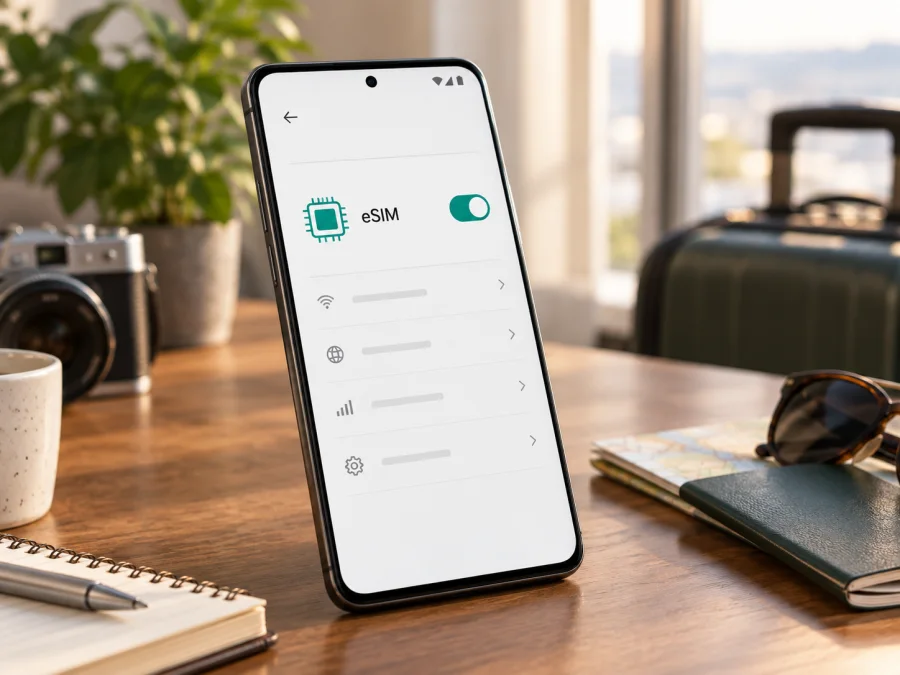
Xiaomi Redmi Note 15 Pro+ 256GB eSIM compatibility and setup guide
Xiaomi’s official specifications list eSIM support for the REDMI Note 15 Pro+ 5G model family. Its support FAQ confirms EID and one eSIM, with dual SIM configured as two nano-SIM cards or nano-SIM + eSIM. This is a positive answer for Xiaomi Redmi Note 15 Pro+ 256GB at model-family level, but the phone’s exact market and carrier configuration still matter. Check the handset before buying a travel plan.
The “256GB” identifies storage capacity, not RAM, market, or radio configuration. Xiaomi notes that eSIM availability can depend on country, carrier, software, and model code, so verify the individual unit.
Quick compatibility answer
Does Xiaomi Redmi Note 15 Pro+ 256GB support eSIM? Xiaomi says yes for the REDMI Note 15 Pro+ 5G model family: it supports one eSIM, EID, and a nano-SIM + eSIM configuration. Xiaomi also warns that availability can vary by country or region and carrier. The “256GB” label does not identify the sales region or RAM configuration, so verify EID and the Add eSIM option on your exact phone before checkout.
| Item | What to know |
|---|---|
| Device in this guide | Xiaomi Redmi Note 15 Pro+ 256GB |
| Xiaomi model family | REDMI Note 15 Pro+ 5G |
| Storage | 256GB; it does not identify RAM or region |
| eSIM and EID | Listed by Xiaomi for the model family |
| SIM configuration | nano-SIM + nano-SIM or nano-SIM + eSIM |
| eSIM quantity | Xiaomi FAQ says one eSIM |
| Still to check | Exact market, model code, carrier lock, software, and plan |
This does not guarantee every imported or carrier-customized phone exposes the same controls. If EID and Add eSIM are absent, confirm the model code and market with Xiaomi or the seller. A 5G icon or dual-SIM tray alone does not prove eSIM capability.
Why regional versions matter
Regional versions can differ in network bands, firmware, SIM provisioning, and carrier settings. Xiaomi says eSIM availability varies by country or region and carrier, and network bands depend on local support. A physical SIM tray is not a definitive test: a phone may support both a physical SIM and eSIM.
Check the box label, invoice, and About phone screen for the model code and original market; “256GB” does not identify them. If importing or buying from a marketplace, ask the seller to confirm that this exact unit supports eSIM and is unlocked.
An official software update may change menu wording or carrier settings, but do not assume it can add eSIM where the hardware or regional build does not provide it. Keep system software current and check again. Avoid unofficial firmware changes as a compatibility shortcut because they can affect updates, security, warranty, or mobile network functions.
A carrier may require an unlocked phone, an eligible plan, or a specific activation method. The travel profile must also cover the destination. Compatibility depends on the handset, plan, and network—not just the product name.
Check eSIM support on your phone
Menu names vary slightly with HyperOS version, carrier configuration, and language. If a path differs, use Settings search for “EID,” “eSIM,” “SIM,” or “mobile plan.”
1. Look for an EID
Open Settings → About phone or Status information and look for EID. On some versions, open Status first. You can also search Settings for “EID.” An EID is the identifier associated with an embedded SIM. Xiaomi’s FAQ says REDMI Note 15 Pro+ 5G supports EID, and finding it on your handset is a useful device-level confirmation.
If it is not there, check SIM management and search Settings again. The dialer code *#06# may show identifiers on some Android phones, but is not available on every build. If EID is still missing, confirm the model code with Xiaomi or the seller rather than relying on a listing.
2. Find the eSIM setup control
Open Settings → Mobile networks or SIM cards & mobile networks. Look for Add eSIM, Add mobile plan, Set up eSIM, or an option to scan a QR code. It may be under SIM management or behind a plus sign. Do not scan a real profile just to test the menu: installation can bind it to the phone or start a one-time setup.
If the option appears, also confirm the phone is unlocked and the plan covers your destination. If it is missing, install official updates, restart, and check again. If it remains unavailable, ask Xiaomi or the seller to verify the market and model code before purchase.
3. Check for a carrier lock
A carrier-issued phone may accept only profiles authorized by that carrier. Ask the carrier or seller whether the device is unlocked for another provider’s eSIM. A working physical SIM from one provider does not prove that a second provider’s eSIM will install. If you want to keep your home SIM active while travelling, check which combinations of active lines and mobile-data settings your phone supports.
Check whether your device is compatible
Prepare before installation
Complete these checks while connected to Wi-Fi:
- Confirm EID, eSIM setup, and unlocked status on the exact Xiaomi Redmi Note 15 Pro+ 256GB.
- Check destination coverage, data allowance, validity, activation timing, and hotspot or top-up limits.
- Keep the QR code or manual details on another screen; the phone generally cannot scan its own display.
- Keep order details and do not delete a profile unless instructed.
Kaspersky eSIM Store is an app and website where you can choose a travel eSIM and arrange its activation with a plan for mobile internet abroad. Verify the phone first, then select a destination plan that fits your journey. Travel eSIMs are generally intended for data; do not assume a regular phone number, voice calls, or SMS are included unless the plan terms say so.
Install and activate eSIM on Xiaomi Redmi Note 15 Pro+ 256GB
These are general Android and Xiaomi steps. Follow the plan provider’s instructions if they differ, since an activation code may be single-use or tied to one device. Keep the original confirmation until the connection works.
- Connect to Wi-Fi. Keep the phone online while it downloads the profile. If abroad, use trusted Wi-Fi or another working connection.
- Open mobile network settings. Go to Settings → Mobile networks or SIM cards & mobile networks, then choose Add eSIM or Add mobile plan.
- Choose a setup method. Scan the provider’s QR code or enter manual activation details. Grant camera permission if requested. Do not share the code; it may contain information that allows profile installation.
- Download the profile. Review the plan details and allow the phone to install the eSIM. Keep the internet connection active until setup finishes.
- Name the line. Use a clear label such as “Travel” or the destination name so it is easy to distinguish from your home nano-SIM.
- Select the data SIM. In SIM management, choose the travel eSIM for mobile data when you want to use it. You may keep the home SIM available for calls or messages if supported, but check its roaming charges.
- Set the timing. Some profiles can be installed before departure and activated later; others begin validity at installation or first connection. Follow the plan’s stated timing.
- Enable data roaming only if needed. Some travel plans require roaming on the travel eSIM. Confirm the selected line before enabling it, since the wrong line could incur charges.
- Check the connection. When the plan should be active and you are in a covered destination, briefly turn Wi-Fi off and load a web page. Network registration can take a few minutes.
See the Android eSIM installation instructions. The iOS eSIM installation instructions are for iPhone users; this Xiaomi uses Android.
Installing a profile and using its data are separate stages. An eSIM can appear in Settings while inactive, outside coverage, or not selected for mobile data. Turning a profile off is also different from deleting it. Do not remove it as a troubleshooting experiment unless the provider confirms it can be reinstalled.
Using eSIM while travelling
Before departure, decide which line handles each task. You can keep a home nano-SIM for your usual number and use the travel eSIM for data, subject to SIM mode and provider rules. Select the travel line for mobile data. Review automatic data switching; turn it off if you want to avoid data moving to the home line.
On arrival, enable the travel eSIM, choose it for mobile data, and allow it to register. If required by the plan, enable data roaming for that profile only. The network name and 4G/5G indicator depend on local partner coverage, radio bands, destination, and plan. A 5G-capable phone does not guarantee 5G service on every plan or in every location.
For a city break, data eSIM can help with maps, ride bookings, and messages without finding a physical SIM shop. For a multi-country trip, confirm all destinations are covered. Estimate data needs and check whether hotspot use is allowed.
Your home SIM may remain available for calls and texts, but roaming fees can apply. Calling and messaging apps can use travel data; a data eSIM does not automatically provide a phone number. Check whether a profile is reusable before deleting or transferring it.
Troubleshooting common issues
No EID or Add eSIM option: Restart, install official updates, and search Settings. Confirm the model code and sales market with Xiaomi or the seller. If carrier-issued, check that eSIM is enabled and the device is unlocked. Resolve this before purchase.
QR code will not scan or profile download fails: Increase display brightness, clean the camera, and check that the code is valid and intended for eSIM setup. For download errors, confirm a stable internet connection, automatic date and time, then follow provider instructions. Avoid repeated attempts if the code is single-use.
Profile installed but no data: Confirm it is turned on and selected for mobile data. Check that the plan is active, validity has begun, and the destination is covered. Enable roaming on that profile if required, then toggle airplane mode or restart.
Signal appears but pages do not load: Recheck the selected data line and allowance, then try a location with better reception. Enter APN settings only if the provider supplied them. Slow service can reflect location, congestion, roaming agreements, or supported bands; check the plan’s network information.
Home line uses roaming data: Check the selected data SIM and automatic switching. Turn off roaming on the home SIM if you do not intend to use it.
Profile lost after reset or deletion: Do not assume the QR code can be reused. Check the provider’s reinstall policy and contact support; some profiles are tied to one installation.
Compatibility checklist before purchase
Use this checklist for the Xiaomi Redmi Note 15 Pro+ 256GB in your hand, rather than relying only on a listing for the model family:
- [ ] EID is visible in system information or Settings.
- [ ] Settings offers Add eSIM, Add mobile plan, or an equivalent action.
- [ ] The phone is unlocked and accepts the intended provider’s profile.
- [ ] The exact market, model code, and software do not prevent setup.
- [ ] The plan covers the destination and its data and validity fit the trip.
- [ ] You know which line handles data, whether roaming is required, and whether hotspot use is allowed.
For the model family, Xiaomi’s official information confirms one eSIM and EID. For your individual 256GB phone, proceed only after the EID and setup control are present and the carrier and plan conditions fit. If either device check fails or the market remains unclear, ask Xiaomi or the seller before purchase. It is easier to resolve compatibility at home with internet access and time.
Frequently asked questions
Does Xiaomi Redmi Note 15 Pro+ 256GB support eSIM?
Xiaomi says the REDMI Note 15 Pro+ 5G model family supports eSIM and EID, with one eSIM alongside a nano-SIM. The 256GB label does not identify the region, so confirm EID and the setup menu on your handset.
Can two physical SIMs and an eSIM be used at once?
Xiaomi lists nano-SIM + nano-SIM or nano-SIM + eSIM and specifies one eSIM. This does not mean all three lines can be active together. Check SIM management for your market.
Will every travel eSIM work, and does it include calls?
No. The phone must be unlocked, accept the profile, and have a plan that covers the destination. Travel plans are commonly data-only; assume voice, a regular number, or SMS only when expressly included in the terms.
Should I install before departure? Can I move the eSIM later?
Follow the profile instructions and check when validity begins. You may be able to install over Wi-Fi before the flight and enable it on arrival. Do not assume the profile can be transferred: some are single-use or tied to one phone.
Final device check and trip eSIM
Xiaomi confirms eSIM and EID for the model family, though regional and carrier conditions can affect the individual Xiaomi Redmi Note 15 Pro+ 256GB. Before purchase, confirm EID, Add eSIM, and unlocked status; then check destination coverage, data, validity, and activation timing.
After those checks, Kaspersky eSIM Store is an app and website where you can choose, arrange, and activate an eSIM with a mobile-data plan for an overseas trip. Select an option that fits the route and expected use, install it with the Android steps above, and choose the correct data line when ready to connect. This check-first approach helps avoid a last-minute setup problem at the airport and keeps the decision focused on the exact phone you will travel with.


