Travel connectivity guide
Xiaomi Redmi Note 15 Pro+ 512GB 5G eSIM
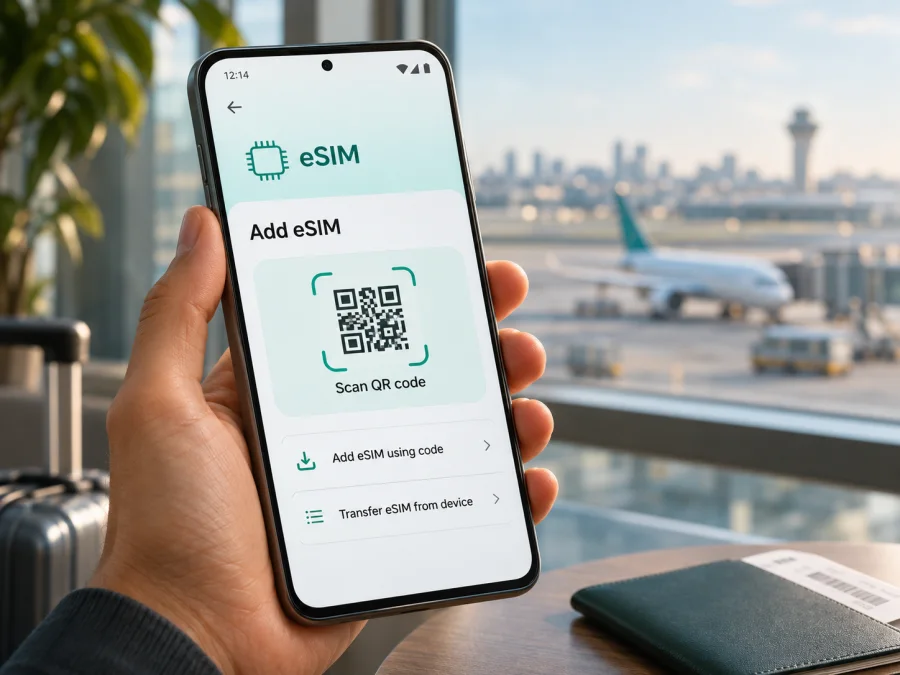
Xiaomi Redmi Note 15 Pro+ 512GB 5G eSIM: compatibility and setup guide
The short answer is yes for the Xiaomi global REDMI Note 15 Pro+ 5G: Xiaomi lists eSIM support, a single eSIM, and EID support for this model. Its global specifications also list the 12GB + 512GB storage configuration, so the 512GB capacity does not by itself rule out eSIM. Still, the name in a shop listing is not enough to confirm the exact phone in your hand. Xiaomi warns that eSIM availability may vary by country or region and carrier, and imported phones can differ in hardware, software, and network configuration. Confirm the actual device in its settings before choosing a plan.
This guide covers the manufacturer’s information, device checks, setup, and travel use. Similar regional versions may differ.
Quick compatibility summary
| Item | What is confirmed | What you should check |
|---|---|---|
| Exact topic | Xiaomi Redmi Note 15 Pro+ 512GB 5G | Compare the phone’s model number and region with the seller’s listing |
| eSIM on the official global REDMI Note 15 Pro+ 5G | Xiaomi lists nano-SIM + eSIM as a dual-SIM option | Confirm eSIM menus and EID on your own unit |
| eSIM capacity | Xiaomi’s global FAQ lists one eSIM | A single eSIM means one eSIM profile is supported; it does not promise unlimited simultaneous profiles |
| EID | Xiaomi’s global FAQ says the model supports EID | Look in Settings or use the phone dialer check described below |
| Storage | Xiaomi lists 12GB RAM + 512GB storage in the global specification | Storage size is separate from cellular-region availability |
| Mobile networks | The global specification lists 5G, 4G, 3G and 2G support | Bands and access depend on region, local network, plan, and operator support |
| Travel data | A compatible unlocked unit can use a supported travel eSIM | Check destination, device eligibility, plan conditions, and activation timing before purchase |
For the global variant, the evidence supports compatibility for the 512GB configuration: the global page lists 12GB + 512GB and the model FAQ confirms eSIM and EID. The FAQ does not separately name each storage size, and this does not certify every regional SKU, imported phone, carrier-branded variant, or modified software build.
What the model name does and does not tell you
“5G” describes mobile-network capability; it does not prove eSIM support. “512GB” is storage capacity, not a SIM specification. Xiaomi’s global page names the phone REDMI Note 15 Pro+ 5G, lists 12GB + 512GB, and offers nano-SIM + eSIM. Its FAQ confirms eSIM, one eSIM, and EID for the model. Xiaomi also cautions that eSIM availability varies by country, region, and carrier, and that network bands can vary by region and local operator support.
These caveats matter for imported phones, carrier-branded units, and regional variants. Hardware, supported bands, SIM tray configuration, and software menus can differ. A carrier may also restrict provider switching or roaming. The name in a shop listing is not enough to confirm an individual handset.
If buying online, ask for the exact model number and sales region. Ask the seller to confirm that the particular unit shows an EID and an Add eSIM option. A “global ROM” claim alone is not proof of eSIM hardware. If possible, verify the phone in person or request a screenshot with identifiers hidden.
Check eSIM on your own phone before buying a plan
Use more than one check if you can. The Settings menu is the most direct practical check; EID confirms that the phone exposes an eSIM identifier. Neither replaces checking carrier lock status or verifying that the intended plan accepts the device.
Check Settings
Menu wording may vary by software version and region. On a Xiaomi phone, start with one of these routes:
- Open Settings → SIM cards & mobile networks and look for an eSIM, Manage eSIM, or Add eSIM option.
- If it is not there, search Settings for eSIM, SIM, or EID.
- Open the relevant SIM-management page and see whether it offers an option to add or download an eSIM profile. Do not begin installation just to test compatibility; you can leave the setup screen without scanning a code.
An available “Add eSIM” option is a useful sign that the system exposes eSIM setup. Check whether the setting allows eSIM to be enabled and whether an EID is shown. A greyed-out control or an error may reflect a configuration or carrier restriction, so check the model number and local Xiaomi support information before assuming the device is ready.
Look for the EID
The EID identifies the embedded SIM component. Xiaomi says this model supports EID. Look in Settings → About phone → Detailed info and specs → Status or SIM management; paths vary by software. You can also try *#06# in the phone app. If the software supports it, device identifiers including EID may appear. Do not post your EID publicly.
If no EID appears, confirm the model and try the Settings search after an official update and restart. If both EID and Add eSIM are absent, do not assume an update can add the hardware; ask the retailer or Xiaomi support using the model number and region.
Compatibility checklist
Before checkout, confirm each item:
- [ ] The exact device is Xiaomi Redmi Note 15 Pro+ 512GB 5G, not another Redmi Note 15 model or a similarly named regional edition.
- [ ] The unit’s model number and sales region are known.
- [ ] Settings offers Add eSIM or the phone displays an EID.
- [ ] The phone is unlocked for use with another provider’s eSIM.
- [ ] The plan supports the destination and is intended for this phone’s supported networks.
- [ ] You understand when the plan activates, how long it remains valid, and what happens to unused data.
- [ ] You have a reliable internet connection available during profile installation.
For a second check before selecting a travel plan, use Check your device and compare the result with the phone’s own Settings. Device compatibility and destination plan availability are different questions: the first concerns whether the handset can install an eSIM, and the second concerns whether a particular plan can be used where you are going.
How to install and activate an eSIM
Use stable Wi-Fi and keep the QR code visible on another screen or printed page. Xiaomi menu labels vary; follow the plan instructions if they specify a route.
Before starting
- Confirm eSIM support and that the phone is unlocked. If the menu is absent, resolve that before purchasing or installing.
- Check the plan’s destination, data allowance, validity, activation trigger, and any device or roaming conditions. Validity may begin at installation, first connection, or another stated time; check the plan terms.
- Make sure you have a working internet connection and sufficient battery. Keep the activation email, QR code, or manual details available. A QR code may be single-use, so do not scan it repeatedly if the first attempt is still processing.
- Keep your usual SIM active if you still need its number for calls, messages, or account verification. Decide in advance which SIM should handle mobile data.
Install from a QR code
- Open Settings → SIM cards & mobile networks (or search Settings for eSIM).
- Choose Add eSIM, Set up eSIM, or the similarly named option. If prompted, agree to proceed to the download or activation screen.
- Select the QR-code option and scan the code provided for your plan. If the phone cannot scan a code displayed on its own screen, show it on another device or use the provider’s manual entry method when available.
- Wait while the phone downloads and installs the profile. Keep the connection stable and do not remove the profile during setup.
- Label the line “Travel data” to distinguish it from your home SIM.
- When asked whether to enable the line, follow the plan’s activation instructions. If you are still at home and the provider says activation starts on first connection in the destination, leave the travel line installed but switch it off until the recommended time.
- Select the eSIM as the mobile-data line when you want to use it. If the plan requires data roaming, enable roaming for that eSIM only, after checking its terms. Keep roaming off on your home SIM if you want to avoid unintended home-network charges.
For general platform guidance, see the Android eSIM installation instructions and the iOS eSIM installation instructions. The iOS page is for Apple devices and is not a Xiaomi setup guide. The Android page notes that its illustrated steps are specific to Samsung, so use it as general orientation and follow the Xiaomi menu and your plan’s instructions on this phone.
If you receive a SM-DP+ address and activation code instead of a QR code, choose manual entry and copy the details exactly. Use only details issued for your plan and contact support if setup fails.
Installation is not always the same as service activation
Downloading a profile places it on the phone; it does not always start the plan’s validity or connect to a network immediately. The timing depends on the plan’s stated activation rule. Some plans can be installed before departure and connect at the destination. Others may activate at purchase, installation, or first network registration. Check the terms before you scan the code, especially if the trip is several days away. Once a profile has been installed, avoid deleting it unless the plan instructions say it can be reinstalled: many eSIM QR codes cannot be reused.
Using the phone for mobile data on a trip
A travel eSIM can provide mobile data without replacing the physical SIM. Xiaomi lists nano-SIM + eSIM for the global model. You may select the travel line for data while keeping the physical SIM available, subject to phone behavior, plan terms, and local network support.
A simple setup for a trip is:
- Install the travel profile before departure if its conditions allow pre-installation.
- Keep the profile disabled until the plan’s stated activation point if early connection could start validity.
- When ready, enable the eSIM and set it as the mobile-data line.
- Enable data roaming for the travel eSIM only if the plan requires it. Roaming here is a phone setting that lets the line register on partner networks; it does not mean you should enable it indiscriminately on every SIM.
- Leave your home line enabled only if you need calls or verification messages and understand any home operator charges. Configure calls, SMS, and data lines separately where the phone allows.
- Check the status bar and open a lightweight webpage to confirm that data works before relying on maps, tickets, or messaging.
Set up two lines deliberately
If you need your usual number for calls or verification, keep the home SIM available only if your operator’s roaming terms are clear, and select the travel eSIM for data. Disable data roaming on the home line if you want to avoid accidental data use. For a data-only trip, you may turn the home line off, but first check whether important accounts rely on SMS codes. On a multi-country route, confirm that each country is included in the plan; installation in one country does not prove coverage in another.
Kaspersky eSIM Store is an app and website where you can choose, arrange, and activate an eSIM with a mobile-data plan for an international trip. To browse current destinations and plan conditions, visit the Kaspersky eSIM Store. Check the destination and terms shown for the plan you choose; the availability of a destination page does not establish that every plan works with every device or network.
Troubleshooting: check these settings first
If the profile installs but data does not work, change one setting at a time and retest. Keep the plan’s activation rules nearby so troubleshooting does not accidentally trigger validity or delete the profile.
| Symptom | Checks to make |
|---|---|
| No eSIM option in Settings | Search Settings for eSIM; check EID; confirm exact model number, region, software version, and whether the device is carrier locked. Ask Xiaomi or the seller to verify the unit. |
| QR code will not scan | Use a stable connection, increase screen brightness on the device showing the code, clean the camera lens, or enter provider-issued manual details if that option is available. Check whether the code has already been used. |
| Profile download stops | Keep Wi-Fi connected, disable any captive portal issue by completing the Wi-Fi sign-in, restart and retry once. Do not delete an installed profile unless instructed. |
| eSIM appears but cannot connect | Confirm that the line is enabled, selected for data, and within the plan’s coverage area and validity period. Check whether data roaming is required. |
| Signal bars appear but internet does not load | Verify that mobile data is assigned to the travel line, toggle airplane mode briefly, restart, and check the APN only if the provider gives APN details. Try a simple site or app. |
| Phone connects to the wrong SIM | Open SIM management and select the intended data line. Turn off automatic data switching if the phone offers it and you do not want it to change lines. |
| Network is available but 5G is not | Test 4G/LTE first. 5G depends on the plan, local operator, coverage, compatible bands, and regional phone configuration. A working data connection does not require 5G. |
| Activation says the device is unsupported | Check the model number and EID, remove any carrier lock issue, and verify eligibility with the plan provider. Do not repeatedly reset network settings or delete the profile without advice. |
| Data works briefly and stops | Check remaining allowance, validity, selected network, and whether the plan requires a supported manual network choice. Review the plan account for its current status. |
If problems continue, note the model number, software version, country, and error message for support. Share activation details only through an official support channel. A factory reset can remove profiles and personal data, so back up first and confirm profile recovery options.
FAQ
Does Xiaomi Redmi Note 15 Pro+ 512GB 5G support eSIM?
The global REDMI Note 15 Pro+ 5G specification and FAQ from Xiaomi list eSIM support. Xiaomi also lists one eSIM, EID support, and a nano-SIM + eSIM dual-SIM arrangement. The global product page lists a 12GB + 512GB storage configuration. This confirms the global model information, while Xiaomi cautions that eSIM availability can depend on country, region, and carrier. Check the individual phone before buying a plan.
Does an EID guarantee that a travel plan will work?
No. EID indicates eSIM capability, but a working plan also depends on carrier unlock status, the plan’s device rules, destination coverage, activation conditions, and local network compatibility. Check all of these before purchase.
Can I install the eSIM before I travel?
That depends on the plan. Check whether validity starts at purchase, installation, or first connection, and follow the provider’s timing instructions.
Will a travel eSIM replace my phone number?
A data-focused travel eSIM generally provides mobile data and may not include an ordinary phone number, voice calls, or SMS unless the plan explicitly says otherwise. Your existing SIM may remain available for calls or verification, subject to your home operator’s charges and the phone’s line settings. Internet messaging apps can use data when connected.
What if “Add eSIM” is missing?
Search Settings, check for an EID, and verify the exact model number, region, and software build. If both are absent, pause before purchase and ask the seller or Xiaomi support to confirm the unit. Do not assume that enabling 5G or installing a different ROM will add eSIM capability.
Before you choose a travel eSIM
For this exact article topic, the manufacturer evidence is encouraging: Xiaomi’s current global information lists eSIM and EID for REDMI Note 15 Pro+ 5G, and lists 12GB + 512GB as a configuration. The remaining uncertainty is about the individual handset’s region, carrier configuration, and local availability. Resolve that by checking the model number, Settings menu, and EID on the phone you will use.
Then check the travel plan separately: confirm it covers your destination, that the device is unlocked, and that the plan’s data amount, validity, activation trigger, roaming requirement, and network conditions fit your trip. Install over a reliable connection, select the intended eSIM for mobile data, and keep your home SIM settings under control. Verify the phone and compare plan details before checkout; the Kaspersky eSIM Store lets you browse options for international travel, while the plan’s own terms determine where and how it can be used.


