Travel connectivity guide
Xiaomi Redmi Note 15 Pro+ eSIM: Setup Guide
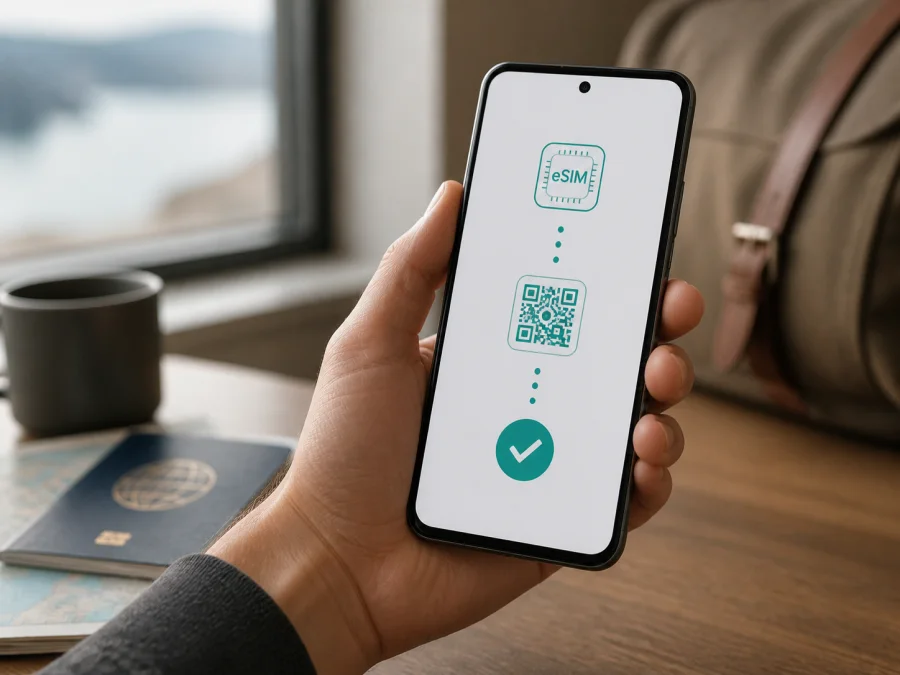
Xiaomi Redmi Note 15 Pro+ eSIM: compatibility, setup and travel use
If you are checking whether the Xiaomi Redmi Note 15 Pro+ can use an eSIM, the short answer is yes for a supported retail version. Xiaomi's current regional specifications and support FAQ for the REDMI Note 15 Pro+ 5G family list dual-SIM operation as either two nano-SIM cards or one nano-SIM and one eSIM. The same official FAQ identifies support for one eSIM and an EID.
Xiaomi says eSIM availability can vary by country, region and carrier. Check the actual phone before buying: an EID and Add eSIM option are strong signs of capability, while both being absent means a QR code should not be expected to work.
Does Xiaomi Redmi Note 15 Pro+ support eSIM?
Yes, the supported version of Xiaomi Redmi Note 15 Pro+ is eSIM-compatible. In current manufacturer information, Xiaomi describes the SIM arrangement as nano-SIM + nano-SIM or nano-SIM + eSIM, and its FAQ says that the phone supports a single eSIM and EID. This is the relevant confirmation for using a digital SIM for mobile data abroad.
The requested device name contains no memory, RAM, market or carrier suffix. Do not substitute a different Redmi Note model, generation or import. Check this exact unit, its sales region and HyperOS build. The family is listed with 5G, but bands and roaming depend on the operator; 5G alone does not prove that an eSIM menu is active.
An eSIM is a digital SIM profile stored in the phone. It does not automatically provide a number, voice calls or SMS; here its role is mobile internet. If permitted, keep a physical SIM for your usual number and select the travel eSIM for data.
What the manufacturer information tells you
| Item | Xiaomi Redmi Note 15 Pro+ check | Practical meaning |
|---|---|---|
| eSIM | Listed for the supported REDMI Note 15 Pro+ 5G family | A compatible unit can download a digital profile |
| eSIM capacity | One eSIM is identified in the official FAQ | Do not expect several eSIMs active together |
| EID | Listed as supported | The identifier used for provisioning can be displayed |
| SIM arrangement | nano-SIM + nano-SIM or nano-SIM + eSIM | The eSIM option may replace the second physical SIM |
| Dual-SIM behavior | Dual Standby is listed; Dual Active is not | Both lines can remain on standby, not fully active at once |
| Network | 5G, 4G, 3G and 2G are listed for the family | Bands, roaming and access depend on region and operator |
Why regional and operator versions matter
The same model family can be sold through different regional channels. Xiaomi's own caveat covers eSIM availability, operator provisioning, roaming permissions and network access. A carrier may restrict switching providers even when the handset has eSIM hardware; a regional software build may place controls under a different menu; and a locked phone may reject a travel profile. A tariff may also cover one country but not a border crossing or the whole route.
What to check before buying an eSIM tariff
- [ ] Confirm the phone is exactly Xiaomi Redmi Note 15 Pro+, not a Redmi Note 15, Redmi Note 15 Pro, older generation or unverified import.
- [ ] Look in SIM or mobile-network settings for Add eSIM, Download a SIM or similar wording.
- [ ] Display the EID and do not share it in public screenshots.
- [ ] Check that the phone is not carrier-locked and can use a second provider.
- [ ] Install system updates while you have reliable internet.
- [ ] Confirm that the tariff covers the country, region or multi-country route.
- [ ] Read its data allowance, validity, activation rule, network and roaming conditions.
- [ ] Prepare a second screen for the QR code and keep the phone charged.
- [ ] Keep the primary SIM available if you need its SMS, but control its data roaming.
The device check is more useful than a generic list because it accounts for region and firmware. Check your device before selecting a tariff, especially if the phone was purchased abroad or through a marketplace.
How to verify EID and the eSIM menu
Menu labels vary across Android and HyperOS releases. The goal is to find the SIM manager and the phone's built-in identifier.
Check through Settings
- Open Settings. Use the system settings, not a third-party checker.
- Open the mobile-network section. Look for SIM cards, Mobile networks, Mobile network or SIM manager.
- Find the add-profile action. Search for Add eSIM, Add mobile plan, Download eSIM or a plus sign.
- Open EID information. It may be under SIM status, device status or a details screen near IMEI information.
- Compare the result with the actual unit. If only one of EID or Add eSIM is present, ask Xiaomi, the seller or the carrier to confirm the regional configuration.
On many Android phones, *#06# in the dialler opens device identifiers. If this shortcut works on your Xiaomi Redmi Note 15 Pro+, it may show EID beside IMEI information. The shortcut is not universal, so use Settings as the primary check and never publish the identifiers.
EID and Add eSIM are present: this is the clearest on-device sign of eSIM capability, but activation and roaming still depend on the carrier and tariff. EID is present but Add eSIM is missing: pause and verify a regional or carrier restriction. Add eSIM is present but activation fails: check the QR code, internet, lock status and plan conditions. Neither is present: treat the unit as unverified; confirm model and region before purchase.
When compatibility is confirmed: choose a destination and suitable eSIM tariff in Kaspersky eSIM Store. Its app and website help you select, arrange and activate an eSIM with a plan for mobile internet during an overseas trip. Review the plan conditions before confirming the purchase.
How to install and activate an eSIM
Use stable Wi-Fi or another working data connection. Keep the QR code private, and do not repeatedly scan a profile that may already be installed. For the Android walkthrough, see the Android eSIM installation instructions. The iOS eSIM installation instructions apply to a different Apple device, while the Xiaomi Redmi Note 15 Pro+ uses Android settings.
1. Prepare
Confirm EID or Add eSIM, unlock the phone, connect to the internet and open the supplied profile or QR code on another screen. Keep the device charged. If installation must happen after arrival, save the QR code securely offline and arrange fallback Wi-Fi.
2. Add the plan
Open Settings, enter SIM cards, Mobile networks or the equivalent, and select Add eSIM. Use Settings search for “eSIM” if necessary. Do not install an unknown configuration file.
3. Scan or enter details
Choose the QR-code option and scan the code on the second screen. Reduce glare and hold the phone steady. If manual details are supplied, enter them exactly. Do not rewrite or share a code that may be single-use.
4. Download and label
Approve the prompts and wait for the profile to download. This requires internet and may take several minutes. Name it Travel data or the destination, then select it for mobile data only after checking when the tariff starts.
5. Configure the lines
Enable the travel eSIM and select it as the mobile-data line. Many travel plans require Data roaming on that profile because it connects through a partner network. Enable it only when the tariff says so; keep roaming off for the primary SIM if you want to avoid charges. Disable automatic data switching so traffic does not silently move to the wrong line.
6. Test
Wait for a network name or signal, turn Wi-Fi off briefly and open a lightweight webpage. Confirm that the travel profile is marked for data. Activation timing is tariff-specific: validity may begin at installation, at first supported network connection or under another rule, so read the conditions before installing.
Using the eSIM for mobile internet while travelling
The usual arrangement is to keep the primary SIM for its number and use the travel eSIM for data. Before departure, save maps and essential documents offline. After landing, enable the travel profile, select it for data, turn Wi-Fi off for a first test and then reconnect to trusted Wi-Fi when useful.
Short city break
Match the plan's validity and allowance to the trip. Maps, messaging and occasional browsing consume less data than video calls or streaming, but usage varies. Restrict background data and automatic media downloads.
Multi-country route
Check every destination, including places where you expect to use data during transit. A country plan may stop at a border; a regional plan may cover several countries under its own terms. A compatible phone cannot override a tariff's geographic limits.
Work trip with a primary number
Set the travel eSIM as default for data, disable data switching and keep the primary line's roaming controlled. If the plan is data-only, use messaging and calling apps; voice and SMS are not included unless the tariff says otherwise.
Hotspot or arrival without Wi-Fi
Check whether tethering is allowed before sharing data with a laptop: cloud sync and updates can use the allowance quickly. If installing after arrival, use trusted Wi-Fi, keep the primary SIM and enable roaming only as required.
Common problems and what to check
QR code will not scan. Increase the brightness of the display showing it, remove glare and start from the phone's Add eSIM flow. If the code was already used, ask support about a replacement; never publish it.
Add eSIM is missing. Recheck the EID, model, region and carrier lock. Install available official updates, restart and search Settings for “eSIM”. If it remains absent, verify the exact unit before buying or requesting a new profile.
Profile downloads but there is no signal. Ensure the eSIM is enabled, selected for data and valid in the current country. Toggle airplane mode, restart and enable data roaming on the travel profile if required. Return network selection to automatic unless the tariff names a manual network.
Signal appears but apps are offline. Turn Wi-Fi off, verify the data line, check the plan's validity and allowance, and review Data Saver or app restrictions. Change APN values only when the tariff instructions give a specific value.
Primary SIM uses roaming data. Set the travel eSIM as the data line, disable automatic switching and turn off data roaming for the primary SIM. Keep the primary line active only for the functions you need.
Activation is refused or the profile disappeared. Check EID, region, lock status, code and plan status. Do not delete or reset network settings until support advises you: some profiles cannot be moved or reinstalled after deletion.
5G is unavailable or slow. 5G capability does not guarantee 5G in every country: bands, roaming agreements, congestion and the plan affect service. Allow automatic network selection; 4G may be expected.
FAQ
Is Xiaomi Redmi Note 15 Pro+ eSIM-compatible?
Yes, current Xiaomi information for the corresponding REDMI Note 15 Pro+ 5G family lists eSIM, one eSIM and EID support. Because Xiaomi also warns that availability varies by country, region and carrier, confirm EID and Add eSIM on the exact phone.
Can I use two physical SIMs and an eSIM together?
Do not assume so. Xiaomi describes two nano-SIMs or one nano-SIM plus one eSIM, with a single eSIM. The SIM manager on your software build shows the available combination.
Does eSIM provide a regular phone number?
Not by default. A travel eSIM arranged through Kaspersky eSIM Store is for mobile internet; voice and SMS are excluded unless the tariff says otherwise. Use the primary number or internet calling apps as appropriate.
Should I enable data roaming?
Often for a travel eSIM, but only when its conditions require it. Enable roaming on that profile and keep it off for the primary SIM if you want to avoid unintended charges.
Can I install after arrival?
Yes, if the phone is compatible and you have internet access, but the tariff may start during installation or at first connection. Read the activation rule and keep a fallback connection.
What if there is no EID?
Verify model, region and software, then update and restart. If EID and Add eSIM remain absent, pause and ask the seller or carrier to confirm the exact regional variant. Another Redmi Note model cannot prove compatibility.
Conclusion
Xiaomi Redmi Note 15 Pro+ can support eSIM, and current official Xiaomi information lists one eSIM with EID support for the corresponding REDMI Note 15 Pro+ 5G family. The practical answer for your unit depends on market version, carrier policy and software. Verify EID and Add eSIM, check that the phone is unlocked and confirm that the tariff covers the trip.
Kaspersky eSIM Store is an app and website for choosing, arranging and activating an eSIM tariff for mobile internet during an overseas trip. It is not the operator, network owner or mobile-internet provider.
Final device check and trip eSIM choice
Before you pay, complete this sequence for Xiaomi Redmi Note 15 Pro+:
- Verify EID and Add eSIM in the phone's settings.
- Confirm region, carrier-unlock status and current software.
- Match the eSIM tariff to every destination and the trip length.
- Read data allowance, activation timing, roaming and tethering conditions.
- Select the travel eSIM for data, control primary-SIM roaming and test after activation.
When these checks are complete, choose an eSIM tariff for your destination in Kaspersky eSIM Store and install it according to the tariff conditions. A device-first check gives you a clear plan if local network or carrier rules differ.


