Travel connectivity guide
ZTE Nubia Flip eSIM Compatibility & Setup
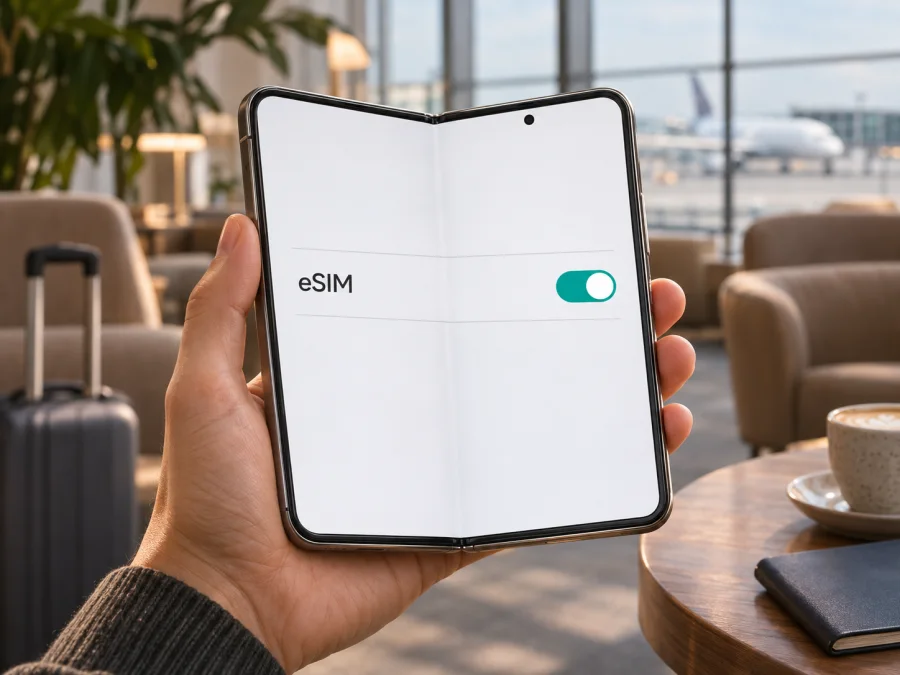
ZTE Nubia Flip eSIM: compatibility, setup and travel use
The short answer is: some versions of ZTE Nubia Flip support eSIM, but the name alone is not enough to confirm that your handset does. A Japanese carrier listing for the related market version called nubia Flip 5G explicitly marks dual SIM with eSIM support. The China-market nubia Flip product specification describes dual-SIM operation but does not list eSIM; its wording does not establish that an eSIM profile can be added. Since the task name does not include a market, carrier or model code, treat compatibility as unconfirmed until you check the phone in your hands.
That distinction matters if you want a travel data plan. A foldable design, 5G support or Android version does not prove that the phone has eSIM or is unlocked. Check the EID and SIM settings before buying a plan. If they fail, use a physical travel SIM or another compatible device.
ZTE Nubia Flip eSIM compatibility at a glance
| Check | What can be said | What it means for you |
|---|---|---|
| Exact device name supplied | ZTE Nubia Flip | The name is not specific enough to identify a regional SKU or carrier edition. |
| Japan-market listing | The carrier listing for nubia Flip 5G explicitly says dual SIM (eSIM compatible). | This is evidence that an eSIM-enabled market variant exists. It does not prove that every ZTE Nubia Flip has the same configuration. |
| China-market product page | The official nubia specification identifies dual-SIM functionality; it does not mention eSIM and describes a different market configuration. | Do not assume that this version can add an eSIM profile. Confirm by model code, EID and settings. |
| Carrier lock | Depends on where and how the handset was sold. | An eSIM menu can be present while another network is still blocked. Ask the seller or carrier to confirm the phone is unlocked. |
| Final compatibility decision | Must be made on the individual phone. | Check for an EID and an add-eSIM option, then confirm the exact device with the plan provider before checkout. |
Does the ZTE Nubia Flip support eSIM?
There is no safe universal yes or no for every phone sold under this name. The strongest public confirmation located is for a Japan-market nubia Flip 5G listed by a Japanese carrier with eSIM support. Separately, the official China-market product page calls its configuration dual SIM but does not identify eSIM. Those are not interchangeable regional descriptions, and one listing cannot be generalized to the other.
For a phone advertised simply as ZTE Nubia Flip, the practical answer is therefore possibly, depending on its specific market version; verify your unit before purchase. The exact model code, country of sale, carrier edition and installed software matter more than the family name printed in an online listing. If a seller claims that a unit supports eSIM, ask for the complete model number and a screenshot of the mobile-network settings, or check the handset yourself while you still have a return option.
Do not use 5G, Android, dual-SIM capability or the presence of a SIM tray as a shortcut for this check. A physical SIM slot and an embedded SIM are different functions. Likewise, a device can support two active lines using two physical cards in one market and a physical SIM plus eSIM in another. A feature may also be hidden or unavailable after a carrier customization or software change. When documentation and the phone disagree, rely on neither an assumption nor a generic specification table: ask the manufacturer, carrier or seller about the exact model code and software build.
Regional and carrier versions: what to compare
Regional versions can differ in SIM hardware, software and carrier configuration. The China-market specification lists dual-SIM operation without expressly confirming eSIM, while the Japanese carrier listing explicitly labels its market phone eSIM compatible. These published configurations do not prove that every handset in either region is identical.
Record the complete model or product code from Settings → About phone and compare it with the box label. Ask:
- Does this model code have an EID and support downloadable eSIM profiles?
- Is it unlocked, and does the seller mean eSIM rather than a second physical nano-SIM?
- Is eSIM available on its current software and in its original sales market?
For a remote order, get confirmation in writing. Do not rely on a marketplace title that omits the market and model code. If you own the phone, check it directly.
Check for an EID and an eSIM menu
An EID is an identifier associated with the phone’s embedded SIM capability. Its presence is a strong sign that the handset can host an eSIM profile. Its absence is a reason to pause and verify the exact version; menu labels can vary, so check more than one place and ask the manufacturer or carrier if the result is unclear.
Check the settings menu
- Connect to Wi-Fi and install any official system update you are comfortable applying. Restart the phone after the update.
- Open Settings and look under Mobile network, SIM cards, Network & Internet or a similarly named section. Wording may differ by software version.
- Look for Add eSIM, Download a SIM, Add mobile plan or an equivalent option. Open it only far enough to confirm that the phone offers an eSIM setup flow; you do not need to scan or install a plan to check availability.
- If you see only options for inserting or managing physical nano-SIM cards, do not treat that as eSIM support. Check the identifier as well.
Find the EID
Open Settings → About phone → Status or SIM status and look for EID. On some Android builds, the identifier appears under a SIM or device information screen. You can also try the standard device-information code *#06# in the phone dialler; supported phones may show the EID alongside the IMEI. If the code does nothing or shows only IMEI numbers, that alone is not a final diagnosis because dialler behavior varies.
Look for both an EID and an eSIM setup option. If only one appears, ask ZTE, the carrier or seller whether that exact handset can download a profile. Keep EID and IMEI details private; share them only through a support channel that needs them.
Compatibility checklist before buying a travel plan
- [ ] The phone’s full model code and country/carrier version are known.
- [ ] Settings show an EID and an option to add or download an eSIM profile.
- [ ] The phone is not locked to a carrier that blocks other profiles.
- [ ] The installed software is current enough to expose the feature.
- [ ] The exact device is accepted by the eSIM plan provider, not just by a generic Nubia-family list.
- [ ] The selected plan covers the country or region on your itinerary and its data allowance and validity suit the trip.
Check your device before you choose a plan. The compatibility check should be based on the exact device version, not on the fact that another phone with the same family name supports eSIM.
Install and activate an eSIM
Only continue if your own phone shows eSIM support and is unlocked for the profile you intend to use. Keep a reliable Wi-Fi connection available during setup. An eSIM QR code is generally intended for one installation; do not delete a profile or scan the code repeatedly if activation appears slow. Follow the instructions shown by the store or plan provider, because names and menu order can vary on Android.
Android setup on a compatible ZTE Nubia Flip
- Prepare the connection. Connect to Wi-Fi, charge the phone and open the order or profile that contains the eSIM installation details. Keep the QR code visible on another screen or printed where the phone can scan it.
- Open SIM settings. Go to Settings and open Mobile network or SIM cards. Choose Add eSIM, Download a SIM or the closest available option.
- Scan or enter the activation details. Choose the QR-code method and scan the code. If your provider supplied manual activation details and the phone offers that option, enter them exactly as supplied.
- Confirm installation. Follow the prompts to download the profile. Name it clearly, such as “Travel data”, so you can distinguish it from your home SIM. Do not remove the home SIM unless you want to.
- Choose the data line. In SIM settings, select the travel eSIM as the line for mobile data. Keep your normal line selected for calls or messages only if you want it active and understand your home operator’s roaming charges.
- Set roaming for the travel profile if required. Some travel eSIMs require data roaming to be enabled on that eSIM to connect to a partner network. This setting is separate from the home line; check which SIM is selected before switching it on.
- Wait for registration. When you reach the destination, enable the eSIM and mobile data. Allow several minutes for network registration. Use the provider’s stated APN only if the profile does not configure it automatically or the provider’s instructions request it.
For the general Android flow, see the Android eSIM installation instructions. The page notes that Android steps can vary by device and that its illustrated menu sequence is specific to Samsung, so ZTE menu labels may differ. If you are helping someone with an iPhone, the separate iOS eSIM installation instructions cover that operating system.
Choose when the eSIM should connect
You can install a travel profile before departure while you still have a stable connection. Installation and data use are separate steps on many plans, but the activation and validity rules depend on the specific package. Read the plan details before setting it up: some packages begin their validity when the profile is installed or activated, while others start when the phone connects in the covered destination. If the plan allows a delayed start, choose the timing that matches your arrival. Do not assume that every plan uses the same trigger.
Before boarding, label the lines, keep the travel eSIM installed, and leave its data line off if you do not want it to connect yet. On arrival, turn on the travel profile, select it for mobile data and enable roaming for that profile if required. To reduce the chance of home-network charges, review the home SIM’s data-roaming and automatic data-switching settings. The exact controls differ between software versions, so confirm the selected data SIM after every change.
Use the ZTE Nubia Flip for travel data
A data-only travel eSIM is useful for maps, bookings, messaging apps, email, ride-hailing and web access when you are away from home. It may also reduce dependence on public Wi-Fi. It does not automatically replace your main mobile subscription: a data plan normally does not provide a regular phone number, voice calls or SMS unless the plan terms explicitly say otherwise. Keep your usual number active for incoming verification messages only if your home operator’s roaming charges and settings are acceptable.
Think through your itinerary before choosing a package. For a weekend in one country, compare the data allowance and validity period with the apps you expect to use. For a multi-country route, check whether a regional plan includes every destination and whether travel between countries affects the plan’s validity. If you work remotely, use video calls or upload large files, estimate a larger allowance and check whether tethering is supported by both the phone and plan. A data estimate is only a planning aid; background updates, maps and media can consume more than expected.
Kaspersky eSIM Store is an app and website where you can choose, arrange and activate an eSIM with a mobile-data plan for an international trip. The plan’s coverage, network access, price, validity, data allowance and any restrictions are defined by the selected plan and its provider. Review those terms before purchase and confirm that your own ZTE Nubia Flip version can install the profile. You can browse current travel plan options after checking your phone’s compatibility; the homepage is a general store page, not a country-specific tariff.
Practical travel scenarios
One destination. For maps, messaging and occasional searches, compare a modest data allowance with the stay length. Download offline maps over Wi-Fi and disable automatic app updates over mobile data.
Several countries. Check each destination against the package coverage list; a regional plan may have exclusions. Confirm the travel eSIM remains selected for mobile data after each border crossing.
Keeping a home number or using a hotspot. Set the travel eSIM for data and review the home line’s roaming terms. If you plan to tether a laptop or tablet, first confirm that both the phone and selected plan allow it; background sync can use data quickly.
Troubleshooting: no service or no data
Work through these checks in order. Avoid deleting the eSIM profile as a first response; some activation codes cannot be reused after installation.
- Confirm the selected line. In SIM settings, make sure the travel eSIM is enabled and selected for mobile data. Check that the home SIM is not still selected for data.
- Check the location and plan. Confirm that you are in a country or region included in the package, that the plan is active, and that it has remaining data and validity.
- Refresh the connection. Turn airplane mode on for about 20 seconds, turn it off, then wait for the phone to register. If necessary, restart the phone once.
- Review roaming for the correct SIM. If the package instructions require roaming, enable it for the travel eSIM only. Check the selected data line again so you do not unintentionally use the home SIM’s data.
- Check network selection. Leave network selection on automatic first. If the provider has named a supported network and automatic selection fails, follow its guidance before choosing a network manually.
- Check APN details. Most profiles configure APN settings automatically. If the provider’s instructions give an APN, compare it character by character and save/select it as directed. Do not copy an APN from an unrelated phone or country.
- Check software and profile status. Confirm the profile is present and enabled. If the EID or eSIM menu disappeared after a software change, record the model code and software build and ask the carrier or manufacturer before resetting the phone.
- Contact support with useful details. Provide the model code, country, approximate time, profile status, selected data line and any error text. Do not send a full IMEI or EID in a public message.
If the phone cannot add any eSIM profile, return to the compatibility question rather than repeatedly attempting activation. An eSIM plan cannot add eSIM hardware or unlock a carrier-restricted phone. If the phone passes the EID and menu checks but a particular profile fails, ask the plan provider whether the activation code remains available and what network or APN settings apply.
Frequently asked questions
Is every ZTE Nubia Flip eSIM compatible?
No. The evidence supports eSIM on a Japan-market carrier-listed nubia Flip 5G, while the China-market specification does not list eSIM. Check the EID, add-eSIM menu and exact model code on your own phone.
Does 5G mean that eSIM works?
No. 5G describes network capability, not whether the phone has eSIM hardware or whether its regional software exposes eSIM setup. Verify the embedded SIM separately.
Will an EID guarantee that a travel profile works?
No. An EID indicates eSIM capability, but the phone may still be carrier-locked, the plan may not cover the destination, or the software may reject a particular profile. Check all of those conditions before purchase.
Does the travel eSIM replace my phone number?
Usually not. Travel data plans are generally for mobile internet and do not provide regular voice calls, SMS or a phone number unless the specific plan says otherwise. Messaging and internet calls can work through apps over the data connection.
Should I install the eSIM before leaving?
Often this is convenient because installation needs a stable internet connection, but follow the plan’s activation rules. Check whether validity starts at installation, activation or first connection in the destination, and schedule it accordingly.
What if there is no EID or “Add eSIM” option?
Treat compatibility as unconfirmed. Check the model code and software, then ask the seller, carrier or manufacturer. If eSIM is unavailable, use a physical SIM or another compatible device.
Final check before your trip
For ZTE Nubia Flip, eSIM support is version-specific rather than guaranteed by the family name. A Japanese carrier’s nubia Flip 5G listing confirms an eSIM-capable configuration; the China-market specification does not identify eSIM. Verify your own model code, EID, add-eSIM setting and carrier-unlocked status before ordering anything. Then make sure the travel plan covers every destination and that its data, validity and activation rules suit your itinerary.
Once those checks pass, install the profile over a reliable connection, choose it for mobile data when appropriate, and enable roaming for that eSIM only if the plan requires it. If compatibility is absent, use a physical SIM or another device instead. When you are ready, review the available travel eSIM options and compare the current plan terms for your route.


